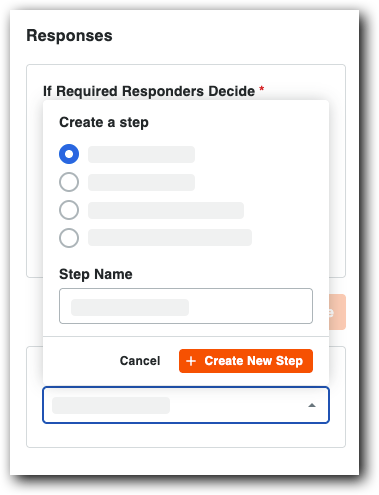
Add a Response Step
Master the 'Response Step' for precise control over your project workflows. Configure essential general information, define how decisions are made using options like 'First Responder Decides' or 'Multiple Responders Decide,
Steps
Add a Response Step
Navigate to the Workflow Builder.
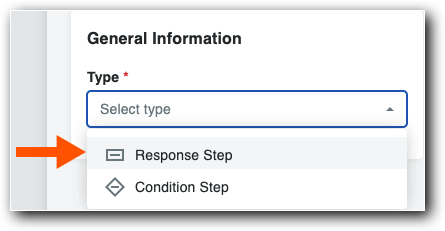
Use these steps when configuring a workflow step in a new or existing workflow.Under General Information in the Type list, choose: Response Step

Add General Information
Name your workflow in Step Name.
Select Response Step in the Type list.
From the Status list, choose one option: Draft, Under Review, Pending Owner Approval, or Revise and Resubmit.
Under Days to Complete, enter the number of days to complete the item and choose Calendar Days or Business Days from the list. This defines how many days the 'Responsible Group' has to complete the workflow step. After the specified period, Procore sends daily reminder emails until the step is completed.
Under Notification Recipients, choose Workflow Manager, Item Creator, and Distribution Group. This defines who receives a notification email when items move to this step in the workflow.
Choose a Decision Type & Manage Assignees
Choose one (1) decision type for each response step you create.
First Responder Decides
While this step can have multiple assignees, only a single response is needed to advance the workflow to the next step.
你想要两(2)名员工来审核工作流步骤;或者第一个提交答复的员工将决定该步骤的结果。例如,将步骤分配给项目经理或助理项目经理,一(1)个答复会将工作流推进到下一步。
Click here to view the steps.
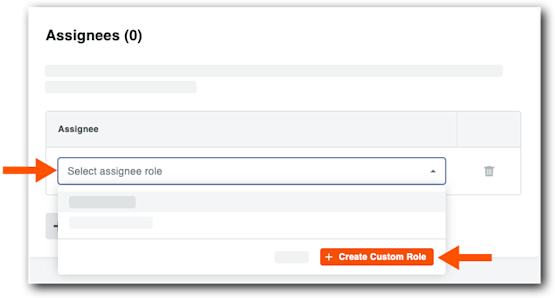
在 "任务分配对象 "卡中,从 决策类型 列表中选择 第一响应者决定 。
点击管理任务分配对象。
这将打开任务分配对象面板。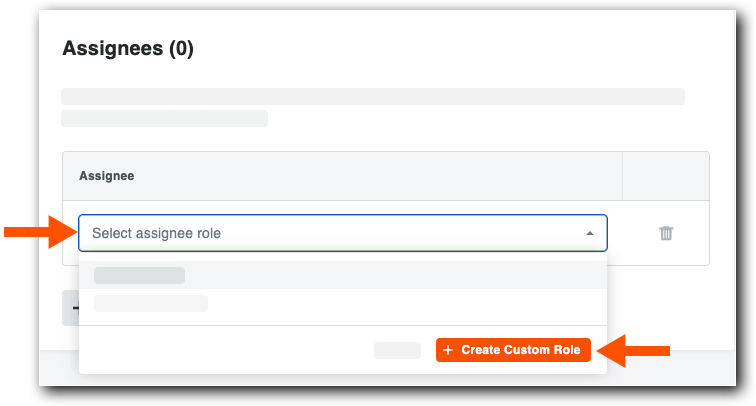
#3(3)}#(4)}在任务分配对象下,选择一(1)个选项:
从选择任务分配对象角色列表中选择一个现有角色。
点击创建自定义角色,输入自定义角色标签,然后点击保存角色。例如,输入项目经理、助理项目经理或其他角色。在项目级别配置中将用户分配给角色。
在"任务分配对象"面板中,点击保存。
Multiple Responders Decide
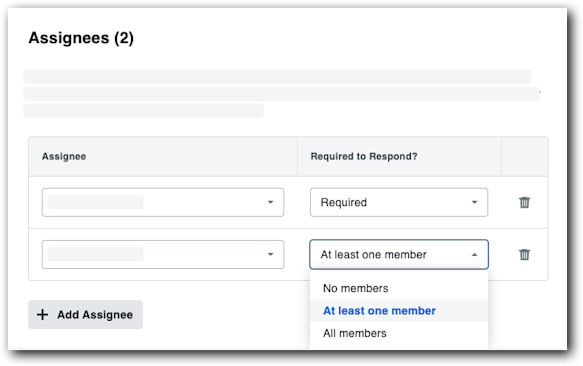
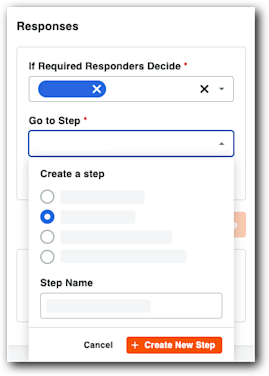
While this step can have multiple assignees, various responses are possible. You can configure which combination of responses advances the workflow to the next step.
你想要两(2)名员工来审核工作流步骤;或者两名员工都必须提交答复以确定该步骤的结果。例如,你将步骤分配给项目经理和助理项目经理,两(2)个答复会将工作流推进到下一步。