About the Beneficiaries Tab
Invite Company Button
At the top of the Beneficiaries tab is the Invite Company button. Payments Admins and Payments Beneficiary Approvers can click this button to invite one (1) or more subcontracting company contacts to join Procore Pay. This opens the 'Invite to Procore Pay' panel, which reveals the 'Invite Company Contact' card.
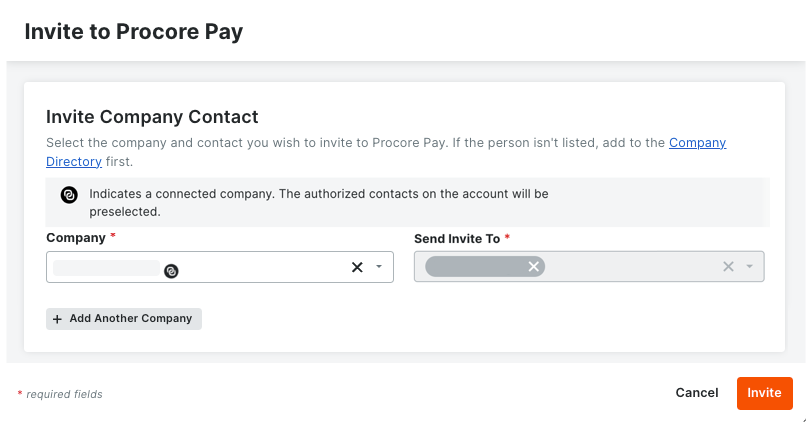
Invite Company Contact Card
This table details the elements in the 'Invite Company Contact' card.
Element | Type | Description | Learn More |
|---|---|---|---|
| Banner | If the
icon and GRAY banner appears above the Company drop-down list, the company is already connected to Procore Pay. The system preselects the connected company's authorized contact for your invite. | |
Company | Drop-down list | Select a subcontracting company from the drop-down list. This list populates with company names in the Company Directory. Note: If the
icon and GRAY banner appears, the system preselects the connected company's authorized contact for your invite. | |
Send Invite To | Drop-down list | Select the contact from the drop-down list. This list populates with employee names from the subcontracting company's record in the Company Directory. Note: If the
icon and GRAY banner appears, the system preselects the connected company's authorized contact for your invite. | |
Add Another Company | Button | Click this button to send another invite to another subcontracting company and contact. | - |
| Icon | Click this icon to remove the subcontracting company and contact from the invite list. | - |
Invite | Field | Click this button to send the invite(s). |


Beneficiaries Table
The table in the Beneficiaries tab lets Payments Admins and Payments Beneficiary Approvers manage your payee's beneficiary accounts.
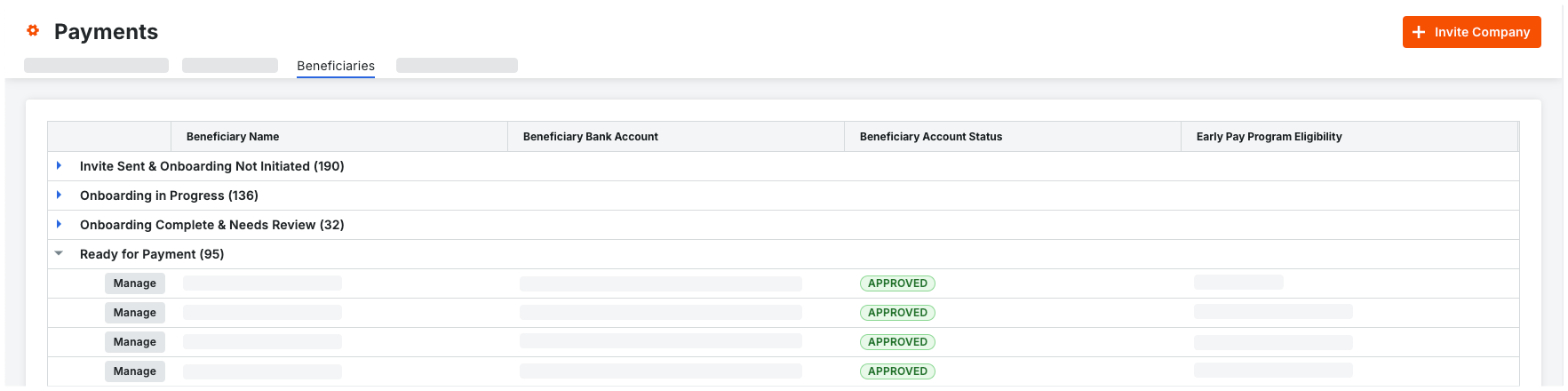
Table Elements
This table details the default columns.
Column | Type | Description | Learn More |
|---|---|---|---|
Beneficiary Name | Hyperlink | Shows the name of the payee. Click this link to open the beneficiary details page. This corresponds to the 'Contract Company' on the invoice's commitment contract. To change the company name, edit the Name field under the company's account profile in the Company level Directory tool. | |
Onboarding Status | Field | Shows the Payee's onboarding status to Procore Pay. | |
Date Last Invited | Field | Shows the date the beneficiary was last invited. | -- |
Invited Users | Hyperlink | Click this link to display a list of users who received the invite(s). | -- |
Unpaid Invoices | Hyperlink | Click this link to display a list of invoices for the company that need to be paid. | -- |
Active Commitments | Hyperlink | Click this link to display a list of commitments for the company that are currently active. | -- |
Resend | Button | Click the vertical ellipsis ⋮ icon and select Resend to resend an invite to join Procore Pay to the invoice contact of the subcontracting company. This button is available for each 'Beneficiary Name' in the 'Invite Sent & Onboarding Not Initiated' status group. | -- |
Remind | Button | Click the vertical ellipsis ⋮ icon and select Remind to send an email reminder to the invoice contact for the subcontracting company to add their bank account information to Procore Pay. This button is available for each 'Beneficiary Name' in the 'Onboarding in Progress' status group. | -- |
View Directory Record | Button | Click the vertical ellipsis ⋮ icon and select View Directory Record to view the Directory record associated with the Company of the Beneficiary listed. | -- |
Table Groups
This table details the groups on the Beneficiaries tab. It also shows the beneficiary account status associated with each group. To learn more, see What are the default statuses for Procore Pay onboarding?
Status | Description | Next Step |
|---|---|---|
Needs Review | Indicates the payee has completed the required Procore Pay onboarding steps. The beneficiary account is awaiting the payor’s review and approval. | |
Invite Not Accepted | Indicates the payor has sent an invite. Procore Pay is waiting for the payee to start the onboarding process. | The payor can re-invite the user to join Procore Pay. See Invite Beneficiaries to Procore Pay. If you are a payee, see Accept a Procore Pay Invitation as a Payee. |
Invite Expired | The Payee had not responded to the invitation and it has expired. | The Payee need to be invited again to complete onboarding. |
No Bank Information | Indicates the subcontractor has connected to the General Contractor (GC) but has not yet entered their bank account information. | The payor can send a reminder to add a bank account. |
Awaiting Bank Info | Indicates the subcontractor has entered their bank information, but additional information has been requested for screening purposes. | The payee must provide the requested details to proceed. See Add a Bank Account as a Payee. |
Banking Info Under Review | Indicates the Payee has submitted the required additional information, which is now under review by the Procore Payment Operations team. | Awaiting review and approval from Payment Operations. |
Approved | Indicates the payor has approved the beneficiary account. The payee is ready to accept invoice payments from the payor with Procore Pay. | If the payee has submitted invoices that are ready to pay, the payor can Create Disbursements. |