Anordnen der Budgetschlüssel-Struktur des Projekts
Background
Your company's Procore Administrator can enable a setting that allows users with the required user permissions to arrange the segments in a project's budget code structure in any order you want. Because editing a project's budget code structure permanently disconnects it from the company's budget code structure, you should only use this setting when a project requires a unique budget code structure.
Things to Consider
Required User Permissions:
One of the following:
'Admin' level permissions on the Project level Admin tool.
'Read Only' or 'Standard' level permissions on the Project level Admin tool with the 'Manage WBS Codes' granular permission enabled on your permissions template.
Limitations:
For customers using the Company level ERP Integrations tool
The default segments in WBS are compatible with Procore's ERP Integrations tool. However, some integrations do NOT yet support custom segments.For customers who have independently developed or purchased a third-party solution to integrate with Procore
To take advantage of the custom segment capabilities associated with WBS, any existing API integrations that you have independently developed or purchased to interact with Procore must be updated to support Procore's new WBS API.
Prerequisites
Steps
Navigate to the Project level Admin tool.
In the right pane, click the Work Breakdown Structure link.
In the 'Budget Code Structure' section, click the Edit button.
At the 'Edit Budget Code Structure' window, read the message.
Important
If you choose to edit a project's budget code structure, be aware that the edit action permanently disconnects the project from the company's budget code structure. Any changes that you make to the project will only apply to that project. In addition, all changes made to the company's budget code structure will have NO effect on the project's budget code structure in the future.
If you want to proceed, click Edit.
In the 'Segment Order' table, click and hold the double grip and then use a drag-and-drop operation to place each segment in the desired position. The 'Order' area reflects the segment order you define for your project's budget code structure.
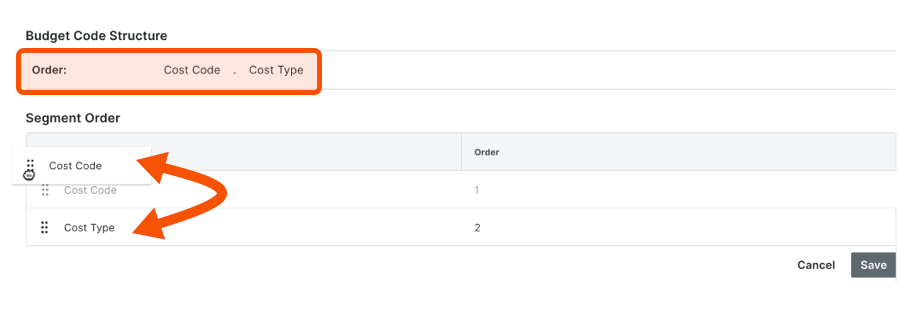
Click Save.
Trinkgeld
Wussten Sie, dass Sie die Beschreibungen der Budgetschlüssel für Ihr Projekt anpassen können? Die Anpassung ist nützlich, wenn Ihr Team zwei oder mehr Beschreibungen für einen einzigen Budgetschlüssel erstellen möchte. Die Anpassung kann auch die Lesbarkeit Ihrer Codes auf den Finanzpositionen für Ihre Endbenutzer verbessern. Weitere Informationen finden Sie unter Warum und wie erstelle ich eine benutzerdefinierte Budgetschlüssel-Beschreibung für die Projekt-Finanzwerte-Tools von Procore?