Accept or Reject a Company for Export to ERP

ERP DOCUMENTATION

Each Procore-built ERP integration offers its own unique feature set. Your integration might not support the action described on this page.

To learn about your integration and its supported features, see Which ERP integrations are supported by Procore?

Background

After sending a company record to your ERP Integrations tool, a designated accounting approver has the option to accept or reject it for export to your ERP system.

Things to Consider

  • Required User Permissions:

    • 'Standard' or 'Admin' on the company's ERP Integrations tool.
      AND

    • The person's account must be granted the 'Can Push to Accounting' privilege in the Company Directory. See Grant Accounting Approver Privileges.

Steps

  1. Navigate to the company's ERP Integrations tool.

  2. Click Companies.

  3. Under Filters, click Ready to Export.
    Notes:

    • This page only lists active company records. Inactive companies cannot be exported to an integrated ERP system.

    • If a company record is not listed here, check to see if it is inactive. See Deactivate a Company in the Company Directory.

  4. Review the companies in the list. Then do the following:

    • Accept the Company

    • Reject the Company

Accept the Company

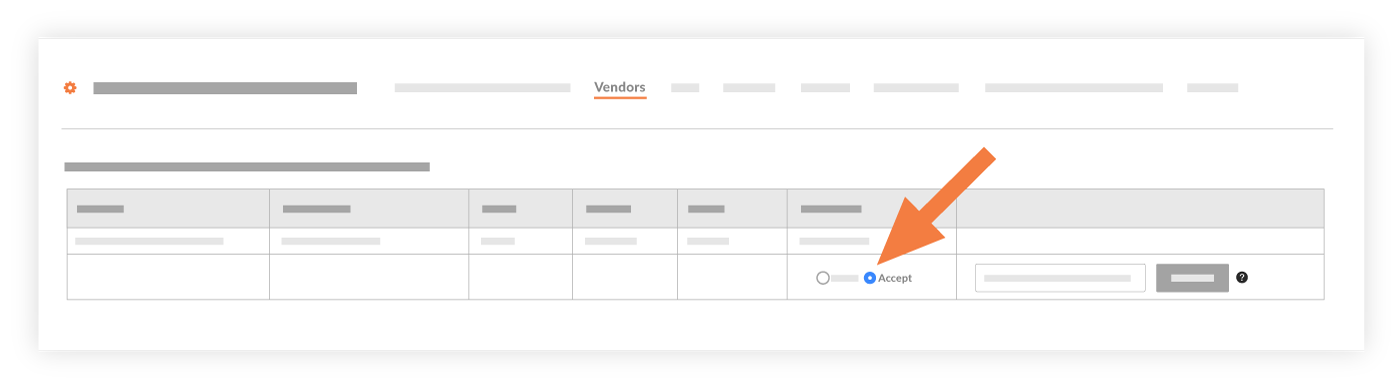
  1. Locate the company record to export in the 'Companies Only in Procore' list. To view the company record, click the company name hyperlink.

     Notizen
    • Wenn der Unternehmensdatensatz, den Sie exportieren möchten, nicht aufgeführt ist, überprüfen Sie, ob der Datensatz in Procore als inaktiv gekennzeichnet wurde.

    • Auf dieser Seite werden nur aktive Unternehmensdatensätze in Procore aufgelistet.

    • Unternehmensdatensätze, die als inaktiv gekennzeichnet sind, können nicht in exportiert werden. Siehe Unternehmen im Projektadressbuch deaktivieren.

  2. Choose Accept.
    Accept Company Export To Integration

  3. In the Company Type drop-down list, select the company type. For example, if the record is for a subcontractor, select sub.

  4. Select the company type from the Company Type drop-down list.

  5. Enter the Company ID from your ERP.

     Notizen
    • Sie müssen in dieses Feld eine eindeutige ERP-Unternehmens-ID eingeben.

    • In Ihrem ERP-System wird einem neuen Datensatz eine eindeutige Unternehmensnummer zugewiesen, indem das von Ihrem Unternehmen eingerichtete Nummerierungssystem verwendet wird. Einige Unternehmen geben die nächste verfügbare Nummer in einer Reihenfolge ein, während andere ein alphabetisches Zeichen verwenden, um den Kundennamen darzustellen (z. B. All Star Concrete = ASC).

    • Wenn Ihr ERP-Unternehmens-ID-Eintrag in Procore bereits einem Datensatz in Ihrem ERP-System zugewiesen wurde, exportiert die Integration den Datensatz NICHT.

  6. Click Export.
    This exports the company record to the integrated ERP system. A message appears to show you the export status, which can take a few minutes.

     Tipps
    • Um zu bestätigen, dass der Export erfolgreich war, melden Sie sich bei Ihrem ERP-System an und überprüfen Sie, ob der Datensatz wie erwartet angezeigt wird.

    • Wenn der Datensatzexport fehlschlägt, klicken Sie auf Export fehlgeschlagen , um die fehlgeschlagenen Elemente in einer Liste anzuzeigen. Führen Sie dann die folgenden Schritte aus, um das Unternehmen abzulehnen.

Reject the Company

  1. Locate the desired company in the 'Companies Only in Procore' list.

  2. Choose Reject.
    Reject Company Export To Integration

  3. Provide a reason for the rejection in the Enter a Comment box.

  4. Click Reject.
    This rejects the company record. It is not imported into the integrated ERP system. The system returns the record to an editable state in both the Company and Project Directory tools.

See Also

Loading related articles...