Compile Subcontractor Invoice Backups with the Invoicing Tool

Using Owner or Specialty Contractor Terminology?

Procore can be configured to use terminology specific to General Contractors, Owners, or Specialty Contractors. Learn how to apply the dictionary options.
  • To learn the differences: Show/Hide

    • This table shows the differences in tool names (bold) and terms across the point-of-view dictionaries for Project Financials.

      Generalunternehmer
      Englisch (Vereinigte Staaten) - Standard

      Besitzer
      Englisch (Terminologie für Eigentümer v2)

      Fachunternehmer
      Englisch (Terminologie für Fachunternehmer)

      Fakturierung

      Fakturierung

      Teilabrechnungen

      Eigentümer

      Finanzierung

      Eigentümer

      Auftraggeber/Kunde

      Auftraggeber/Kunde

      GC/Kunde

      Nachtrag zum Debitorenvertrag

      Nachtrag zur Finanzierung

      Nachtrag zum Debitorenvertrag

      Debitorenverträge

      Finanzierung

      Kundenverträge

      Einnahme

      Finanzierung

      Einnahme

      Untervertrag

      Vertrag

      Untervertrag

      Subunternehmer

      Unternehmer

      Subunternehmer

      Leistungsverzeichnis für Subunternehmer (Sub-LV)

      Leistungsverzeichnis für Auftragnehmer (CSOV)

      Leistungsverzeichnis für Subunternehmer (Sub-LV)

      About These Dictionaries
      • Default Setting: The 'General Contractor' dictionary is enabled by default for all accounts.

      • Availability: These alternate dictionaries in italics are available in US English only.

      How to Switch Your Dictionary

      To change your company's terminology to the Owner or Specialty Contractor dictionary, contact your company's . They will work with your Procore Point of Contact to make the change.

Background

An invoice backup generates a PDF copy of a contract's subcontractor invoices and includes them in the backup file as PDF attachments. Users can compile backups in bulk, saving time and eliminating the need to export multiple invoices and manually combine files. Backups can only be compiled from the Subcontractor tab of the Invoicing tool.

Things to Consider

  • Required User Permissions

    • With the Procore + DocuSign© integration, Procore includes the signed DocuSign© invoice once the signature workflow is complete.

Prerequisites

Steps

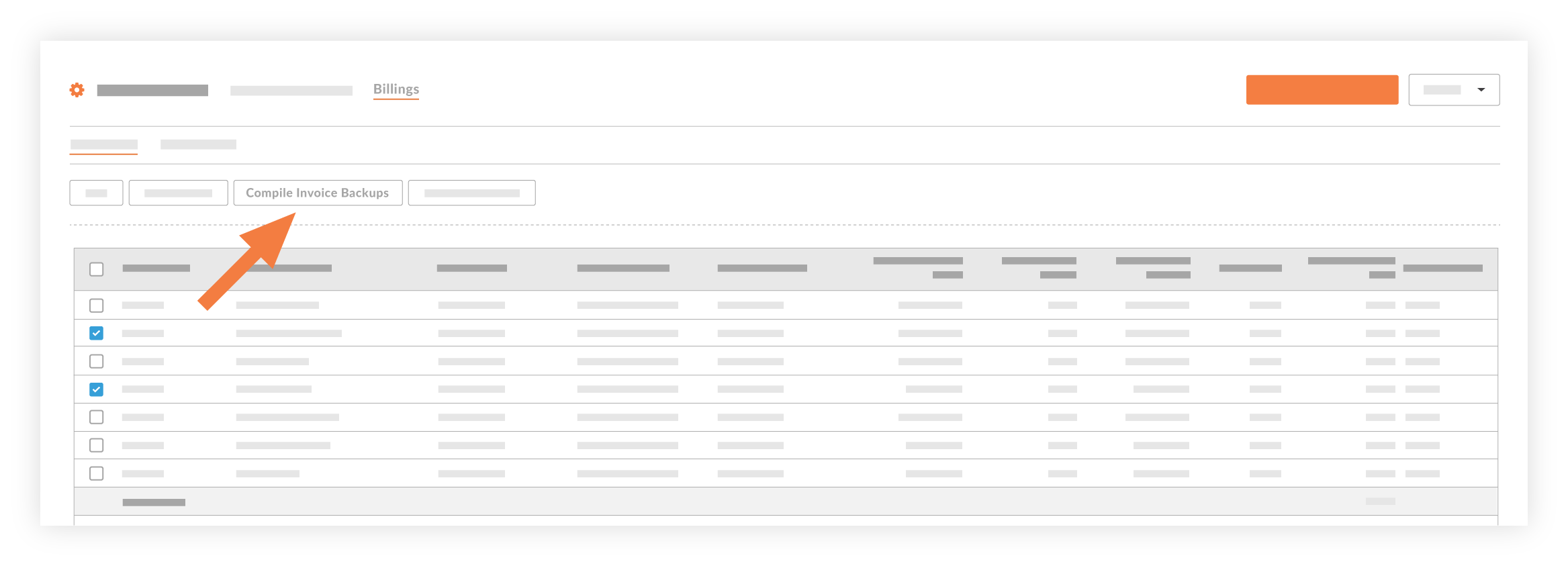
  1. Navigate to the project's Invoicing tool.

  2. Click the Subcontractor tab.

  3. Mark the checkboxes for the contracts for which you want to compile invoice backup.

     Note

    For a successful compile, place all of the contract's previously invoiced billing periods into the Closed status. See Edit Billing Periods. Never delete billing period if its linked to an invoice.

  4. Click Compile Invoice Backups.
    compile-invoice-backups.png

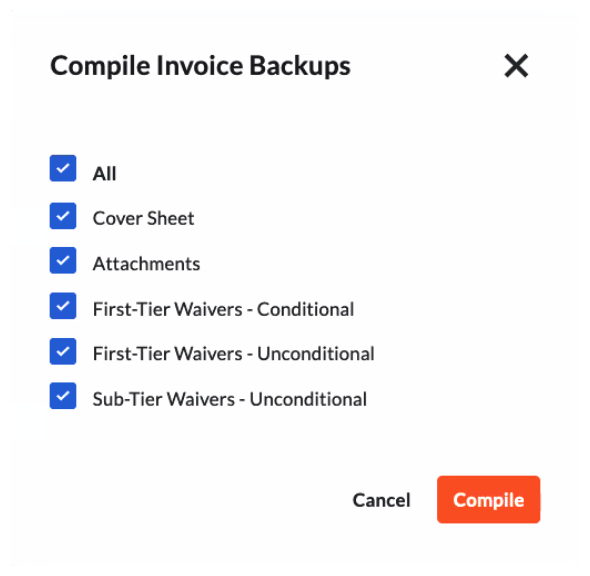
For payors using Procore Pay, click here for additional steps.

In the Compile window that appears for Procore Pay, mark a check box to include the item. Remove a mark to exclude it.

  1. Click Compile.

Example

This is an example of the email with the downloadable file link. For ease of identification, Proocore names the file: Subcontractor invoice backup - [project name] - [project number] - [date] - [time].pdf

sub-invoice-backup-notification.png

When compiling the PDF to include in a backup, Procore organizes invoices by 'Contract #' in ascending order, and applies the 'Invoice Position' number as the secondary sort order. This ensures invoices are clearly presented in logical order in the backup file.

See Also

Loading related articles...