Beta Participant Guide
Procore Model Manager - Beta Access & Feedback
The Model Manager (Beta) tool is exclusively available to registered beta participants. It is not available through Procore Explore. To learn more, see Beta Participant Guide.
The Model Manager (Beta) tool is exclusively available to registered beta participants. It is not available through Procore Explore. To learn more, see Beta Participant Guide.
Welcome to the Beta Program. This guide introduces the Model Manager (Beta) tool, the central hub for your Building Information Modeling (BIM) workflow. Admins can use Model Manager (Beta) to federate 3D models, map 2D drawings for navigation and overlay, and curate saved views. Model data and saved views to simplify the accessibility and usefulness of the model for the larger project team.
Model Manager (Beta) access is restricted to registered Beta Participants.
Document Repository: Participating companies must select either the Document Management or Documents tool as their Procore project's repository for model files.
Additional Information:
Google Chrome and Microsoft Edge (Latest Version) are supported during the Beta.
Activate the Model Manager (Beta) tool on your company's approved Procore project(s). See Enable Model Manager on a Procore Project.
If the tool does not appear in your Project menu, see Why is the Model Manager tool not appearing in my Project Tools?
The Model Manager (Beta) tool is located in Procore's project-level tool menu. The Admin view of the Dashboard is the main view and serves as the primary hub for 3D coordination.
To navigate to the project's Model Manager (Beta) tool Show / Hide Steps
Log into the Procore web application.
Open a Procore project.
In the All Tools menu, start typing: Model Manager
Don't see the Model Manager (Beta) in the Project Tools menu? See Why is the Model Manager tool not appearing in my Project Tools?
Click the menu option in the All Tools list. 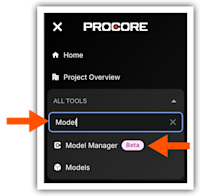
This launches the Model Manager (Beta) tool and takes you to its dashboard.
Key features include:
Conditioning: Federate and condition multidimensional project data in the Model Manager to configure optimized, field-ready views and streamline data retrieval.
Coordinating: Centralize issue tracking and shorten coordination cycles by placing persistent 3D pins directly on the model to resolve conflicts with shared locational context.
Connecting: Establish a continuous flow of data by linking 3D model objects directly to Procore execution tools, ensuring field decisions are grounded in a single, visual source of truth
Please do not share these links outside of the Beta program, as access is restricted to registered participants.