View Coordination Issues

The Coordination Issues tool lets you view and manage design and construction issues in one central location. Accessing an issue's details helps project teams quickly identify critical context—such as model snapshots, location data, and assignment tracking—to ensure swift resolution and keep your project on schedule.

Things to Consider

Prerequisites

Tip

Did you know you can create, edit, and view coordination issues from a variety of different Procore tools and products? To learn more, see What are the different tools I can use to create a coordination issue?
Steps

  1. Navigate to the project's Coordination Issues tool.

  2. In the All Issues tab, find the issue you want to view.

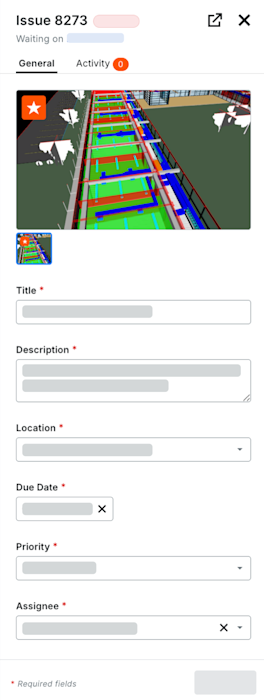
  3. Click the Issue # link to open its details in the side panel. The side panel has two (2) tabs: General and Activity. This image shows a coordination open in the side panel of the Coordination Issues tool.

  4. View this information in the General tab:

    Show/Hide Fields

    This table summarizes all of the data entry fields for a coordination issue.

    Field Name

    Description

    Required?

    Notes

    Snapshot

    Title

    Enter a concise, descriptive name for the issue to help collaborators identify it.

    Yes

    Description

    Provide a detailed summary of the issue. This text is also saved as a viewpoint comment in the final NWD file.

    No

    When creating an issue from Clash Manager, you can also select Append Clash Comments or Append Redline Text.

    Location

    Select the primary project location where the issue occurs.

    No

    Due Date

    Set the target deadline for issue resolution.

    No

    Priority

    Select the level of urgency: Low, Medium, High, or Critical.

    No

    Assignee

    Select the person responsible for resolving the issue.

    No

    This list only includes users with 'Standard' or 'Admin' level permissions for the Coordination Issues tool.

    Watchers

    Select team members to receive email updates.

    No

    Watchers must have at least 'Read Only' permissions for the Coordination Issues tool.

    Trade

    Identify the discipline involved (e.g., Mechanical, Electrical).

    No

    Type

    Categorize the issue for reporting and tracking.

    No

    Options include: Building Code, Clash, Client Feedback, Constructability, Coordination, Design Review, Existing Condition, Requirement Change or Other.

    Source File

    Displays the name of the source file.

    No

    Automatically generated if the source file name exists.

    Created From

    Displays the name of the originating source tool.

    No

    Automatically generated.

    Date Created

    Displays the creation date and the creator's name.

    No

    Automatically generated.

    Attachments

    Upload up to 20 relevant images, PDFs, or documents to provide additional context.

    No

    Maximum of 20 files.

    Custom Fields

    Displays any company-specific fields configured for the Coordination Issues tool

    Varies

  5. Optional: To view the issue in full-screen mode, click Open Full Screen.

See Also

Loading related articles...