Configure the ERP Budget Export Settings for Sage 300 CRE®
Background
For companies using the ERP Integrations tool to sync data between Procore and Sage 300 CRE®, you can specify several configuration settings for the export process using the controls in a project's Budget tool on the ERP Settings page.
Things to Consider
Required User Permissions:
'Admin' level permissions on the project's Budget tool.
Prerequisites
Enable the ERP Integrations tool on the company's Procore account.
Integrate your company's Procore account with Sage 300 CRE®.
Add the Sage 300 CRE® Job to your company's ERP Integrations tool.
Ensure the project's cost codes are updated with the synced job in Sage 300 CRE®.
Ensure the Budget tool has been added to Procore's Project Tools menu.
Steps
Navigate to the project's Budget tool.
Click the Configure Settings
 icon.
icon.Click ERP Settings.
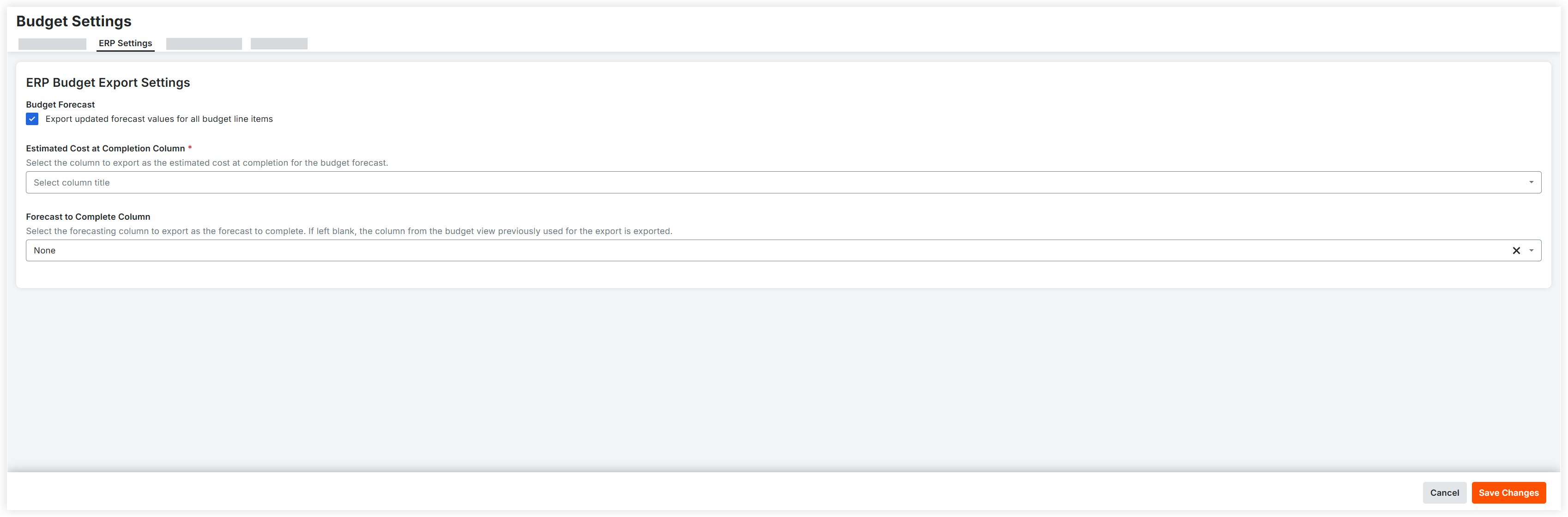
Under ERP Budget Export Settings, configure your export preferences as follows:
Export updated forecast values for all budget line items. Mark this checkbox to export any updated forecast values for all of the budget line items on the project. Clear this checkbox to omit forecast values from the export process.
Estimated Cost at Completion Column. Select one of your company’s budget columns from the drop-down list.
NoteValues in this column are exported to Sage 300 CRE® as the estimated cost at completion whenever a budget is exported from Procore.
You can select any standard or custom column, except those with the “Forecast to Complete Column” type.
(Optional) Forecast to Complete Column. Select one of your company’s forecast to complete columns from the drop-down list. If set to None, then nothing is shared.
Values in this column are exported to Sage 300 CRE® as the forecast to complete whenever a budget is exported from Procore.
Only standard or custom columns configured with the “Forecast to Complete Column” type are available for selection.