Configure Displayed Information
Steps
Adjust List and Timeline Ratio
Group by Project or Resource
Configure Displayed Information
Expand and Collapse Projects, Categories, and Subcategories
Zoom In and Out
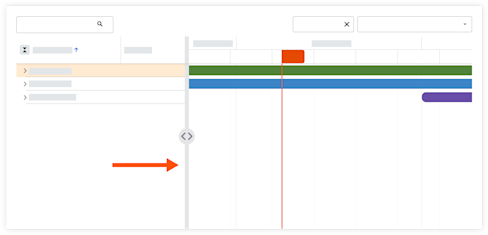
Adjust List and Timeline Ratio
Navigate to the Company level Resource Planning tool.
Click Assignments and select Gantt (Beta).
Hover over the divider that separates the grid and the graph.
Click the divider and move it to the desired location using a drag-and-drop operation.
Group by Project or Resource
Navigate to the Company level Resource Planning tool.
Click Assignments and select Gantt (Beta).
Select to see information grouped by Resources or Projects.=

Configure Displayed Information
Navigate to the Company level Resource Planning tool.
Click Assignments and select Gantt (Beta).
Click the table settings
 icon.
icon.Move the toggle to the ON
 position or OFF
  position to show or hide details in the Gantt bars for the following:
Project Information
Allocation Information
Time Off Information
Hide Weekends
Click and move the slider using a drag-and-drop operation to adjust the size for the following settings:
Row height in the Gantt
Task Border Radius
Expand and Collapse Projects, Categories, and Subcategories
Navigate to the Company level Resource Planning tool.
Click Assignments and select Gantt (Beta).
Next to the project, category, or subcategory, take one of the following actions:
Click the expand
 icon to expand the information
Click the collapse icon to collapse the information
To expand and collapse all projects, click the expand  or collapse
  icon next to 'Project Name'.
Zoom In and Out
Navigate to the Company level Resource Planning tool.
Click Assignments and select Gantt (Beta).
Click the zoom in
 icon or zoom out
  icon to view the Gantt from a single day, up to many years.