Change the Project Address

New Version Available

The Project Overview has replaced the legacy Project Home page and is enabled by default. Learn more about the difference between the legacy Project Home page and the new Project Overview.

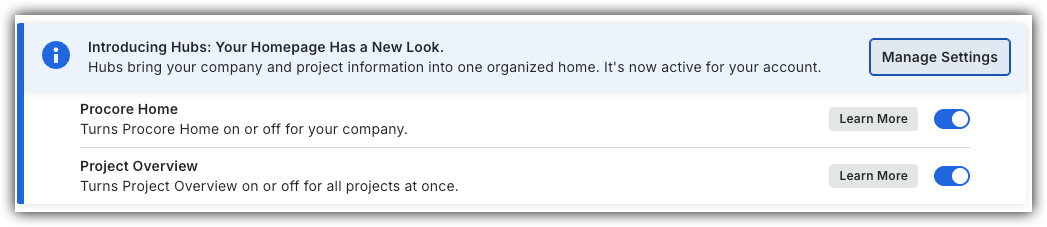
To return to the legacy Project Home, Company Administrators can navigate to the Company Portfolio / Procore Home tool, click Manage Settings and toggle Project Overview Icon Toggle OffOFF.

Procore Hubs announcement banner with Manage Settings button and toggles for Procore Home and Project Overview features.


However, later this year it will be sunset and will no longer be available. If your company reverted to the legacy Project Home experience, Company Administrators can re-enable the Project Overview experience in Procore Explore. (US 2 | UK)

Background

In a Procore project, the project's address in the top-right corner of the Home page. This address is initially added and can be updated in the Project level Admin tool.
Things to Consider

  • Required User Permissions:

Steps

  1. Navigate to the Project Overview.

    • Navigate to the project's Home to be redirected to the Project Overview.

    • Click Menu and select Project Overview.

  2. In the 'Project Information' section, click the vertical ellipsis Icon Vertical Ellipsis and select Edit Project.

  3. Update project details.

    Show/Hide Fields

    • Project Name. The project's name.

    • Project Number. The project's number.

    • Project Stage. The project's stage of construction.

    • Project Type. The kind of construction project such as commercial, residential, or infrastructure.

    • Region. The project's region

    • Square Feet. The square footage of the project.

  4. Click Update.

  5. Optional: To make changes to additional project information, click the vertical ellipsis Icon Vertical Ellipsis and select click Go To Project Admin.

Project Home (Legacy)
  1. Navigate to the project's Admin tool.

  2. In the Address box, type over the existing entry.

  3. Scroll to the bottom of the page.

  4. Click Update.

See Also

Loading related articles...