Search the Company Portfolio for Projects

Things to Consider

  • Required User Permissions

  • Additional Information:

    • Supported Views:

      • Projects

      • Executive Dashboard

      • Financial Views: Budget Variance, Contract Variance, Contract Summary, and Commitment Summary.

    • The icons next to a project name indicate its status or type:

      • Project Template: The project is used as a template.

      • Test Project: The project is used for testing.

      • Inactive Project: The project is currently inactive.

      • ERP Integrated: The project integrates with your accounting system.

      • Connected Project: The project connects to another project via Connection Manager.

Steps

  1. Navigate to the project's Portfolio tool.

  2. Click one of the supported views (e.g., Projects, Executive Dashboard, Financial Views).

  3. Enter a keyword or phrase in the Search box.

  4. Click Search to search the following fields:

    • Address

    • City

    • Phone

    • Project Name. Project name.

    • Project Number. This corresponds to the job number.

    • State

    • ZIP Code

Beta

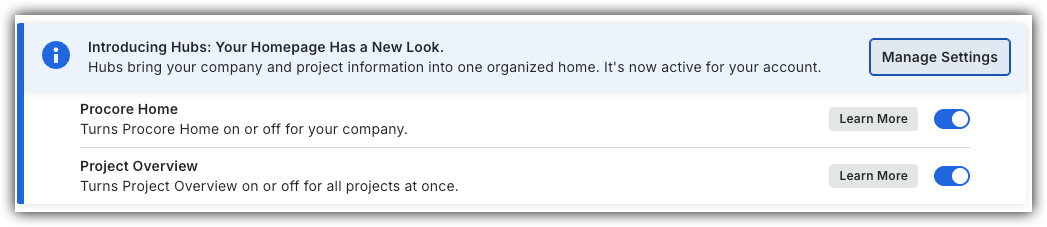
Company Administrators can enable the Procore Home beta in Procore Explore. (US 2 | UK)

  1. Navigate to the company's Portfolio tool or Home.

  2. Click the search box and enter a keyword to search the following fields:

    • Address

    • City

    • Phone

    • Project Name. Project name.

    • Project Number. This corresponds to the job number.

    • State

    • ZIP Code

See Also

Loading related articles...