Set the Dashboard View Permissions (Legacy)
Background
You can set permissions to make different Portfolio views available to your end users.
Things to Consider
Steps
Navigate to the company's Portfolio tool.
Click Configure Settings
 .
.Click Dashboard View Permissions.
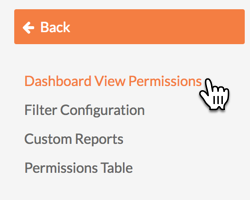
For each view, select Read-Only, Standard, or Admin to set the minimum Portfolio tool permission level required to access it.
Thumbnails. Gives users the ability to view project thumbnails in Projects view.
Portfolio List. Gives users the ability to view the projects on the Portfolio List in the the Projects view.
Map. Gives users the ability to view project on a map in the Projects view.
Overview. Gives users the ability to view a project overview list in the Projects view.
Commitment Summary. Gives users the ability to view the commitment summary under Financial Views.
Contract Summary. Gives users the ability to view the contract summary under Financial Views.
Contract Variance. Gives users the ability to view the contract variance under Financial Views.
Executive Dashboard. Gives users the ability to see the Executive dashboard.
Budget Variance. Gives users the ability to view the budget variance under Financial Views.
Click Update.
See Also
Loading related articles...