Add beneficiary approvers
Navigate to the Company level Payment tool.
Click the payment settings
 icon. This opens the Payment settings page. The external bank accounts page is active by default.
Click the payment processing tab. This is the active tab by default.
Click Payments permissions.
Scroll to Payment beneficiary approvers.

Click Add beneficiary approver. This opens the Add beneficiary approver window.
In the Add beneficiary approver window, add one (1) or more employees from your company as follows:
TipWhich users are available in the Search People list? Any Procore user account marked as an employee of your company in the Company level Directory tool. Payment beneficiary approvers must be employees of your company. See How do I add someone as an employee of my company?

Start typing the user's name in the Search people list.
Select the matching user from the drop-down list.
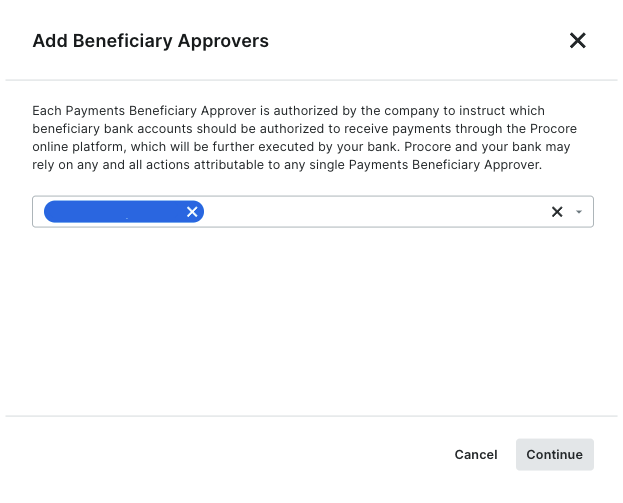

Click Continue.
Review the names in the Payment beneficiary approvers list.
Click Add approver. A GREEN banner indicates the action was successful. Procore also logs the 'User added as approver' action in the change history.