Enable security settings for logins, passwords and session timeout intervals

Background

If you are your company's Procore administrator or if your Procore user account has been granted 'Admin' level permissions to the Company level Admin tool, you can submit a request to modify select security settings for the your company's Procore account. You can request to enable setting for locking out user after failed login attempts, password expiration policies and a timeout interval for idle user session. Requests to change security setting must be submitted to your Procore point of contact.

Things to Consider

  • Required User Permissions:

    • 'admin' on the company's Admin tool.

  • Additional Information:

    • For new company accounts, the setting below are configured during the Procore implementation process.

    • For existing company accounts, a user with the appropriate permission must submit a request to your Procore point of contact.

  • Limitations:

    • These are company-wide settings. They cannot be applied on a per-project or per-user basis.

Step 1: Request to enable security settings

If you want to make changes to your company's security settings, a user with 'admin' level permission to the company's Admin tool can email a request to your Procore point of contact.

Step 2: Review your company account's current security settings

  1. Navigate to the Company level Admin tool.

  2. Under Company settings, click General settings and scroll down to Security settings.
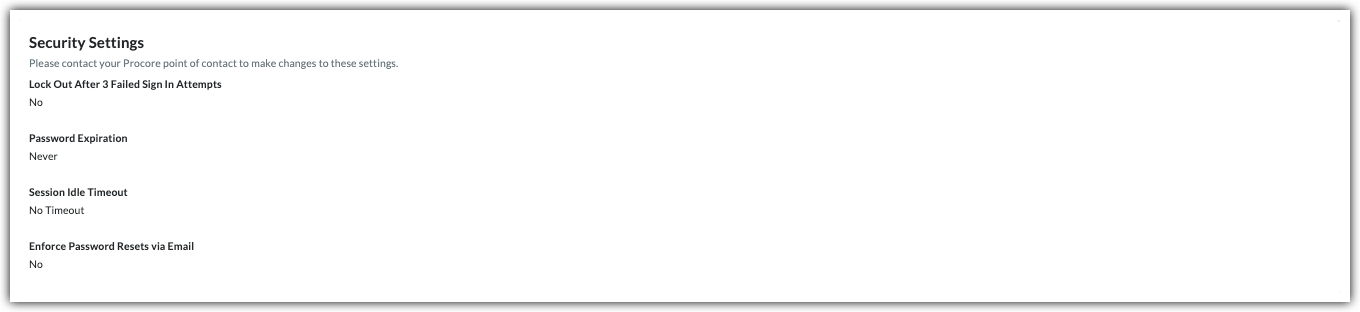
    This images shows the Security Settings card under General Settings in the Company Admin tool.
  3. Ask your Procore point of contactto configure the setting you want:

    • Lock out after 3 failed sign in attempts Show / hide details

      This setting controls how many times a user can enter an incorrect password before being logged out:

      • ON: Procore restricts access after three (3) failed attempts to help prevent unauthorised access.

      • OFF: There is no limit on the number of login attempts.

    • Password expiration Show / hide details

      Set how often user must update their passwords.

      • Never. Password remains valid indefinitely.

      • 30 days. Require a monthly password update.

      • 60 days. Require a bi-monthly password update.

      • 90 days. Require a quarterly password update.

    • Session timeout interval Show / hide details

      Help to keep account access secure by setting a timeout interval to log users out after a period of inactivity. Procore displays a warning message before their session timeout, allowing them to respond to stay logged in.

      Session idle timeout threshold

      Description

      Warning message displays at

      No timeout

      This is Procore's default setting.

      N/A

      15 minutes

      Ends the user's session after 15 minutes of inactivity.

      5 minutes before timeout

      30 minutes

      Ends the user's session after 30 minutes of inactivity.

      10 minutes before timeout

      60 minutes

      Ends the user's session activity after 60 minutes of inactivity

      10 minutes before timeout

      120+ minutes

      Ends the user's session activity after 120 minutes of inactivity

      20 minutes before timeout

    • Enforce password resets via email Show / hide details

      Determine how users are permitted to manage their password updates within the system:

      • Email only (setting is set to Yes): Users must use the link in the email notification to reset their own passwords.

      • Email & profile (setting is set to No): Users can reset their own passwords by email or directly in their My profile settings page.

See Also

Loading related articles...