Install an application from Procore
Background
As a Procore administrator, you have the ability to install an application from the Procore marketplace in a company in Procore. You can install an application while you are in Procore or install one directly from the marketplace.
Things to Consider
Required User Permissions
'Admin' level permissions on the company's Directory tool.
Steps
Installing an application from Procore
Navigate to the company's Admin tool.
Under "Administrative setting", click Application management.
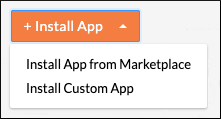
Click Install application and choose Install application from marketplace.
Your browser is redirected to the Procore marketplace.
Navigate to and click the tile for the application you want to install.
Click Install application (or Log in to install). You are guided through the remaining installation steps.
Installing from the Procore marketplace
If you are already browsing the marketplace or want to install an application directly from the external site, follow these steps:
Navigate to the Procore marketplace.
Click Log In, enter your Procore credentials and click Log In again.
Note: If you are a Procore administrator for more than one company, you will be prompted to select the specific company you want to log in to and install the app in. Click Continue.Locate the application you want to install and click its tile.
Click Install application.
Review the installation details on the 'Install application' modal:
For Data Connection applications, this modal shows the target company and the specific tool permissions you are granting to the application.
Click Install to confirm your selection and proceed.
Install a custom application
Navigate to the Company level Admin tool.
Under 'Company settings', click Application management.
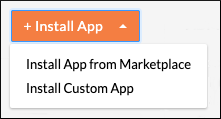
Click Install application and choose Install custom application.
Enter the 36-character 'Application version ID' provided to you by the custom application developer.
Click Install.
Click Install again to confirm the installation.
See Also
Loading related articles...