Award a winning tender and convert it into a subcontract (legacy)
Legacy Content
If your project has been updated to Tender Management Enhanced Experience, see Award a tender and convert it to a subcontract or purchase order for updated steps.
When you select a winning tender, you have the option to convert it to a subcontract as shown below. After the conversion, you can also send the subcontract by email to the vendor who was awarded the scope of work.
Alternatively, you can also convert a winning tender to a purchase order. For details, see Award a winning tender and convert it into a purchase order.
Required User Permissions:
'Admin' level permissions on the project's Tendering tool.
AND
'admin' level permission on the project's commitment tool.
If your company is using the ERP Integrations tool: Show/Hide
The Convert to contract button is supported.
Important! To sync data with your integrated ERP system, you must set the cost code cost type (see Which integrated ERP system support the 'Cost Type' concept?) on the subcontract as follow:
Trimble® Spectrum. Use the default cost code cost type set up for Trimble® Spectrum during the implementation process.
Integration by Procore. Navigate to the ERP Integrations tool, click Configure settings  and then manually select a default cost code cost type for Vista®.
Quickbooks® desktop. The cost type for subcontract should always be set to Other 'O'.
Sage 100 Contractor®. Navigate to the ERP Integrations tool, click Configure settings and then manually select a default cost code cost type for the contract
Sage 300 CRE®. Navigate to the ERP Integrations tool, click Configure settings and then manually select a default cost code cost type for the contract.
Xero™. Navigate to the ERP Integrations tool, click Configure settings and then manually select a default cost code cost type for the contract.
The commitment tool needs to be turned on enabled in order to convert winning tenders.
The company that has the tender being converted to a subcontract must be added to the project Directory before the tender conversion.
To award a contract to the winning tender, the following must be true:
The tender sheet must be past its due date/time.
At least one (1) tender must be submitted from an invited tenderer (for example, a subcontractor/vendor).
Navigate to the project's Tendering tool.
Locate your tender package.
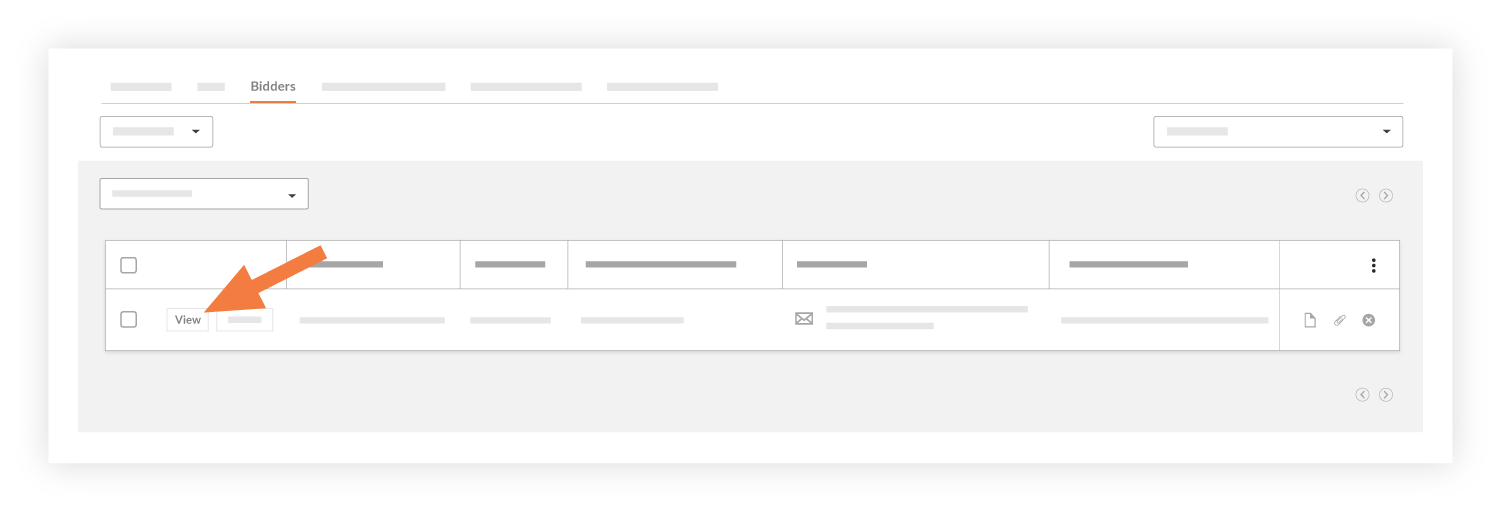
Click View.
In the Tenderers tab, locate the company with the winning tender.
Click View.
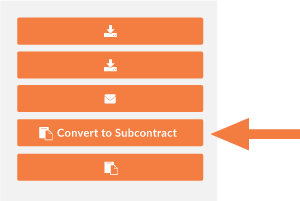
In the right sidebar, click Convert to subcontract .
Notes :
The company with the winning tender must be added to the Project Directory in your company's Procore account before creating a purchase order or subcontract. Companies AND individual users associated with the company are NOT automatically added to the Project Directory.
If the conversion was successful, a banner appears to confirm it.
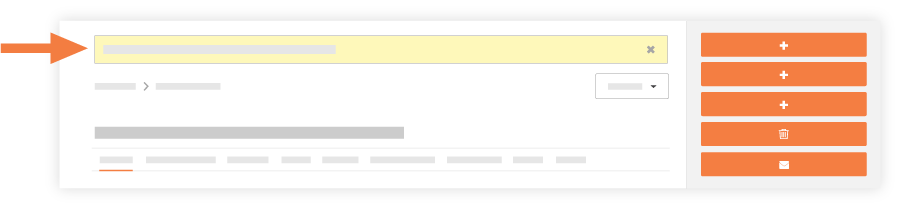
Procore launches the project's Commitment tool and opens the new contract's General tab. The appropriate information from the winning tender is automatically completed in the new contract.
In the General tab of the contract, click the Bill of Quantities tab. To learn more, see Bill of Quantities.
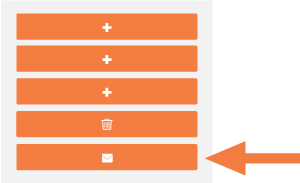
If you want to notify the company about the winning tender, click Email contract .
This reveals the commitment's email tab.
In the email tab, do the following:
To. Select the names of the desired recipient.
CC. Select the names of the people who should be carbon-copied on the email.
Private. Mark the tickbox if you only want the recipients and users with 'admin' level permission to the commitments tool to see the email. This is the default setting.
Attachments. Add one or more files to the email message. If appropriate to your situation, it is recommended that you always add your company's official contract form as an attachment.
Message. Type the body of your email message. It is recommended that you always provide clear instructions to your recipient (i.e., subcontractors) with regards to how contracts and documents must be signed. Your message should also include a reminder to return the signed contract, which can conveniently be added as an attachment in their email response.
Note: The email message will automatically include the contract details.
Click Send .
The system sends the contract to the designated recipient.
Loading related articles...