Indicate your intention to tender
Background
When a main contractor invites you to tender, you will probably not know your tender amount right away. However, you will want to make sure the main contractor knows that you intend to tender on the project and are gathering information.
Things to Consider
Required User Permissions:
'Read Only' level permission or higher for the Planroom tool.
Additional Information:
If you submit a tender, your intention to tender is automatically updated.
Prerequisites
The Procore project owner must invite your company to tender for the project.
Steps
There are two ways you can indicate your intention to tender on a project:
From the invitation email
Open the tender invitation email.
If prompted, sign the Non-disclosure agreement. See Sign a Non-disclosure agreement for a tender package.
Click Will Tender or Will Not Tender under 'Let [Name of company that invited you] know if you intend to tender on this project'.
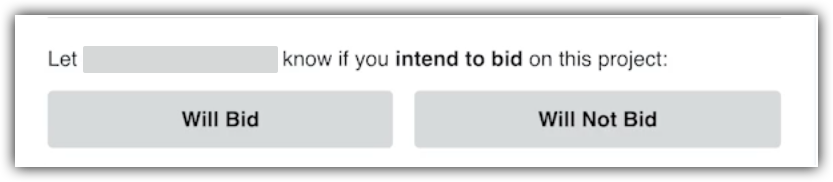
You have indicated an intent to tender on the package and can access the tender form by logging in.


From the Planroom
From the tender invitation email, click View in Procore to log in and view the tender form. Continue to step 6.
Note: If this is your first Procore tender invitation, you will be prompted to create a password for your account using your email address as the login.
OR
Go to https://app.procore.com or https://login.procore.com.Enter your Procore login credentials.
Select the relevant company from the Select a company list.
Navigate to the Planroom tool.
Select the relevant tender package.
If prompted, sign the Non-disclosure agreement. See Sign a Non-disclosure agreement for a tender package.
If you're not automatically redirected, navigate to the company's Planroom tool.
Note : The Planroom tool manages the tendering submissions and tender organisation for the company to which you are submitting a tender.Click on the tender package.
In the banner, click Will tender or Will not tender.
Next Steps
See Also
Loading related articles...