Reinvite user to tender (Legacy)
Legacy Content
If your project has been update to Tender Management enhanced experience, see Resend tender invitations for update steps.
Vendors can be reinvited to tender from the tender list screen. This feature can be used to resend the tender invitation email or to change the divisions the vendor was invited to tender on.
Required User Permissions:
'Admin' level permission on the project’s Tendering tool.
Navigate to the project’s Tendering tool.
Click View next to the tender package you wish to reinvite a vendor to.
Click Reinvite next to the vendor you wish to reinvite to tender.
Note: This sends an email that reinvites them to tender on your project in Procore.

Add additional cost code or recipient from the drop-down menu. By adding additional recipient, you are adding them to tender on the project.
Click Resend invitations.
Navigate to the project's Tendering tool.
Click View next to the tender package you wish to reinvite multiple users to.
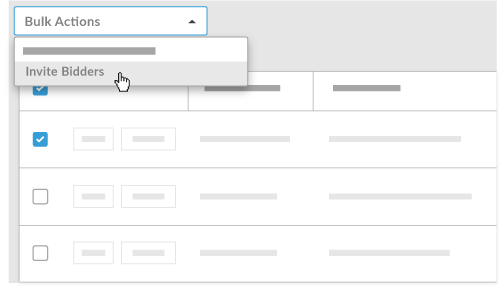
Select which vendors you want to invite or reinvite by marking the tickbox at the beginning of the row.
From the Bulk actions drop-down menu, select Invite tenderers.
Note: Invitations will not be sent to tenderers with the status of "Will not tender."
Add additional cost code or recipient from the drop-down menu. By adding additional recipient, you are adding them to tender on the project.
Click Send these invitations.
Loading related articles...