Review submitted tenders (legacy)
Things to Consider
Required user permissions on the project's Tendering tool.
Additional Information:
When you add a vendor as a tenderer, every user on that company's user list will have access to view the tender. See Add a user to a company in the company Directory.
Companies added from the Procore Construction Network are automatically added to your Directory. See What happens when companies and users are added from the Procore Construction Network to the Company Directory?
Use sections to organise line items or to group different trades on a single tender form.
List standard items in the base tender section. Use the alternates section for substitutions or options.
Prerequisites
One or more tenderers must submit a tender to review. See Submit a tender.
Steps
View submitted tenders
The steps in this section are for the Legacy tender management experience.
If your project has been updated to Tender Management Enhanced Experience, a 'Tender submitted' filter can be applied through the Filters menu on the Tendering tab. See Search for and filter tender package information. You can also compare all submitted tenders on the Tender levelling tab. Level tenders for a tender form.
Navigate to the project's Tendering tool.
Click View next to the tender package you want to view submitted tenders for.
Click the Tenderers tab.
Click Add Filter.
In the Add filter drop-down list, click Submission status and then mark the Submitted tickbox in the secondary list.
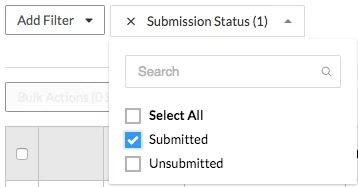
You will then see all submitted tenders and their tender amount.
Note: If you enabled blind tendering, you will not be able to see the tender amount until the tendering period is over.

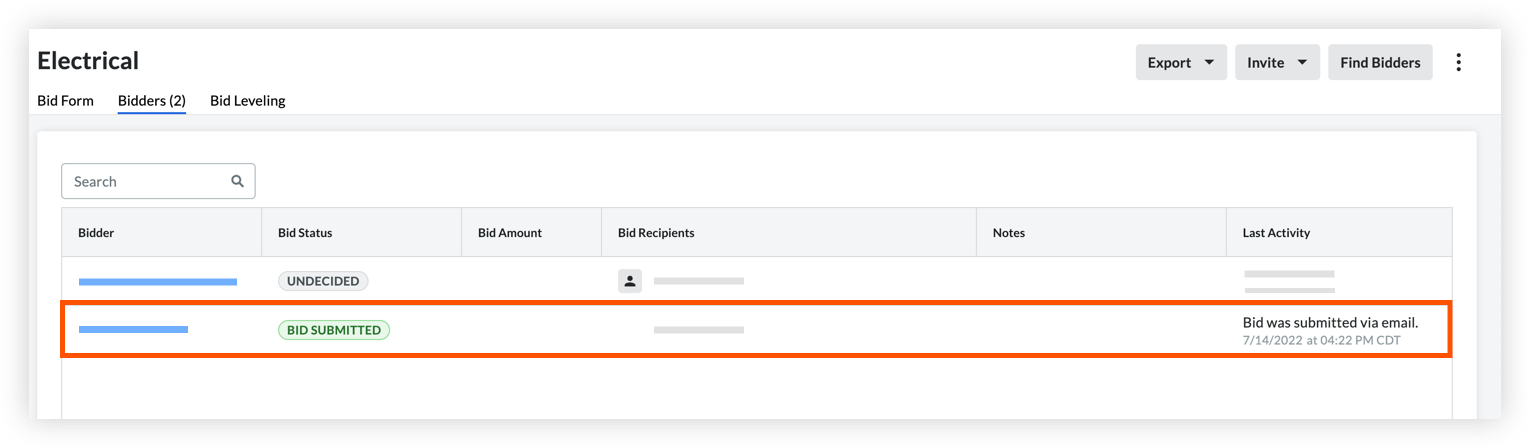
View tenders submitted by email
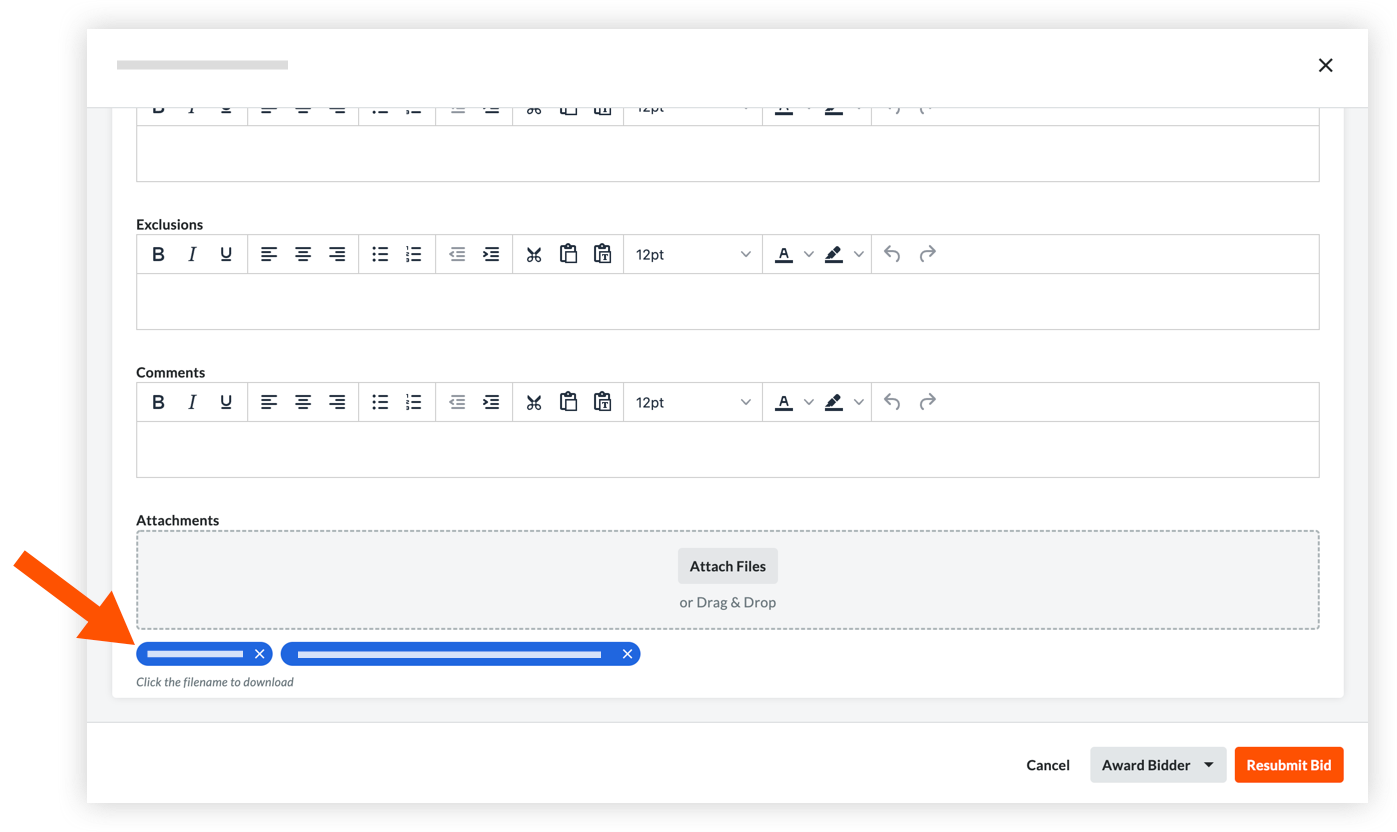
If a tenderer submitted their tender by replying to the tender invitation email, you will need to review their submission in 'attachment' section of their tenderer response page.