Update and redistribute a tender package (legacy)

 Legacy Content

If your project has been updated to Tender Management Enhanced Experience, see Edit a tender form and Resend tender invitations.

For more information on updating a tender package, see Edit a tender package and Update tender documents.


Things to Consider

  • Required User Permissions:

    • 'Admin' level permissions on the project's Tendering tool.

Prerequisites

Steps

  1. Navigate to the project's Tendering tool.

  2. Click View next to the tender package you want to redistribute.

  3. Click the Tenderers tab.

  4. To resend invitations, click the vertical ellipsis (⋮) drop-down menu at the top of the page.

    View Bidding Options Menu

  5. Click Resend invitations.
    Note: This will open a window that displays all of the tenderers in your package.

    OR

  6. To resend invitations to an individual tenderer, click Reinvite next to the tenderer's name.

    Reinvite Bidders

    OR

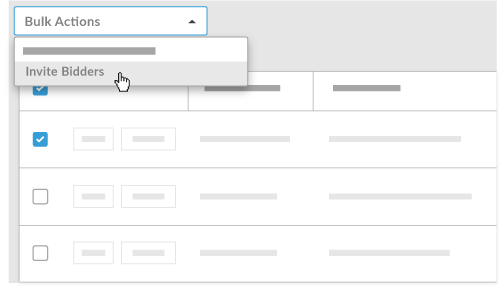
  7. To resend invitations to multiple tenderers, mark the tickbox next to each tenderer's name.

  8. Click Bulk Actions.

  9. Select Invite tenderers.
    Note: Invitations will not be sent to tenderers with the intent "Will not tender".

    Bulk Invite Bidders

  10. To replace people from the invitation list, click Reinvite next to the tenderer's name.

  11. Click the X next to the user's name.

  12. Select a new person from the recipients drop-down menu.
    Note: Users must be associated with the company name or cost code to be listed in the drop-down menu.

  13. Click Resend these invitations.
    Note: This will resend a similar tender invitation email as the one they initially received. For an example of this email, see Create a tender package.

  14. If you'd like to send your tenderers an email explaining the change, see Send a new Correspondence in the Tendering tool.

See Also

Loading related articles...