Delete budget changes

 Phased release

The new budget change feature is designed to replace the existing budget modification feature. Once you migrate to budget change, you will no longer have access to the budget modification feature. If you have any questions before your company starts the migration, contact your Procore point of contact. To learn more about the timeline for migration, see: Common questions.

Things to Consider

  • Required User Permissions:

    • 'Admin' level permission on the project's Budget tool.
      OR

    • 'Read Only' or 'Standard' level permissions on the project's Budget tool with the 'Create, edit and delete budget changes' granular permission enabled on your permissions template.

Steps

  1. Navigate to the project's Budget tool.

  2. Click the budget changes tab.

  3. Locate the budget change to void in the list. Next, click its budget change # link.

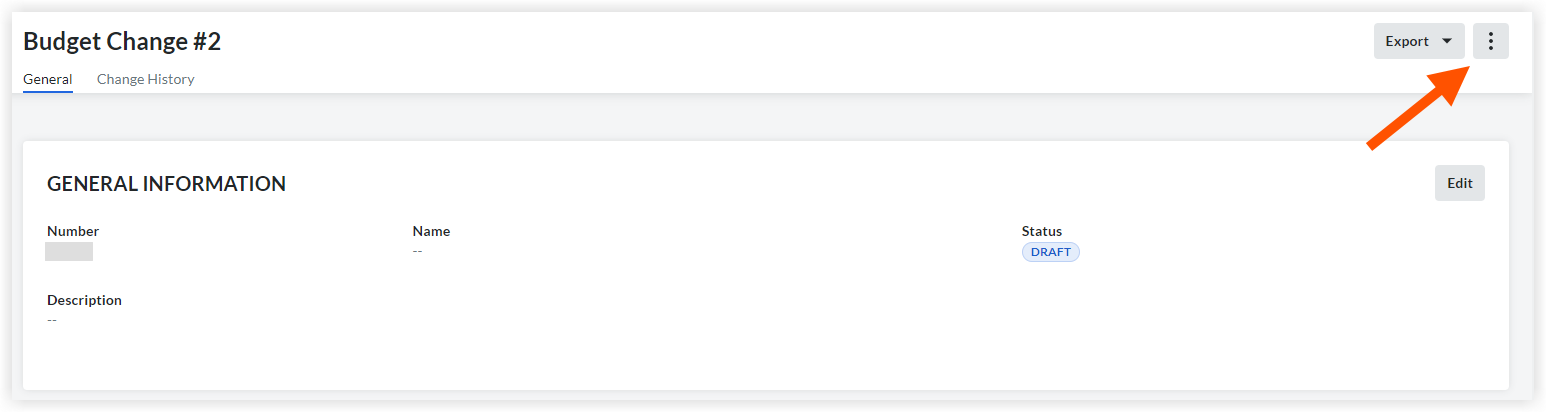
  4. Click the vertical ellipsis Icon Ellipsis Vertical icon.
    Delete Budget Changes

  5. Click Delete.

  6. A window will appear to confirm your selection.
    Click Delete. Note: Moving forward will permanently delete this budget change. This action cannot be undone.
    OR
    Click Cancel if you do not wish to delete the budget change.

See Also

Loading related articles...