Configure settings: Variations
Background
The configuration setting for the project's Variations tool gives you the ability custom variation reasons, variation types and variation statuses.
Things to Consider
Required User Permissions:
'Admin' level permission on the project's variation tool
Prerequisites
Steps
You can perform the following configuration task:
Variation configuration
Permissions Table
Configure variation
Navigate to the project's Variations tool.
Click the Configure Settings
 icon.
Under Variation setting, do the following:
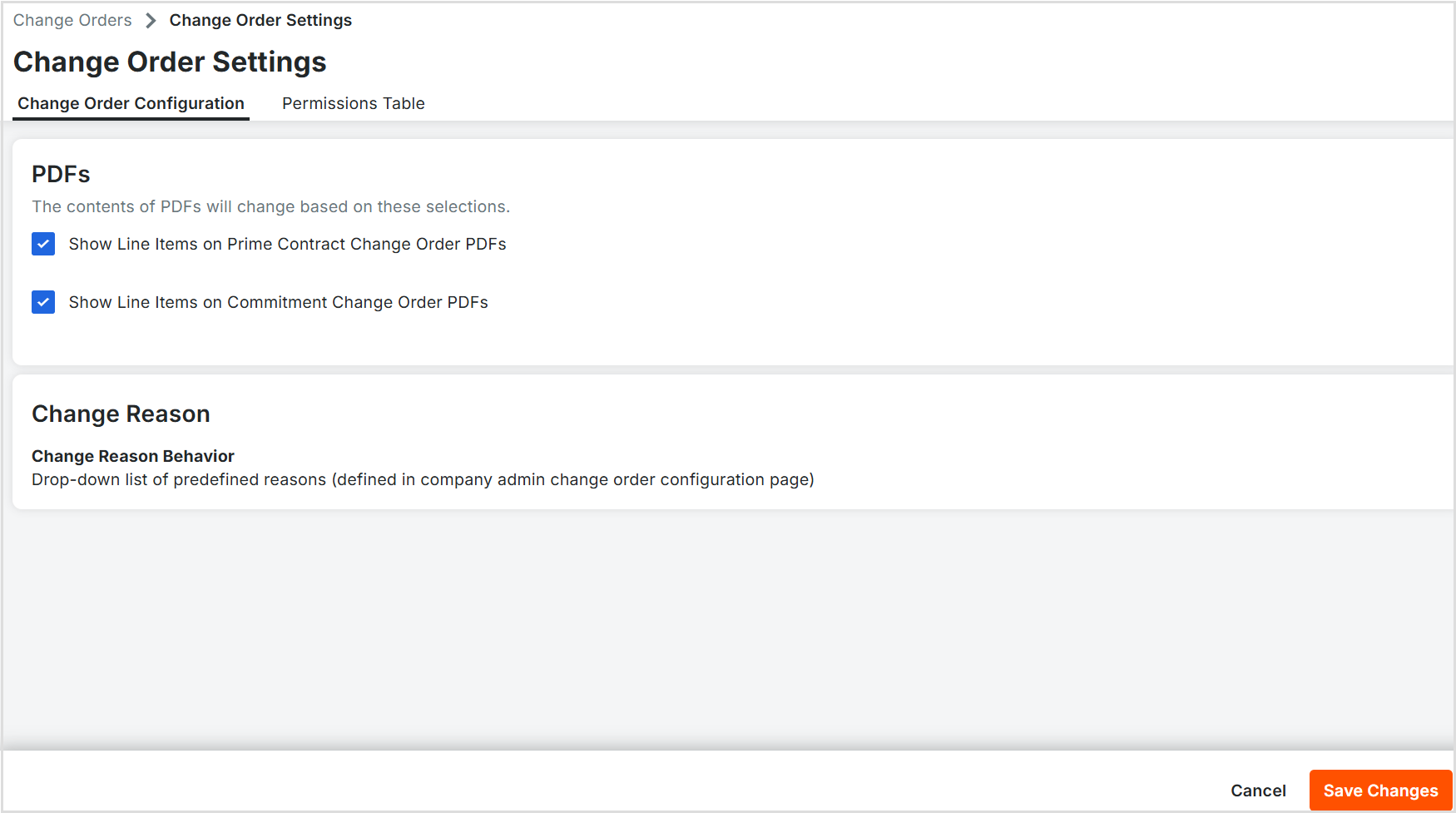
PDFs
Show line items on main contract variation PDFs
To show line items on MCVs exported PDFs, mark this tickbox. To hide line items from MCVs exported PDFs, remove the mark from this tickbox.Show line items on commitment variation PDFs
To show line items on an exported PDF for a CV, mark this tickbox. To hide line items from an exported PDF for a CV, remove the mark from this tickbox.
Change reason
Change reason behaviour
To modify the change reason behaviour always contact your Procore point of contact first. You have these options:Drop-down list of pre-defined reasons. Provides users with the ability to select change reasons from a drop-down list. See Set the default change management configurations and What are the different variation tier settings in Project Financials?
Freeform text field. Allows user to enter any additional information in a text entry field.
Click Save Changes.
Set user permissions for the Variations tool
If you have a small number of users, you might choose to manage user permissions for the project's Variations tool using the steps below.
If you have a large number of users, it is recommended that you manage user permissions on Procore's project tools using permission templates. For instructions, see Create a project permission template.
Navigate to the project's Variations tool.
Click the Configure Settings
icon.Click Permissions Table.
View each user's permission for the variations tool:
Company
None
Read Only
Standard
Admin
Set each user's permission for the tool according to your preferences.
 Access
 No Access
Note: To view a complete list of available tasks by permission level, see permissions.
When finished, click Back.