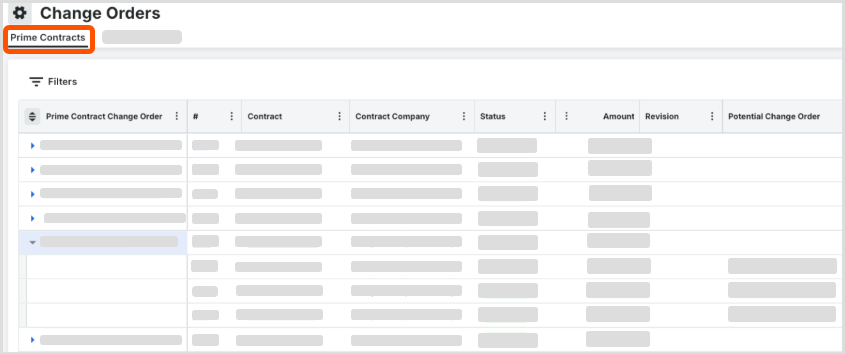
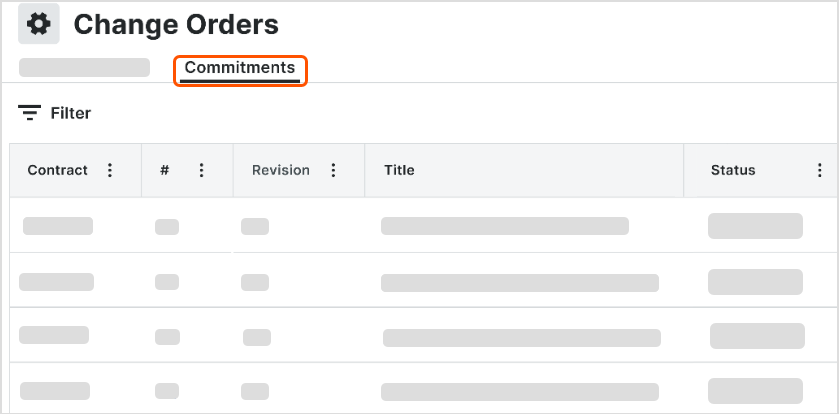
View variations
Background
The variations tool was designed as a viewing tool to provide project team's with a central place to view all of the variations in a project's commitments or main contract tool. While you can view all contracts on a project, you cannot create new variations from the tool. Instead, you create variations by following these steps: Create a commitment variation or Create a main contract variation.
Things to Consider
Required User Permissions:
To view variations when a contract is not marked 'Private,' 'Read Only' level permission or higher on the project's Variations tool.
To view variations when a contract is marked 'Private':
'Read Only' level permissions or higher on the project's Variations tool and you must be added to the 'Private' drop-down list on the contract.
OR'Standard' level permissions on the project's Variations tool, added as the 'designated reviewer' on the variation and added to the contract privacy configuration. See Create a commitment variation.
OR'Admin' level permissions on the project's variations tool and one or both of the following permissions:
To view a commitment variation for a 'Private' purchase order or subcontract, 'admin' level permission on the project's commitment tool.
To view a main contract variation for a 'Private' main contract, 'admin' level permission on the project's Main Contracts tool.
NotesUsers with permissions to view 'Private' purchase orders or subcontracts can view related 'Private' variations in the project's commitments tool. See View a purchase order or View a subcontract.
Users with permissions to view 'Private' main contracts can view related 'Private' variations in the project's Main Contracts tool. See View a main contract.