Change the privacy settings for a commitment
Background
You can change the privacy settings on a commitment to control who can view it. By default, a commitment is visible to any user with 'Read Only' level permissions or higher on the project's commitments tool. You can make a commitment 'Private' so it's only visible to users with 'admin' level permissions and you can also grant access to specific non-admin users, as well as your external collaborator's payment application contacts.
Things to Consider
Required User Permissions:
'Admin' level permissions on the project's Commitments tool.
OR'Read Only' or 'Standard' level permissions on the project's commitment tool with the 'Update purchase order contract' and/or the 'Update work order contract' granular permissions enabled on your permission template.
Additional Information:
To configure the project's default privacy settings for the Commitments tool, see Configure the default privacy settings for new commitments.
Prerequisites
Create a commitment
Steps
Navigate to the project's Commitments tool.
Click the Number link in the table to open the desired commitment.
In the General tab, click Edit contract.
Click Contract privacy.
Click Edit.
(Optional) Choose one of the following options:
To make the commitment visible to any user with 'Read Only' level permission or higher, clear the Private tickbox. This is the default setting.
To make the commitment private, mark the Private tickbox
(Optional) If you made the contract private, add the names of any users on the project who can view the contract:
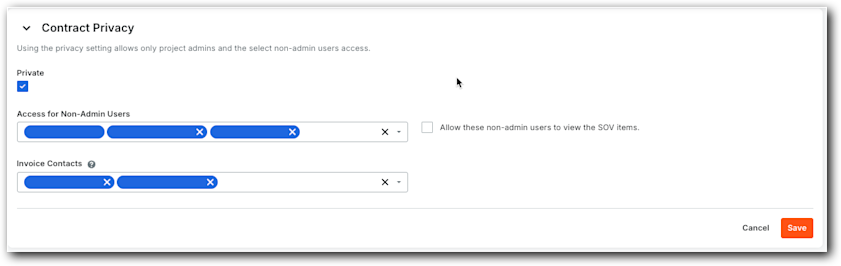
In the Access for non-admin users field, add the names of any users on the project. If you also want these users to view the BOQ, place a tick in the Allow these non-admin users to view the BOQ items.
In the payment application contacts field, add the names of any external collaborators. See What is a payment application contact?
Click Save.
See Also
Loading related articles...