What is a payment application contact?

Using owner or specialty contractor terminology?

Procore can be configured to use terminology specific to main contractors, owners or specialty contractors. Learn how to apply the dictionary options.

  • To learn the differences: Show/Hide

    • This table shows the differences in tool names (bold) and terms across the point-of-view dictionaries for Project Financials.

      Main Contractors
      English (United States) - Default

      Owners
      English (Owner Terminology V2)

      Speciality Contractors
      English (Speciality Contractor Terminology)

      Payment applications

      Payment applications

      Progress Billings

      Owner

      Funding

      Owner

      Owner/Client

      Owner/Client

      MC/Client

      Main Contract Variation

      Funding Variation

      Client Contract Variation

      Main Contracts

      Funding

      Client Contracts

      Revenue

      Funding

      Revenue

      Subcontract

      Contract

      Subcontract

      Subcontractor

      Contractor

      Subcontractor

      Subcontractor Bill of Quantities (SBOQ)

      Contractor Bill of Quantities (CBOQ)

      Subcontractor Bill of Quantities (SBOQ)

      About these dictionaries
      • Default setting: The 'main contractor' dictionary is enabled by default for all accounts.

      • Availability: These alternate dictionaries in italics are available in US English only.

      How to switch your dictionary

      To change your company's terminology to the owner or specialty contractor dictionary, contact your company's . They will work with your Procore point of contact to make the change.

Answer

An Payment application Contact is a person who ensures that a payment application is submitted to an upstream contractor for payment. In Procore, a payment application contact is always an employee of the designated 'Contract Company' on a purchase order or subcontract. The contract company is the party responsible for performing work and/or supplying materials for a project. For customers in the United States using Procore's Progress Billings tool, this term is synonymous with progress billing contact.

Common Questions

  • What permissions do payment application contacts need to create & submit subcontractor payment applications in Procore?

  • Do payment application contacts need to be granted special access permissions to Procore?

  • How do I add payment application contacts to Procore?

  • Unsure about your payment application contact status or missing an 'Invite to Bill'?

  • When does Procore send an 'Invite to Bill'?

  • Does a payment application contact need an 'Invite to Bill' to create a payment application?

  • What can payment application contacts add or update in Procore?

  • Do payment application contacts receive emails from Procore?

What permissions do payment application contacts need to create & submit subcontractor payment applications in Procore?

This table details the permissions that payment application contacts need to create subcontractor payment applications in Procore.

1 Some Procore clients choose to provide payment application contacts with 'Standard' level permissions on the Commitments tool. It is important to note that providing external collaborators with permissions higher than 'Read Only' level permissions is NOT recommended by Procore.

Do payment application contacts need to be granted special access permissions to Procore?

No. When designated as a payment application contact on a commitment, Procore automatically adds the contact to the 'Private' list for that commitment. A payment application contact can then view the commitment and its payment applications in Procore.

 Note

On a subcontractor payment application, the contact's name appears in the 'Payment application' section of the 'Advanced settings' tab in the 'Payment application contacts' area.

How do I add payment application contacts to Procore?

To add a payment application contact, an authorised user for the company managing the in the Procore project must:

  1. Add the subcontracting company to the Company Directory. The subcontracting company corresponds to the 'Contract Company' on a commitment. See Add a Company to the Company Directory. The user who will be the payment application contact must be added to the company. See Add Users to the Company.

     Notes 

  2. Grant the payment application contact's user account 'Read Only' level permissions on the Project level Commitments tool. Procore recommends managing payment application contact permissions with a project permissions template. See Create a project permission template.

  3. Add the 'Contract Company' and 'Invoice Contact' to the commitment. See Add Payment application Contacts to a Purchase Order or Subcontract.

  4. Optional. Configure optional email notifications for the payment application contact:

Unsure about your payment application contact status or missing an 'Invite to Bill'?

  • Payment application submission rights can only be granted by an Contact the upstream collaborator to confirm that you have been added as a payment application contact on your commitment. See Add payment application contacts to a purchase order or subcontract.

  • If you can't find your 'Invite to Bill' (despite having sufficient permissions), the administrator may not have sent it. A payment application contact can still create a new payment application for their commitment in the Commitments tool. See Does a payment application contact need an 'Invite to Bill' to submit a payment application?

  • If you lack payment application submission rights, contact the upstream collaborator. Some administrators prefer to collect your payment application in paper or digital form and create it on your behalf in their Procore project. Reach out to them for further instructions.

When does Procore send an 'Invite to Bill'?

When an for the Procore company account creates a new valuation period, that user has the option to send out an automated billing invite to anyone who is either (1) named on the 'Private' list for the payment application or (2) a member of the commitment tool's default 'payment application contact' list. See Add payment application contacts to a purchase order or subcontract.

Does a payment application contact need an 'Invite to Bill' to create a payment application?

No. A payment application contact has several options for creating a payment application.

There are two ways to respond to an 'Invite to Bill' as a payment application contact: (1) from the 'Invite to Bill' email or (2) from the upstream collaborator's Project level commitment tool. Use the second option when you know you have payment application contact permission but the 'Invite to Bill' is missing or lost.

When responding to an invite, you can accept or decline it as follows:

  • To respond to an 'Invite to Bill' email: Show/Hide

      1. Open your email inbox.

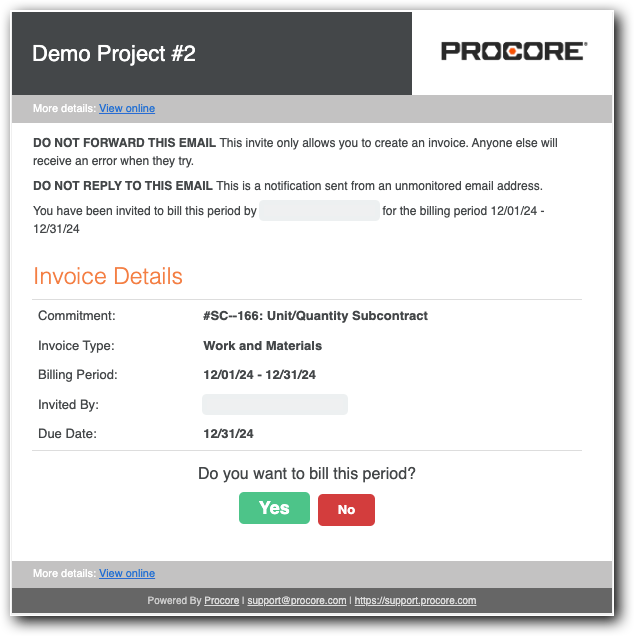
      2. Look for the email message with the subject line, " "Project name: User name has invited you to bill."

      3. Open the 'Invite to bill'.

        Invite To Bill

      4. Review the payment application details:

        • Commitment. Shows the commitment number and name.

        • Payment application type. Shows the payment application type. See Configure setting: Payment Applications.

        • Valuation period. The date range for the Open valuation period.

        • Invited by. The first and last name of the sender. Typically, this is the payment application administrator.

        • Due date. The date your payment application is due. Payment application contacts cannot create or submit a payment application in the Procore project after this date.

      5. Click one of these buttons to respond to the Do you want to bill this period? Prompt:

        • Yes. Accept the invite and submit a payment application. This changes the payment application status to Accepted. Continue with the steps in Submit a new payment application as a payment application contact.

        • No. Decline the invite if you don't want to submit a payment application for the Open valuation period. This changes the payment application status to Declined.

  • To respond to an 'Invite to bill' in the commitment tool: Show/Hide

    • Navigate to the project's Commitments tool.

    • Locate the commitment to which you were added as a payment application contact.

    • Under Do you want to bill this period?, indicate your intent to submit a payment application by clicking the Yes button.
      Do You Want To Bill This Period

    • Click the Post response button.

 Tip

Can't find your 'Invite to Bill' or uncertain if one was sent? A payment application contact always has sufficient permission to create a new payment application for an open valuation period in the upstream collaborator's Procore project. See Create a new payment application as a payment application contact.

What can payment application contacts add or update in Procore?

You can only perform tasks in Procore when you are added as a payment application contact on a commitment in the upstream collaborator's Procore project. What you can do and how you do it depends on the options used by the upstream collaborator.

Payment application contacts can...

To learn more...

Accept or decline an 'Invite to Bill' from the email sent by a payment application administrator. See Send an 'Invite to Bill' to a payment application contact.

Accept or decline an 'Invite to bill' as a payment application contact

Respond to a 'Invite to Bill' sent by a payment application administrator. See Send an 'Invite to Bill' to a payment application contact.

Submit a new payment application as a payment application contact

Create a payment application in the commitments tool without an 'Invite to Bill' from a payment application administrator. You must grant the recipient payment application contact permissions.

Create a new payment application as a payment application contact

Update a subcontractor bill of quantities. This feature must be enabled on the project. See Enable or disable the subcontractor BOQ tab on the Commitment tool.

Update a subcontractor bill of quantities as a payment application contact

Revise and resubmit any payment application line item that are rejected by a payment application administrator.

Revise & resubmit a subcontractor payment application as a payment application contact

Do payment application contacts receive emails from Procore?

Yes. Procore sends email notifications to payment application contacts when these actions occur:

Actions

Details & learn more

Next Step

When a commitment with a designated payment application contact is created.

The email is sent when the upstream collaborator clicks 'Create & email' or 'Save & email' on the General tab of the commitment. See Send an 'Invite to bill' to a payment application contact from the Payment Applications tool.

If a payment application administrator sets the 'Remind subcontractors to bill' option.

If a payment application contact accepts an 'Invite to Bill,' a reminder is sent at the specified interval until the 'draft' payment application is submitted. Reminders are no longer sent once the payment application's status changes to 'Under Review'.

When the subcontractor bill of quantities is 'Rejected.' See What is a subcontractor bill of quantities?

An email is sent when the upstream collaborator changes the status of a subcontractor bill of quantities to 'Revise & resubmit.' See Review a subcontractor payment application as a payment application administrator.

If the upstream collaborator configured the Send Expiration Notification setting for insurance in the Company level Directory tool.

An email is sent when the insurance is within two (2) weeks of its expiration date. See Add insurance to a company record in the company Directory.

If the upstream collaborator configured the Notify subcontractors when payment applications are approved setting in the Project level Payment Applications tool.

An email is sent when the upstream collaborator changes the payment application status to 'Approved.' See Configure settings: Payment Applications and Bulk edit the status of subcontractor payment applications.

-

See Also

Loading related articles...