Create a new subcontractor payment application as a payment application contact
Using owner or specialty contractor terminology?
Procore can be configured to use terminology specific to main contractors, owners or specialty contractors. Learn how to apply the dictionary options.
To learn the differences: Show/Hide
This table shows the differences in tool names (bold) and terms across the point-of-view dictionaries for Project Financials.
Main Contractors English (United States) - Default
Owners English (Owner Terminology V2)
Speciality Contractors English (Speciality Contractor Terminology)
Payment applications
Payment applications
Progress Billings
Owner
Funding
Owner
Owner/Client
Owner/Client
MC/Client
Main Contract Variation
Funding Variation
Client Contract Variation
Main Contracts
Funding
Client Contracts
Revenue
Funding
Revenue
Subcontract
Contract
Subcontract
Subcontractor
Contractor
Subcontractor
Subcontractor Bill of Quantities (SBOQ)
Contractor Bill of Quantities (CBOQ)
Subcontractor Bill of Quantities (SBOQ)
About these dictionaries
Default setting: The 'main contractor' dictionary is enabled by default for all accounts.
Availability: These alternate dictionaries in italics are available in US English only.
How to switch your dictionary
To change your company's terminology to the owner or specialty contractor dictionary, contact your company's
A Procore administrator is a user who has ‘Admin’ level permissions on all the Company level tools in Procore. Granting a user ‘Admin’ level permissions in the Company level Directory tool automatically assigns that user ‘Admin’ permissions on all Company level tools. Also called a company administrator.
. They will work with your Procore point of contact to make the change.
Background
As a payment application contact, you may receive an 'Invite to bill' to remind you to submit a payment application. The subject line of the email message reads "Project name: user name has invited you to bill." If your 'Invite to bill' is lost or missing (or if you are unsure whether a payment application administrator sent one), payment application contacts can always create a new payment application for a commitment.
Important
Author note: This page is part of the regular payment application management collection. Updates are NOT being tracked on the ILR board. However:
All of the content in the For payment application administrators section of this page is being reused as source content for Procore Pay in the Payor: Payment application administrator guide.
Step 1: Create a new payment application in Procore
Step 2: Enter a payment application number
Step 3: Update the bill of quantities
Step 4: Add attachments
Step 5: Save or submit a payment application
Step 1: Create a new payment application in Procore
Navigate to the project's Commitments tool.
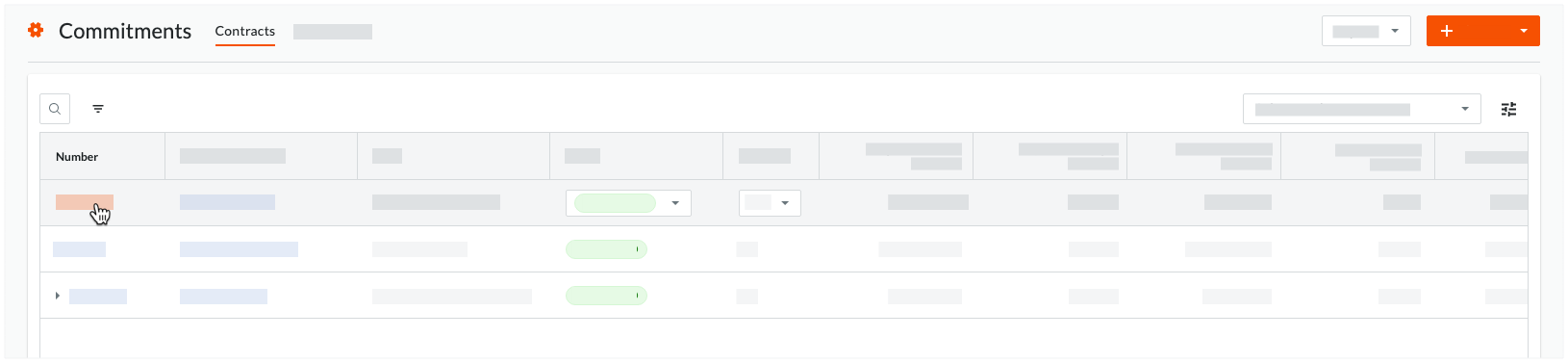
Under the Contracts tab, locate the contract in the table. Then, click the Number link to open it.
Click the Create payment application button. This opens the 'Create new payment application' page.
Step 2: Enter a payment application number
In the 'New payment application for' page under 'General information,' do the following:
Enter the downstream collaborator's payment application number in the Payment application # box.
Note
Important things to note about the payment application # field:
A payment application # is NOT required to save a payment application. You can leave this field blank.
A payment application # is a free-form entry field that lets payment application contacts enter a reference number that corresponds with their own payment application numbering system.
A duplicate payment application # on a commitment is NOT permitted. On one commitment, every payment application must have a unique payment application #.
* Billing date Indicates the due date for the valuation period.* Period start Indicates the start date for the valuation period.* Period end Indicates the end date for the valuation period.
Continue with the next step.
Step 3: Update the bill of quantities
In the Bill of Quantities section, click one (1) or both of the BLUE arrows next to 'Commitment line items' or 'Variations'. This expands the selected row in the table.
After expanding a line in the 'variation' section, click the commitment variation line(s) and potential variation line(s) in order to expand them until you reach the data entry line item.
Determine which accounting method was set for the contract. This determines which data entry form you use to update the Bill of Quantities:
Use this method to payment application lump sum amounts for the payment application line item on the Bill of Quantities (BOQ). Procore automatically calculates and adjusts the other entries on the line item for you. If you want to release retention, enter a pound amount as needed. Depending on your specific commitment, you may also have the option to bill for stored materials. See About stored materials on payment applications.
Click here for more detailed information about the amount based accounting method.
The amount-based accounting method requires data entry of lump sum amounts for each line item on the bill of quantities. Note that Procore uses your entries to automatically calculate and update values in other columns.
Review each line item on the bill of quantities:
Item number. Shows the line item number.
Budget code. Shows the budget code assigned to the line item.
Description of work. Shows the description for the line item.
Scheduled value. Shows the scheduled value for the line item on the commitment contract. This is the line item's contract value.
Work completed from previous application (%). If previous payment applications were created for this commitment, this cell shows a percentage value that represents the work completed during previous valuation periods.
Enter your bill for work completed during the current valuation period:
Work completed this period. Enter an amount for the current valuation period.
Example
If you completed half of the work for the line item, enter the amount in the Work completed this period column. For example, enter £250.00. Procore automatically calculates and update these columns for the line item:
Total completed & stored to date (£). If the line item has a scheduled value of £500.00, Procore adds £250.00, which is 50%. This represents the amount of the total work for the line item on this payment application plus any amount(s) from past valuation periods.
Total completed & stored to date (%). If the line item has a scheduled value of £500.00, Procore changes the column value to 50%, which corresponds to your entry of £250.00. This represents the amount of the total work for the line item on this payment application plus any amount(s) from past valuation periods.
If you received materials this valuation period and are storing them on the job site (or in a storage facility), you have this option:
Conditional:New materials stored. Enter the amount of any new materials being stored for the current valuation period. Your entry should exclude any cost entered in the 'Work completed this period' column.
Note
If the payment application administrator turned ON the 'Enable billing separately for stored materials' setting for the commitment, enter a pound amount for materials for this valuation period. Your entry automatically calculates the values in these columns: 'Total completed & stored to date (£) %' and 'Total completed & stored to date (%).'
Previous materials stored. If this is the first payment application, this value is £0.00.
Note
If there are previous payment applications, this value shows the cumulative amounts entered in 'New Materials Stored' on those payment applications. A payment application contact cannot modify this setting.
Materials presently stored. Shows the amount of the materials being stored during the current valuation period.
Total completed & stored to date (£). Shows the amount of the work completed and materials stored on the job site for the current payment application and on payment application(s) for past valuation period(s).
If you are submitting a payment application requesting to release a retention amount:
Total retention released. Enter the amount of retention that you are requesting to be released this valuation period.
Note
Note that you can request the amount to be released, but you are not permitted to change the retention rate.
Total retention. Shows the cumulative amount of retention released for the line item.
Continue the steps above for each line item.
Unit-based accounting method
Use this method when Payment Applications for materials you've ordered in quantity. With this method, you either enter a percentage value 'Total progress' column or a monetary value in the 'Work progress' column. Procore automatically calculates and adjusts the other entries on the line item for you. If you want to release retention, you can enter a pound amount in the 'Retention released' column needed. Depending on your specific commitment, you may also have the option to bill for stored materials. See About stored materials on payment applications.
Click here for more detailed information about the unit-based accounting method.
The unit-based accounting method requires you to enter a quantity and unit price for each line item on the BOQ. With this method, Procore automatically calculates line item totals for you.
Note
An asterisk (*) in the list below indicates that you can edit the value of the BOQ line item on your payment application.
Quantity Shows the total number of units for the line item.
Unit price Shows the expense incurred for each unit for the line item.
Value Shows the total pound amount of the line item. This is the sum of the unit price + quantity values.
Previous quantity Shows the total number of units payment application in previous valuation periods.
Previous value Shows the total pound amount payment application in previous valuation periods.
Total progress %.* Enter a percentage amount that reflects your total progress. Your entry must reflect the cumulative progress of any previous valuation periods and the current valuation period.
New quantity.* Enter a new quantity to reflect the quantity being billed this period on the new payment application.
Note
A calculator icon indicates that Procore automatically calculates the line item's Amount based on the entries in the Qty, UoM and unit cost fields. Click here to see an example.
New value.* Enter a new value to reflect the value of the line item being billed this period on the new payment application.
Note
A warning icon indicates a user's Amount entry overrides the automatic calculation with a custom amount. Click here to see an example.
Retention released.* Enter a pound amount of retention to be released this valuation period.
Total retention Shows the total pound amount of retention to be released for the line item.
Step 4: Add attachments
If you have any files to add as an attachment to the payment application, you can add them now. For example, you might be required to add a lien waiver or a signed PDF copy of the payment application.
Scroll to the attachment section.
Click Attach files or use a drag-and-drop operation to move the files from your computer or network to the GRAY area of the page.
Upload any files that may be required from your computer.
Notes
Collaborators and users with 'Standard' level permissions on the project's Commitments tool can use the Attach files option after a payment application is 'Approved'.
Continue with the next step.
Step 5: Save as draft or send for review
If you are ready to submit the payment application for review, you may do so now. If you want to submit the payment application at a later time, you have the option to save the payment application. Choose one (1) of these options:
If you are NOT ready to send the payment application, click Save as draft. This sets the payment application's status to draft.
Tip
If you want to email a copy of your payment application to others before submitting it for review, Procore recommends following the steps in Export a subcontractor payment application. You can then add your payment application as an attachment to a message using your company's email system.
OR
If you are ready to send the payment application, click Send. This automatically sets the payment application's status to Under review.
Important
You will NOT be able to edit the payment application after you send it unless a payment application administrator changes the payment application's status to 'Revise & Resubmit.' For details, see Review a subcontractor payment application as an admin.
 calculator icon indicates that Procore automatically calculates the line item's Amount based on the entries in the Qty, UoM and unit cost fields. Click
 warning icon indicates a user's Amount entry overrides the automatic calculation with a custom amount. Click