Configure settings: Payment Applications
Using owner or specialty contractor terminology?
Procore can be configured to use terminology specific to main contractors, owners or specialty contractors. Learn how to apply the dictionary options.
A payment application administrator should configure the Payment Applications tool setting before your team members create any payment applications on a Procore project.
Navigate to the project's Invoicing tool.
Click Configure Settings  icon.
Under Settings, click one of the following to configure or update your settings:
Default Billing Period: Show/hide settings
Manage project-specific settings to configure invoices:
Start Date. Accept the default start date of '1st of the month' or choose a different date. This populates the 'From' date in the prompt.
End Date. Accept the default end date of '31st of the month' or choose a different date. This populates the 'To' date in the prompt.
Due Date. Accept the default due date of '25th of the month' or choose a different date. This populates the 'Due Date' field in the prompt.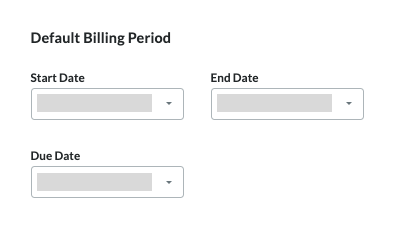
Select a Subcontractor Default Invoice Type option from the drop-down list:
Work and Materials. Allow invoice contacts to create invoices to bill for work and materials.
Work, Materials & Retainage. Allow invoice contacts to create invoices to bill for work, materials, and retainage release.
None (must be invited to create an invoice). Only allow invoice contacts to create invoices after sending an 'Invite to Bill'. 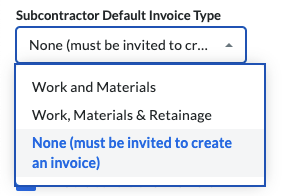
The 'Payment application type' is always set to 'Work, materials & retention' when a user with 'admin' level permission on the commitment tool creates a new payment application.
Note: These settings populate the date fields in the 'Set Up Billing Period' prompt when users Create Manual Billing Periods with the Invoicing Tool.
Use these settings to adjust the Invoicing tool's email messages. To configure the Emails settings:
Type a message for your invoice contacts in the Invitation & Reminder Custom Message box.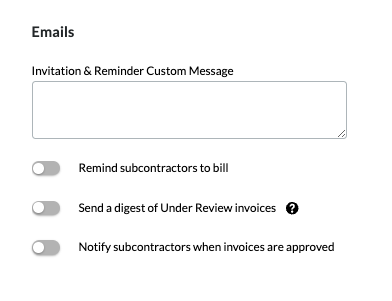
Where is this text used? Procore includes this text in the 'Invite to Bill' and automatic reminder email. See Send an 'Invite to Bill' to a payment application contact.
Move the toggle to the right to turn an option ON. Move it to the left to turn it OFF. The default setting for these options is OFF:
Remind subcontractors to bill. Turn ON to send automatic email reminders to invoice contacts. You can set the email frequency—Every day, Every 2 days, or Every 3 days from the Subcontractor Reminder Frequency drop-down list. Procore stops sending reminders after the due date. The system sends the first reminder to bill after the subcontractor is invited, based on your configured frequency.
Send a digest of Under Review invoices. Turn ON and select Weekly from the Under Review Digest Frequency drop-down list to send a weekly digest summary every Monday. Invoices for the current billing period are included in this digest message when they are in the Draft, Under Review, or Revise and Resubmit status. Digest messages are sent to members of the 'Invoice Distribution' drop-down list, located in the Default Distributions section of the Configure Settings page in the Commitments tool. See Configure Settings: Commitments.
Notify subcontractors when Invoices are approved. Turn ON to automatically send an email notification to invoice contact(s) when an invoice's status is changed to Approved or Approved as Noted by an invoice administrator. See Review a Subcontractor Invoice as an Invoice Administrator.
Automatic Moving of Stored Materials. Use the Stored Materials setting to track and bill for delivered items that aren't yet installed. Enabling this adds dedicated columns to your Schedule of Values (SOV), allowing you to separate physical inventory from labor-based progress. On subsequent invoices, the system automatically moves stored amounts to the 'Work Completed from Previous Application' column. Note that enabling this setting only affects future invoices.
Optional: Sub Invoice PDF Footer Text. Enter the footer text for the exported invoice PDF. See Export a Subcontractor Invoice. This field is useful for adding information about local regulations and compliance statements.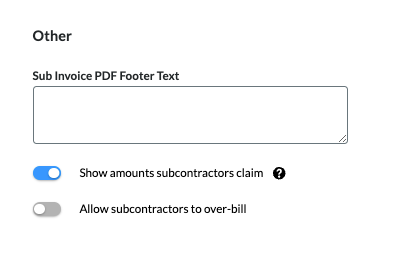
The 'Sub payment application PDF footer' text only appears when a user with 'admin' level permission on the project's commitment tool generates the PDF. It does NOT appear on any PDF generated by a user with 'Read Only' or 'Standard' level permissions on the commitments tool.
Optional: Show Amounts Subcontractors Claim. If you enable this setting, general contractors can differentiate between what a subcontractor claims and what the general contractor approves.
In Australia and New Zealand, enabling the 'Show Amounts Subcontractors Claim' setting will also let main contractors create a Payment Programme PDF in response to the payment application. See Review a subcontractor payment application as an administrator and Create a Payment Programme.
Total Claimed Amount. This reflects the 'Proposed Amount' column on the invoice's Detail tab. It excludes retainage.
Total Approved Amount. This reflects the 'Work Completed this Period' plus 'Materials Presently Stored' on the invoice's 'Detail' tab. This value also excludes retainage.
Reasons for Difference. When there is a difference between the claimed and approved amounts, include those reasons here. See Review a Subcontractor Invoice as an Invoice Administrator.
Overbilling. Allow Subcontractors to Over-Bill. Click the checkbox to choose the appropriate option:
How does this setting work? See How do I prevent or allow overbilling on a subcontractor payment application?
Want to prevent overbilling on all of your company's Procore projects? A Procore administrator can turn the 'Prevent overbilling on all projects' setting ON in the Company Admin tool. This prevents users from saving a payment application if any of the payment application's line items exceed 100% of the Budget amount in the commitment on all of your company's Procore projects. See Set the defaults for your projects. When ON, users can't change the 'Allow subcontractors to over-bill' setting on a project.
To prevent over-billing. This prevents users from saving an invoice if any of the invoice's line items exceed 100% of the budgeted amount in the commitment on this Procore project.
OR
To allow over-billing. This is the default setting. This setting prevents users from saving an invoice if any of the invoice's line items exceed 100% of the budgeted amount in the commitment on all of your company's Procore projects.
Sign using Procore
Sign using Procore. When an invoice is ready for signature, You are prompted to type their name or draw a signature directly within Procore.
Sign using Docusign. When an invoice reaches the "Approved" or "Signature Required" status, Procore automatically sends the document to DocuSign. The signers receive a standard DocuSign email.
Lien waivers: Show/hide settings
 Procore Pay is available in the United States. It is designed for main contractors and owner-builders who act as their own main contractors on a job. Procore Pay extends the payment application management functionality in the Procore web application to handle the payment process between main and specialty contractors.
If Procore Pay is enabled, you can configure the requirements for both conditional and unconditional waivers. These settings are only available with Procore Pay. For instructions:
Update the settings as needed.
Click Save.
Loading related articles...