Create manual valuation periods

Using owner or specialty contractor terminology?

Procore can be configured to use terminology specific to main contractors, owners or specialty contractors. Learn how to apply the dictionary options.

  • To learn the differences: Show/Hide

    • This table shows the differences in tool names (bold) and terms across the point-of-view dictionaries for Project Financials.

      Main Contractors
      English (United States) - Default

      Owners
      English (Owner Terminology V2)

      Speciality Contractors
      English (Speciality Contractor Terminology)

      Payment applications

      Payment applications

      Progress Billings

      Owner

      Funding

      Owner

      Owner/Client

      Owner/Client

      MC/Client

      Main Contract Variation

      Funding Variation

      Client Contract Variation

      Main Contracts

      Funding

      Client Contracts

      Revenue

      Funding

      Revenue

      Subcontract

      Contract

      Subcontract

      Subcontractor

      Contractor

      Subcontractor

      Subcontractor Bill of Quantities (SBOQ)

      Contractor Bill of Quantities (CBOQ)

      Subcontractor Bill of Quantities (SBOQ)

      About these dictionaries
      • Default setting: The 'main contractor' dictionary is enabled by default for all accounts.

      • Availability: These alternate dictionaries in italics are available in US English only.

      How to switch your dictionary

      To change your company's terminology to the owner or specialty contractor dictionary, contact your company's . They will work with your Procore point of contact to make the change.

Background

A valuation period defines the billing cycle used by a project’s team and payment application contacts on Procore’s payment applications and progress billings. In addition to defining the frequency of the billing cycle (for example, monthly or weekly), a valuation period also defines the billing cycle’s start/end date and the due date for the payment application or progress billing.

Examples

Common valuation periods include:

  • Monthly
    Examples of common monthly valuation periods are below:

    • Starts on the 1st day of a month and ends on the 30th of the same month.

    • Starts on the 15th of one month and ends on the 14th of the following month.

  • Weekly
    Examples of common weekly valuation periods are below:

    • Starts on Sunday of this week and ends on Saturday of this week.

Things to Consider

  • Required User Permissions

  • Additional Information:

  • When you create a new valuation period Procore automatically sets:

    • The new valuation period's status to Open.

    • The previous valuation period's status to Closed.

    • There can only be one (1) valuation period in the Open status at any given time.

  • You can only create valuation periods in the Project level Payment Applications tool.

    • You cannot create or manage valuation periods at the Company level.

  • These payment application management features rely on valuation periods:

Prerequisites

Steps

  1. Navigate to the Project level Payment Applications tool.

  2. Optional: Click the valuation period tab.

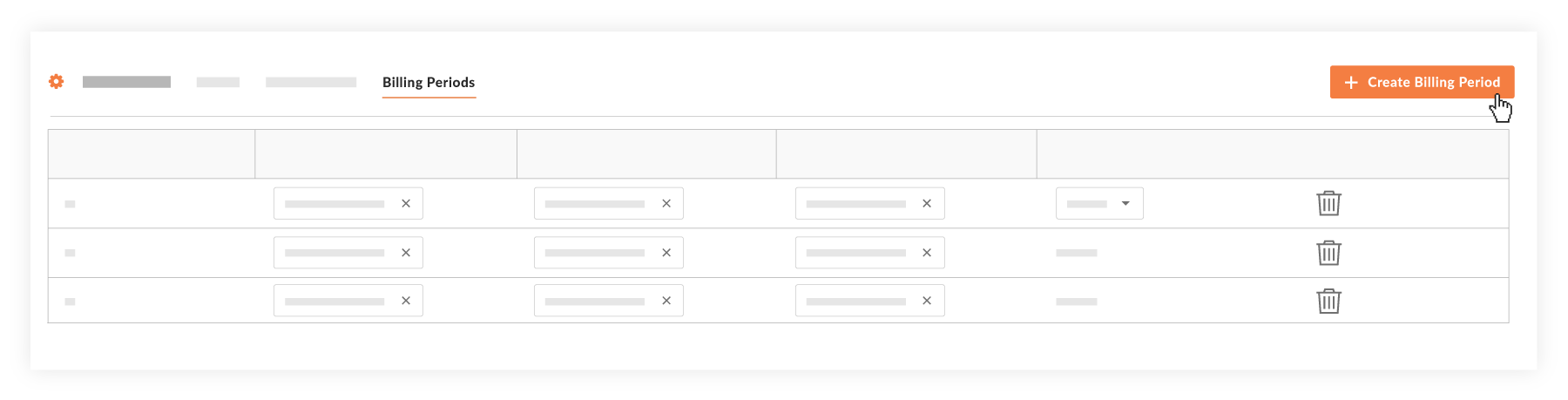
  3. Click Create valuation period.
    Start New Billing Period

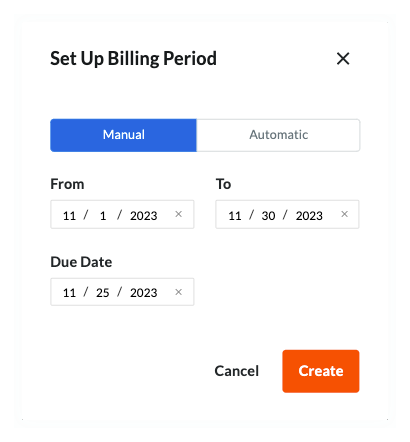
  4. In the 'Set up valuation period' prompt, the Manual tab is active by default.

     Tip

    Tired of setting new dates every time you create a manual valuation period? An payment application administrator can configure default valuation period dates to preset the dates in the From, To and due date fields of the 'Set up valuation period' prompt. See Configure settings: Payment Applications. If you don't complete this configuration, no preset dates show. Instead, you will see: dd/mm/yyyy

    Set Up Billing Period Manual

  5. In the Manual tab, accept the default valuation period date or choose another date to:

    • From. Set the start date for the new valuation period.

       Note

      When creating a payment application when this valuation period is Open, the 'From' date automatically populates the 'Period Start' field on the new payment application.

    • To. Set the end date for the new valuation period.

       Note

      When creating a payment application when this valuation period is Open, the 'To' date automatically populates the 'Period end' field on the new payment application.

    • Due date. Set the due date for new payment application submissions during the new valuation period.

       Notes
      • When creating a payment application when this valuation period is Open, the date in the 'due date' field populates the 'Period start' field on the new payment application.

      • Once the 'due date' passes for an Open valuation period, be aware that:

        • Payment application contacts can no longer create or submit a payment application. In addition, payment application contacts can only edit a subcontractor payment application if a payment application administrator places it into the draft or Revise & Resubmit status.

        • Only payment application administrators retain the ability to Create a subcontractor payment application.

  6. Click Create.
    Procore creates the new valuation period and sets its status to Open. Procore also automatically sets the previous valuation period to Closed.

Next Steps

See Also

Loading related articles...