Bulk edit subcontractor payment application status with the Payment Applications tool
Procore can be configured to use terminology specific to main contractors, owners or specialty contractors. Learn how to apply the dictionary options.
Use the steps below to change the status of multiple subcontractor payment applications at once.
You can edit subcontractor payment application status in bulk only with the Payment Applications tool.
Navigate to the project's Payment Applications tool.
Click the Subcontractor tab.
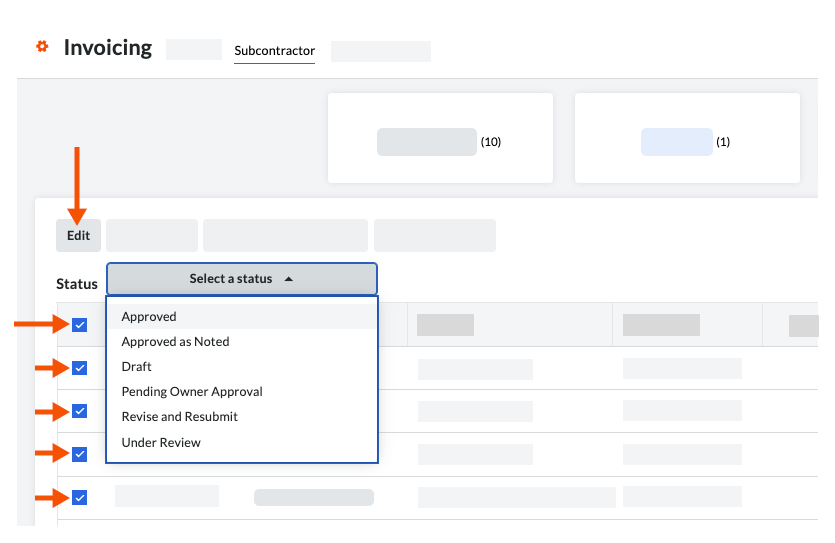
Mark the tickboxes that correspond to the commitments with payment applications:
To change the status of the selected payment applications in bulk, each commitment that you select must have a payment application.
To select all payment applications, mark the tickbox that corresponds to the heading in the status column. This selects all of the commitments in the list.
To select individual payment applications, mark the tickbox that corresponds to a commitment line item.
Click Edit.
Select the appropriate status from the Select a status drop-down list.
To learn more about statuses, see What are the default statuses for Procore payment applications?
When creating a payment application (see Create a subcontractor payment application), change the payment application's status to 'Under review' when you are ready to send it to the payment application administrator. The administrator can then change its status to 'Approved' as needed.
Users with 'Standard' level permissions can bulk edit payment applications only when the payment application is in the 'draft' or 'Revise & Resubmit' status.
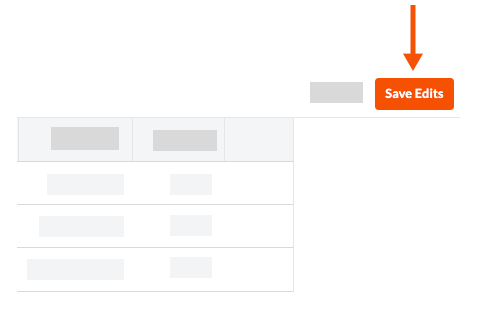
Click Save edits.
Why isn't the Save Edits button active? A payment application doesn't exist for one (1) or more of the selected commitment(s).
Loading related articles...