Export a commitment
Background
You can export an individual purchase order or subcontract to the supported file formats detailed below. This is useful when you want to print out a paper copy of a purchase order or subcontract when you want to obtain a wet signature.
Things to Consider
Required User Permissions:
To export any purchase order or subcontract with its bill of quantities:
Admin level permission or higher on the project's commitment tool.
ORRead Only level permissions on the project's commitments tool and you must be added to the Privacy drop-down list and the Allow users to see BOQ items tickbox must be enabled on the purchase order or subcontract.
Supported File Formats:
Comma Separated Values (CSV)
Microsoft Word Open XML Document (DOCX)
Due to file conversion rules, formatting may shift slightly when the DOCX file is opened in other application.
Portable Document File (PDF)
Additional Information:
To export a commitment list, see Export commitment.
Prerequisites
Create a commitment
Steps
Navigate to the project's Commitments tool.
Click the Contracts tab.
Locate the commitment to export in the table.
Click its Number link to open it.
After you open the commitment, the steps that are available depend on the experience you are using.
In Beta
Legacy content
The steps below detail the steps to follow when using the modernised commitment experience. To learn more, see Project Financials: Modernised experience for the commitment tool.
In the commitment, click the General tab.
In the top-right corner, click the Export button. Then choose one (1) of these options:
PDF. Generates a PDF copy of the commitment and opens it in a separate browser window. You can then save the PDF to your web browser's download location or send the document to a printer. The PDF displays the budget code. See What is a budget code in Procore's WBS?
DOCX. Downloads a DOCX copy of the commitment to your web browser's specified download location.
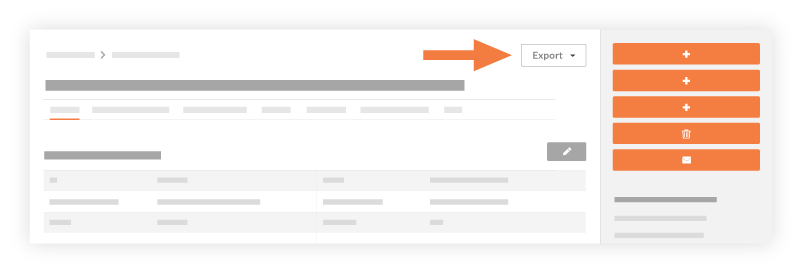
The steps below details the steps to follow when using the legacy commitment experience. To learn more, see Project Financials: Modernised experience for the commitment tool.
From the general tab
In the commitment, click the General tab.
Note: These steps also work as described from these tabs: Subcontractor BOQ, Payment applications, Payments issued, Related items, Emails, Change history and Advanced settings.In the top-right corner, choose one (1) of these options:
Export > PDF. Generates a PDF copy of the commitment and opens it in a separate browser window. You can then save the PDF to your web browser's download location or send the document to a printer. The PDF displays the budget code. See What is a budget code in Procore's WBS?
Export > DOCX. Downloads a DOCX copy of the commitment to your web browser's specified download location.
Some tabs provide additional export options.
Tab name | Additional option | Description |
|---|---|---|
Bill of Quantities | Export contract line items (Export > CSV) | Downloads a CSV copy of the line item on the commitment's Bill of Quantities. |
Variations | Export variation log (Export > PDF) | Generates a PDF copy of the commitment and opens it in a separate browser window. You can then save the PDF to your web browser's download location or send the document to a printer. This PDF displays the budget code |
RFQs | Export RFQ log (Export > PDF) | Generates a PDF copy of the commitment and opens it in a separate browser window. You can then save the PDF to your web browser's download location or send the document to a printer. This PDF displays the budget code. |