Submit a site-initiated variation as a collaborator
Background
If the company that hired you to work on their project has granted you the appropriate access permissions to create a commitment variation (or potential variation for two and three-tier variations) on your contract in their Procore company account, use the steps below.
Things to Consider
Required User Permissions:
'Standard' level permission on the Commitment tool. See What granular permission are available for the project's Variation tool?
Granular permissions are only required to add/edit BOQ line items.
Project level tool setting:
The Enable site-initiated variations and Allow Standard level users to create variations settings must be enabled in the Commitment tool configuration.
Limitations:
Standard users can only edit variations they have created. To edit variations created by others (including admins), a Standard user's permission level must be increased to admin.
Steps
Navigate to the project's Commitments tool.
Locate the affected contract in the commitments table. The contract must be in the 'Approved' status.
Click the contract's Number link to open it.
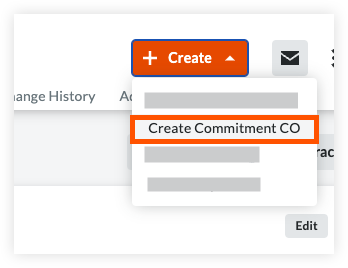
Click Create.
Click Create commitment VAR.
In the new commitment variation page, enter the following information:
Number (#)
Procore automatically assigns the CV numbers in sequential order. By default, numbers are assigned as 001, 002, 002 and so on. You can manually override this by typing over the number if desired.Date created
Procore automatically adds this date and timestamp.Revision
When you first create a CV, the revision number is zero (0). As reviewers provide feedback, a CV may be subsequently revised.Created by
Procore automatically adds your name to this field.Contract company
Procore automatically adds your company's name to this field using the data in the contract.Contract
Procore automatically links the contract your variation is associated with in this field.Title
Procore automatically lists (none) in this field. You cannot change this value. To learn more, see What is the maximum character length for a commitment's 'Title'?
Note: This field is only available when two or three-tier commitment are enabled.Status
Procore automatically places the new CV into the 'draft' status. To learn more, see What are the default statuses for variations in Procore?Private
Procore automatically ticks this box to keep the CV private and confidential.Change reasons
Select one of the options from the drop-down list. The options in this list are managed by the Procore company account holder. To learn about Procore's default change reasons, see What are Procore's default change types and change reasons?Due date
Select the date by which the variation must be completed.Payment application date
Record the date the payment application for this variation was issued.Paid date
Note the date the payment for this variation was settled.Designated reviewer
Choose the person responsible for the initial review of this change.Request received from
Select a Procore project user who requested the change from this list.Reviewer
Select the individual who performed the final review.Review date
Choose the date the review process was finished.Description
Enter a description of the change in this box.Executed
Tick this box if the variation is legally signed and finalised.Signed variation received date
Select the date you received the fully signed document.Programme impact
If known, enter an approximate number of additional days that the proposed change would add to the project's current programme.Location
Identify the specific area of the job site affected by this change.Reference
Enter any other relevant information in this box. For example, tools materials or documents that are related to the CV.Field change
Mark this tickbox if the CV requires a field change. A field change is any modification to the construction project that deviates from the original architectural plans.Paid in full
Mark this tickbox if the cost that you plan to enter on the BOQ are already covered in the Procore account holder's Budget.Attachment
Click Attach files or use a drag-and-drop operation to attach any relevant files to the CV.Total amount
Enter the total cost or credit value of the variation.
Click the Create and enter BOQ button.
This opens the Bill of Quantities tab.
Add the BOQ line items
Under the Bill of Quantities tab, click Add line.
Complete the data entry as follows:
Budget code
Select a budget code from the In contract options. To use budget codes that are Out of contract, your user account must be granted edit access to the contract's Bill of Quantities (BOQ) with the following granular permissions: Update work order contract and Update purchase order contract.Description
Enter a description for the line item.Quantity
Enter the number of units.UoM
Select the Unit of Measure (UoM) from the list. See Which units of measure are included on Procore's master list?Amount
The system automatically calculates the subtotal for you, based on the quantity, UoM and unit cost entries.
Repeat the above steps for all line items that you need to add to the CV.
Click Save.
This saves your CV in Procore as an Open change event.
See Also
Loading related articles...