Create a direct cost
Background
In Procore, the term direct cost is used to refer to a cost on a construction project that is NOT associated with a purchase order or subcontract. Using the direct costs tool, you can create these items:
Payment applications. Create a direct cost for a paper payment application from a non-contracted vendor for items such as printer ink, computer paper or postage.
Expenses. Create a direct cost expense for computer Equipment, telephones or internal Equipment rentals.
Payroll. Create a direct cost for monthly payroll cost classified by cost code, so that payroll amounts reflect each month on the Budget.
Once you change the status of a direct cost from draft to either Pending, Revise and Resubmit or Approved, the project's Budget tool automatically displays the amount of the direct cost in the 'direct cost' column on its corresponding budget line item. For 'Approved' direct costs, Procore also automatically adds any direct cost line items with a matching budget code onto the appropriate main contract payment application's Bill of Quantities (BOQ). See Create main contract payment applications.
Things to Consider
Required User Permissions:
'Admin' level permission on the project's direct cost tool
OR'Read Only' or 'Standard' level permissions on the project's Direct Costs tool with the 'Create direct cost' granular permission enabled on your permission template.
Considerations:
To select a vendor when creating a Project level direct cost line item, you must have Read Only permissions or higher to the Company level Directory tool.
If you would prefer to import your direct cost line item using a comma separated values (CSV) file, see Import direct cost.
Prerequisites
Add the direct costs tool to the project. See Enable the direct costs tool.
Add the vendor associated with the direct cost to the company directory. See Add a company to the company directory.
Note: Vendors do NOT need to be added to the project directory to be associated with a direct cost.
Steps
Add a new direct cost
Navigate to the project's direct cost tool.
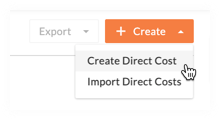
Click Create. Then select Create direct cost from the drop-down menu.
Under General information, do the following:
Type
Select Expense, payment application or payroll from the drop-down list.Date
Choose the date you want to apply to the direct cost from the calendar control.Vendor
Select a vendor from the drop-down list.
Notes:The selections in this list are populated from the company Directory (and not the Project Directory).
This field is only required when 'payment application' is selected.
Employee
Select the employee that reported the direct cost.Terms
Enter any terms for the seller. You can either select one of the options from the drop-down or create your own by entering text into the Terms text box.
Note: This drop-down requires a supported web browser. See Which web browsers are supported by Procore?Description
Enter in a more detailed description of the direct cost.Received date
Enter a date the direct cost was received.
Note: The received date must fall within the start and end date of the valuation period.Paid date
Enter a date the direct cost was paid.Attachments
Add an attachment, such as a digital copy of a payment application, bill or receipt for the direct cost.
Under Currency & exchange rates, do the following:
Currency
Select the specific monetary currency applied to all Bill of Quantities (BOQ) line items in the direct cost entry from the Currency dropdown menu.Exchange rate
A numeric field where you specify or view the conversion rate used to translate the selected currency into the project's base currency.Add group
Creates a new section or heading within the Bill of Quantities table, allowing you to organise related expense line item together. For example, grouping by cost code or category.
Click Add line to add a new, blank row to the Bill of Quantities table so you can enter individual expense item. Complete the data entry as follows:
Budget code
Select a budget code from the list or click Create budget code to create a new one. See What is a budget code in Procore's WBS?Autocalculate vs. override amount
Click the icon in the column until the calculation method you want to use is active:If you want Procore to consider your quantity, UoM and unit cost entries to automatically calculate the 'amount', click the column until a calculator icon appears.
If you want to manually override the automatic calculation and enter the amount, click the column until the icon with the exclamation point appears.
Description
Enter a description for the line item.Quantity
Enter in the quantity of units.UoM
Select the Unit of Measure (UoM) from the drop-down list. See Which units of measure are included on Procore's master list? and Add a unit of measure to the unit of measure master list.Unit cost Enter the unit cost in the box provided.
Amount
The system automatically calculates the subtotal for you, based on the quantity, UoM and unit cost entries.
Choose one of these options:
Save as draft. Click this button to save the entered direct cost details and line items as a draft without triggering an approval workflow. This keeps the record editable and visible only to authorised users until it is ready to be submitted.
Save & start workflow. Click this button to save the direct cost record, changes its status from draft to in review (or pending) and automatically routes it to the designated approver based on configured financial thresholds.
After you change the status of a direct cost from draft to any other status (i.e., Pending, Revise and Resubmit or Approved), Procore matches the division, cost code and cost type for the budget code of the direct cost and update these Procore tools as appropriate:
Budget tool
Adds the direct cost as a line item on the project's budget. The direct cost 'Amount' shows on the budget line item in the 'direct cost' column. If the budget code's cost code and cost type are not budgeted, Procore highlights the line item in RED so you can add it to the Budget. See Add a partial budget line item.Payment Applications tool
Adds the direct cost as a line item on a main contract payment application's Bill of Quantities (BOQ) if the direct cost's 'received date' occurs within the main contract payment application's valuation period. See Create main contract payment applications.
Main Contract tool
Adds the direct cost as a line item on a main contract payment application's Bill of Quantities (BOQ) if the direct cost's 'received date' occurs within the main contract payment application's valuation period. See Create main contract payment applications.