Create main contract payment applications
In Beta
This page details the modernised main contract payment application experience.
When managing your construction project in Procore, you can generate a main contract payment application to bill an upstream collaborator on a main contract. Then, submit the main contract payment application.
Required User Permissions:
To create main contract payment applications, 'admin' level permission on the project's main contract tool.
Additional Information:
By default, new payment applications automatically reflect approved budget changes.
You can configure Procore to add approved budget changes and variations to main contract payment applications created before their approval. See About budget changes on main contract payment applications.
Create a valuation period. See Manage valuation periods.
Navigate to the project's main contract tool.
Find the contract for which you want to generate a payment application.
In the Number column, click the link to open it. 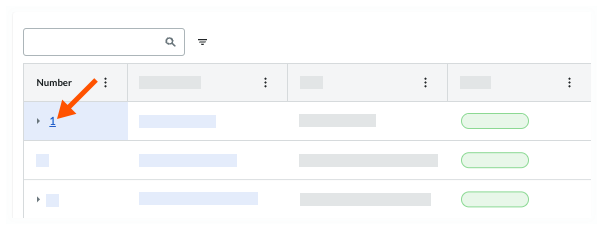
In the contract, click the payment applications tab. 
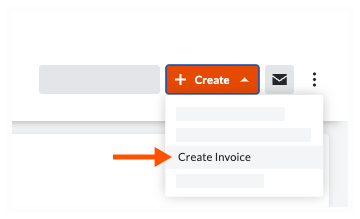
Click + Create and choose Create payment application from the drop-down menu.
Is the menu option greyed out? To activate this option, place the contract into the Approved or Complete status.
In the Create payment application card, do the following: 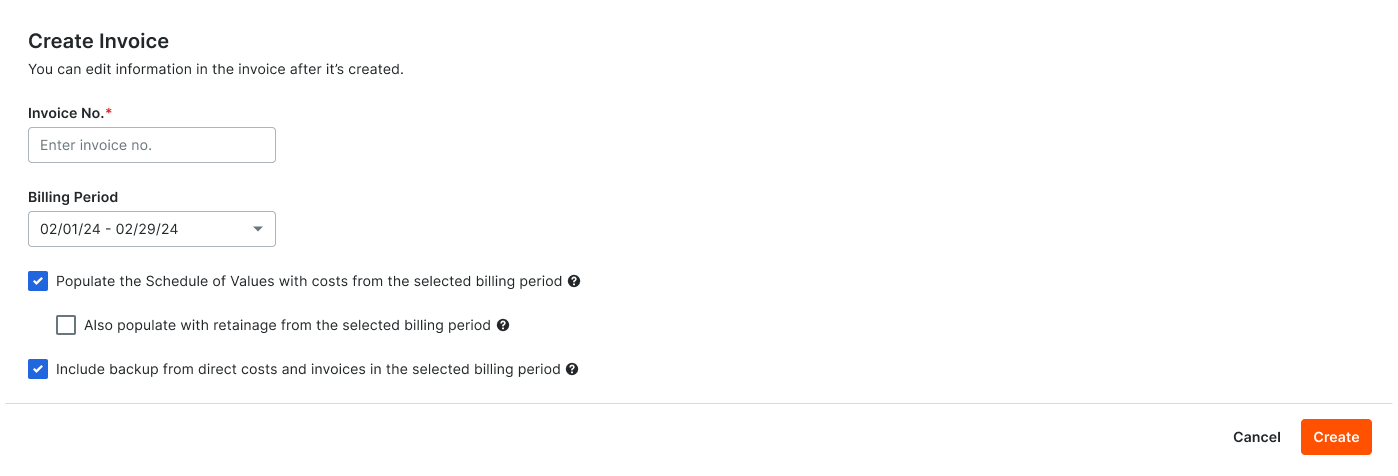
An asterisk (*) below indicates the field is required.
Payment application No.*
Enter a payment application number.
Valuation period
Procore selects the open valuation period's date range or, if no open period, the most recent period's date range.
How do you create a valuation period? Only a payment application administrator can create valuation periods with the Payment Applications tool. See Create valuation periods.
Choose the prefill setting to populate the new payment application.
Mark a tickbox to turn the setting ON.
OR
Remove a mark from a tickbox to turn the setting OFF.
Want to save time and improve data entry efficiency? Procore can populate a main contract payment application with financial data from eligible subcontractor payment applications, direct costs and commitment variations. For details, see How does Procore automatically complete amounts on a main contract payment application?
Click Create.
Procore creates the payment application. Continue with the next step.
Loading related articles...