Switch between views in the direct cost tool
Background
With the direct cost tool, you have access to two tab for viewing your project's direct cost data:
Summary
This tab summarises your direct cost data in a tabular format that lists line item by Date, vendor, Type, payment application #, status, Amount, received date and Paid date of your project's direct cost. You can click any column header in the table to sort the line items by that column heading.Summary by cost code
This tab groups your project's cost code by division and then summarises your direct cost line item in a tabular format. Line items are listed by Date, Employee, vendor, Type, payment application #, status, Description, Amount, received date and Paid Date of your project's direct costs.
Things to Consider
Required User Permissions:
'Read Only' level permissions or higher on the project's direct costs tool.
Additional Information:
The 'Summary by cost code' tab provides you with the added ability to filter by 'cost code' and 'cost type' (a.k.a., Type). See What are Procore's default cost types?
Prerequisites
Steps
Navigate to the direct cost tool.
Click the tab that you want to view:
Summary
This tab summarises your direct cost data in a tabular format that lists line items by Date, Vendor, Type, Payment application #, Status, Amount, Received date and Paid Date of your project's direct cost. You can click any column header in the table to sort the line items by that column heading.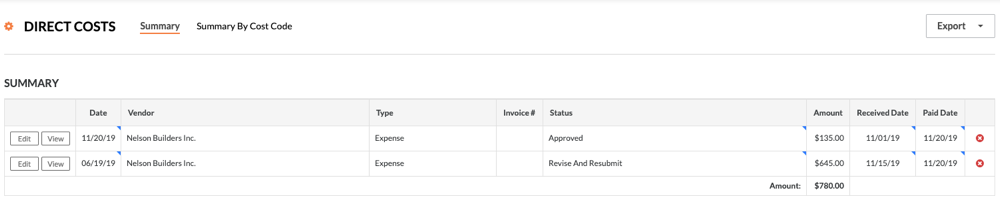
Summary by cost code
This tab groups your project's cost code by division and then summarises your direct cost line item in a tabular format. Line items are listed by Date, Employee, vendor, Type, payment application #, status, Description, Amount, received date and Paid Date of your project's direct cost.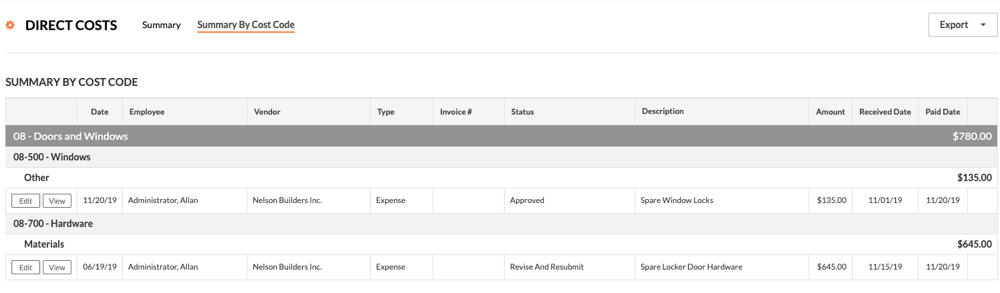
See Also
Loading related articles...