Set tenderer information for a company in the company Directory
Things to Consider
Additional Information:
Tenderer information is linked between the Project level and Company level Directory tools.
Tenderer information for a
is also set by the connected company. See Refresh tender contacts for connected companies in the company DirectoryA connected company is a business or organisation that is listed on the Procore Construction Network and added as a company in your Company level Directory tool. While you can edit and maintain some of the business’s information in your Company level Directory, the business also has a public profile with information that they maintain.
Cost codes selected on the Tenderers tab will automatically appear on tender sheets if they exist on the project.
You can bulk update the cost codes and trades associated with companies by 'Updating the existing vendors' template. See Update contacts in your company Directory tool (Procore Imports) for more information.
The 'Leave a comment' section is designed to assist you in your decision making when searching for tenderers. See Invite tenderers.
Steps
Navigate to the Company level Directory tool.
Click the company tab.
Click Edit next to the company.
Click the Tenderer info tab.
Authorised tenderer: Mark this tickbox to designate an authorised tenderer. This is for reporting purposes only and does not affect Procore email.
Choose from these options:
U.S. government jobs: If updating a company record for a U.S. government project, mark all applicable tickboxes to disclose the required company information.
Jurisdictional restrictions: If data collection is not required or is legally prohibited in your jurisdiction, disregard the tickboxes and proceed to the next step.
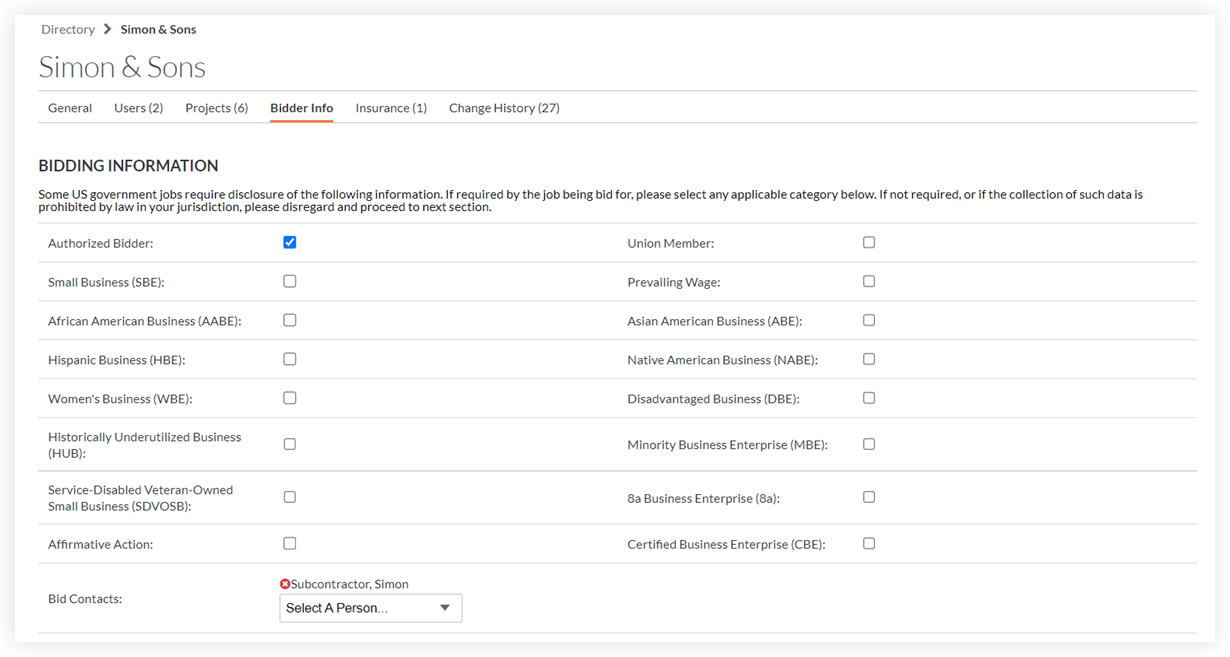
Add users to the Tender contacts field to ensure they receive tender invitations. Once added, they will automatically populate the Tender recipient field on new tenders.
Prequalifications: If the Prequalifications tool is enabled, company qualification data will be listed. See the Prequalifications tool for more information.
Set trade and cost code so that the company will appear when searching by trade or cost code in the Tendering tool.

Trade: A classification for the company's work type (e.g., Electrical, Mechanical, HVAC). If your trades are not set up, see Add a custom trade.
Cost code: Select which cost code apply to this company.
Click Save
Recent tenders are listed at the bottom of the page under 'Most recent tenders'. Clicking a link redirects you to the relevant project or tender package.
Note: You must have permission to view these projects/tenders for them to show here.In the 'Leave a comment' section, complete the following:
Enter a comment.
Attach any relevant files for your records.
Rate their work with a 1-5 star system.
Click Post comment.
Existing comments, files and ratings display in the 'Comments' section.


See Also
Loading related articles...