Complete main contract payment applications with DocuSign®
Background
After your team creates a main contract payment application, Procore users with a DocuSign® account can prepare a DocuSign® envelope for the payment application to send to the appropriate recipient(s) to request a signature.
If you are the recipient of a signature request, you do not need a DocuSign® account. However, if you do have a DocuSign® account and the email address matches the email you use in Procore, a copy of any documents you sign will be saved in your DocuSign® account. After all of the required signatures are collected in DocuSign®, Procore changes the status of the commitment to Approved.
Things to Consider
Required User Permissions:
'Admin' level permission on the project's main contract tool
Additional Information:
Once you log into your DocuSign® account from Procore, you will not need to sign in again until the login token expires. Once expired, the Re-authentication required banner appears in Procore. To learn more, see What do the different DocuSign® banners in Procore mean?
To complete the steps below, the payment application must be in Approved, Approved as noted or Pending owner approval status.
Prerequisites
Enable the DocuSign® integration on your company's Procore account
To request signatures using the Procore + DocuSign® integration, you must have an active DocuSign® account. You do NOT need a DocuSign® account to sign a document. For details, see:
Steps
Open the main contract payment application
Log in to DocuSign®
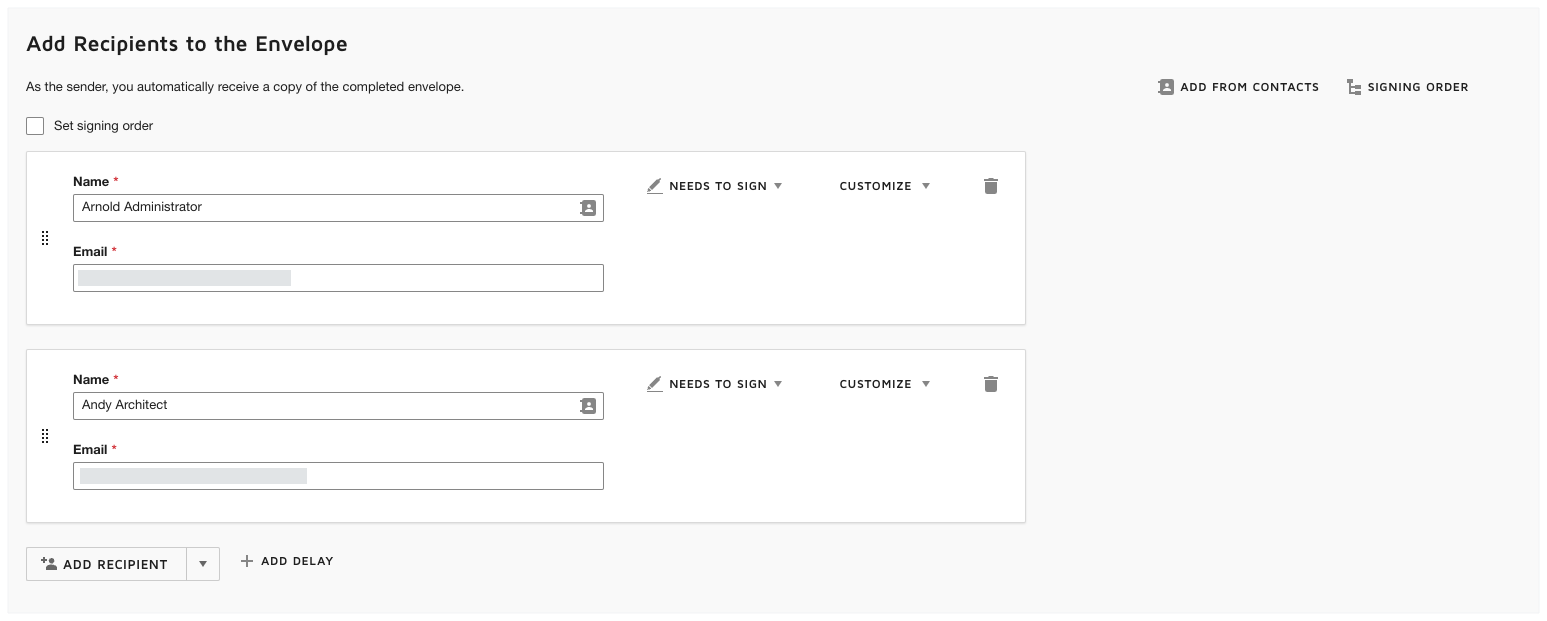
Prepare the DocuSign® envelope
Open the main contract payment application
There are two ways to open a main contract payment application:
From the main contract tool
From the Payment Applications tool
From the Main Contracts tool
Navigate to the project's main contract tool.
Locate main contract associated with the main contract payment application. Then click its Number link.
Click the Payment applications tab.
In the Payment applications (payment applications) table, click the Payment application # link.
In the payment application, click the Edit button.
In the Summary tab, click the Update & set up DocuSign button.

From the Payment Applications tool
If you have 'admin' level permission on the main contracts tool, you can also use the project's Payment Applications tool to send payment applications to DocuSign® in bulk.
Navigate to the project's Payment Applications tool.
Click the owner tab.
Locate the payment application in the table. Then
, click the payment application # link.
In the payment application, click the Edit button.
In the Summary tab, click the Update & set up DocuSign button.
Procore launches the DocuSign® application. If you are not already logged into DocuSign®, you will be prompted to enter your login credentials.
Log in to DocuSign®
If you are NOT logged into your DocuSign®account when you launch the DocuSign® application from Procore:
To learn how to gain access to DocuSign® from a Procore tool, see one of the task in Which Procore project tools support the DocuSign® integration?
To log into DocuSign® from Procore, you need valid login credentials (an email address and a password) for a DocuSign® account. To learn more, see Do I need a DocuSign© account? and How do I get a DocuSign® account?
At the DocuSign® log in page, type your email address in the email box:
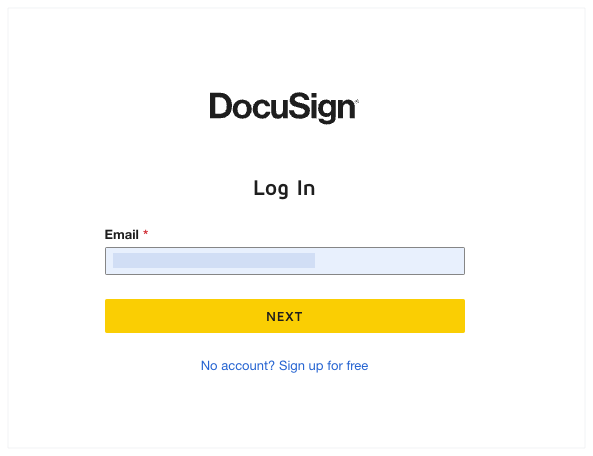
Click Next.
Enter your password.
Click Log in.
Prepare the DocuSign® envelope
Once you are logged into the DocuSign®, the Upload a document and add envelope recipient page appears. Complete these steps:
Add documents to the envelope
Add recipients to the envelope
Add a message to all recipients
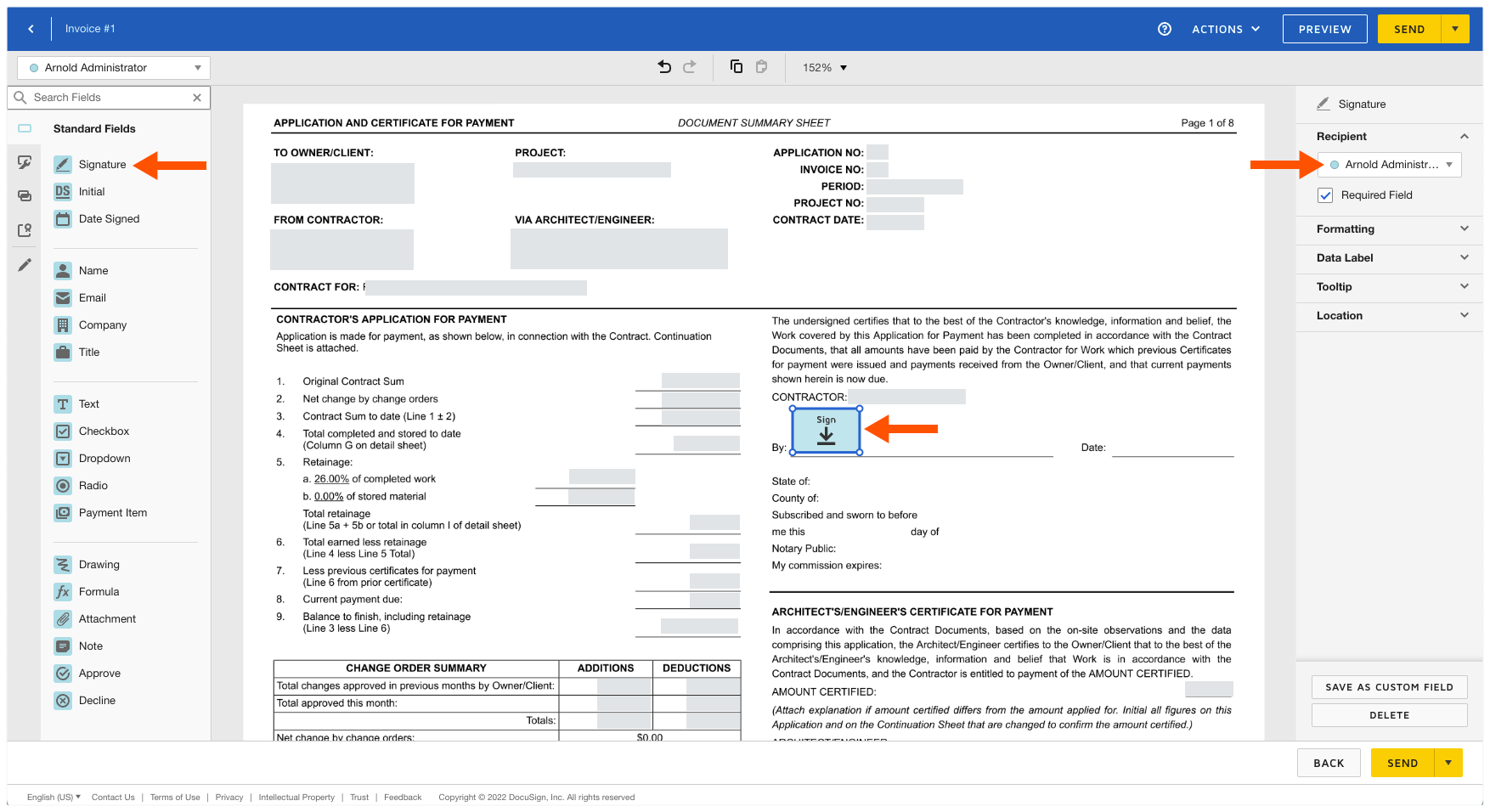
Add the signature fields & send the envelope
Add documents to the envelope
The following Procore information automatically populates the DocuSign® envelope:
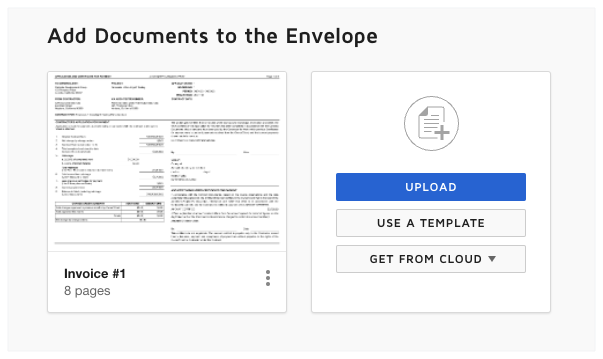
A PDF copy of the payment application is automatically added to the Add documents to envelope section.
You have the option to add other documents as follows:
Optional: If you want to add additional documents to the envelope, choose one of the available options under the 'Add documents to the envelope' section:
 Note
The available options in the 'Add documents to the envelope' section are developed and maintained by DocuSign®. To learn how to use DocuSign®, Procore recommends reviewing the content on support.docusign.com.