Delete a main contract variation

Background

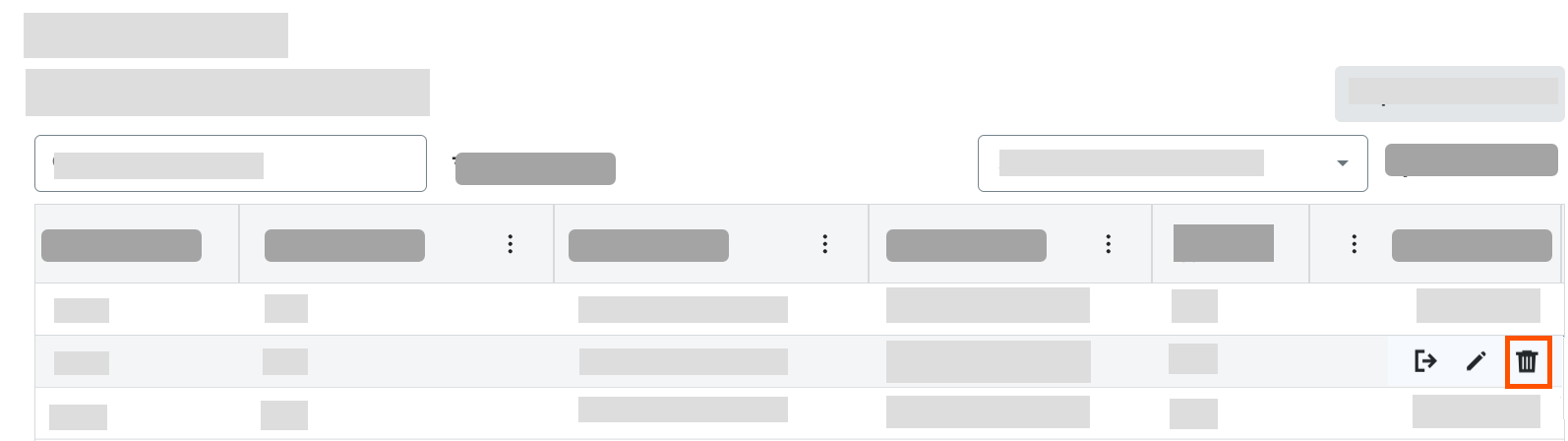
To delete or remove an MCV, you can click the Actions or the vertical ellipsis icon next to the MCV and select the Delete icon. However, when the icon is greyed out and not available, it means the MCV is associated with other item in Procore. The steps below show you how to remove associated item and then permanently delete an MCV.

 Important

Before you can perform a delete action, you must:

  • Change the status of the MCV from 'Approved' to another status as described below. If you want to change the status of multiple MCVs, you must apply the status changes in reverse order from how they were approved. For example, if you approved the PPCOs in sequential order (001, 002 and 003), you will need to remove the 'Approved' status in reverse order (003, 002, 001).

  • Unlink any Procore item associated with the MCV. This may include potential variations (PVs), variation requests (VRs) and payment applications as described in the prerequisites below.
Things to Consider

  • Required User Permissions:

    • 'Admin' level permissions on the project's Prime Contracts tool.

Prerequisites

  • If the MCV is linked to one (1) or more payment applications, you must first delete all associated payment applications.

  • If the MCV is linked to one (1) or more main PVs or VRs, complete the steps in Remove a variation from a main contract.

Steps

  • Navigate to the variations tab

  • Change the status of the main contract variation from 'Approved'

  • Delete the main contract variation

Navigate to the variations tab

  1. Navigate to the project's main contract tool.

  2. Locate the main contract to work with. Then click its Number link.

  3. Click the Variations tab. Depending on the number of variation tiers configured for the tool, the following tables appears in the tab:

    • Main contract variations

    • Potential variations

    • Variation requests

Change the status of the main contract variation from 'Approved'

 Important

Before changing the status of multiple MCVs from 'Approved' to another status, be aware that you must apply the status changes in reverse order from how they were approved. For example, if you approved the PPCOs in sequential order (001, 002 and 003), you will need to remove the 'Approved' status in reverse order (003, 002, 001).

  1. In the main contract variations table, locate the 'Approved' MCVs.

  2. Click View to open the MCV.

  3. Click Edit.

  4. In the status drop-down list, change the status from 'Approved' to a different status.

  5. Click Save.

 Note
  • If the MCV is linked to one (1) or more prime PVs or VRs, complete the steps in Delete a main contract variation (MCV).

Delete the main contract variation

  1. Navigate to the project's Main Contracts tool or Variations tool, depending on your project's configuration.

  2. Click the Number link for the main contract variations.

  3. Click the Variations tab.

  4. In the main contract variations section, locate the MCV to remove.
    delete-prime-contract-change-order.png

  5. Click the Actions or the vertical ellipsis icon next to the MCV and select Delete.

  6. In the confirmation dialog box that appears, click OK to confirm the removal action for the selected MCV.

See Also

Loading related articles...