Add subcontractor payment applications to a 'draft' disbursement

 General availability in select markets (United States)

Flag Us Procore Pay is available in the United States. It is designed for main contractors and owner-builders who act as their own main contractors on a job. Procore Pay extends the payment application management functionality in the Procore web application to handle the payment process between main and specialty contractors.

Background

Procore Pay's 'draft' disbursement feature benefits payors by reducing errors and increasing payment accuracy. It serves as a checkpoint, allowing your team to confirm released payment application holds and meet company requirements before authorisation. While in 'draft' status, authorised users can add more subcontractor payment applications, enabling accounting teams to collaborate on a single, consolidated disbursement. This reduces funds transfer and banking fees.

A payment admin or payment disburser can start custom workflows, authorise disbursements and update a payment application's payment amount to issue partial payments. See About partial payments with Procore Pay. These users are required to Set up MFA for Procore Pay on your device. Disbursement contributors are restricted to adding or removing payment applications and can only save changes in draft disbursements, so they aren’t required to set up multi-factor authentication.

Things to Consider

  • Required User Permissions

  • Additional Information:

    • A single disbursement can handle up to 100 subcontractor payment application payment.

    • Payment application payment must be a positive amount. Procore Pay does not support negative payment application payment.

    • Disbursement contributors can only save their disbursements as draft.

    • Payment admins and disbursers can change the payment amount to issue partial payments. See About partial payments with Procore Pay. Updated payment amounts must be less than or equal to the amount due on a payment application.

    • Payment admins and disbursers cannot authorise a disbursement if they are the last approver on any payment application within the disbursement.

Prerequisites

Steps

  1. Navigate to the Company level Payment tool.

  2. Click the Subcontractor payment applications tab.

  3. Select the payment applications to add to a disbursement by marking the corresponding Payment application #. tickbox(es).

  4. Click Add to Disbursement and choose the disbursement from the drop-down list.
    This list only includes disbursements in the 'draft' status.

     Tip

    Want to create a disbursement for the selected payment applications? Click Create new. Then see Create disbursements.

    Add To Disbursement Drop Down List

  5. In the #1 Review payment applications page, do the following:

    • If there are payment applications in the disbursement that are ineligible for payment: Show/Hide

      • When the Review payment applications page shows an error message saying there are payment applications ineligible for payment, click Show details to expand the error message and review the details. Click Hide details to hide the error message. You can address the eligibility issue or click the Icon Delete Trash6 icon to remove the disbursement to address it later. See Remove subcontractor payment applications from disbursements as a payor.
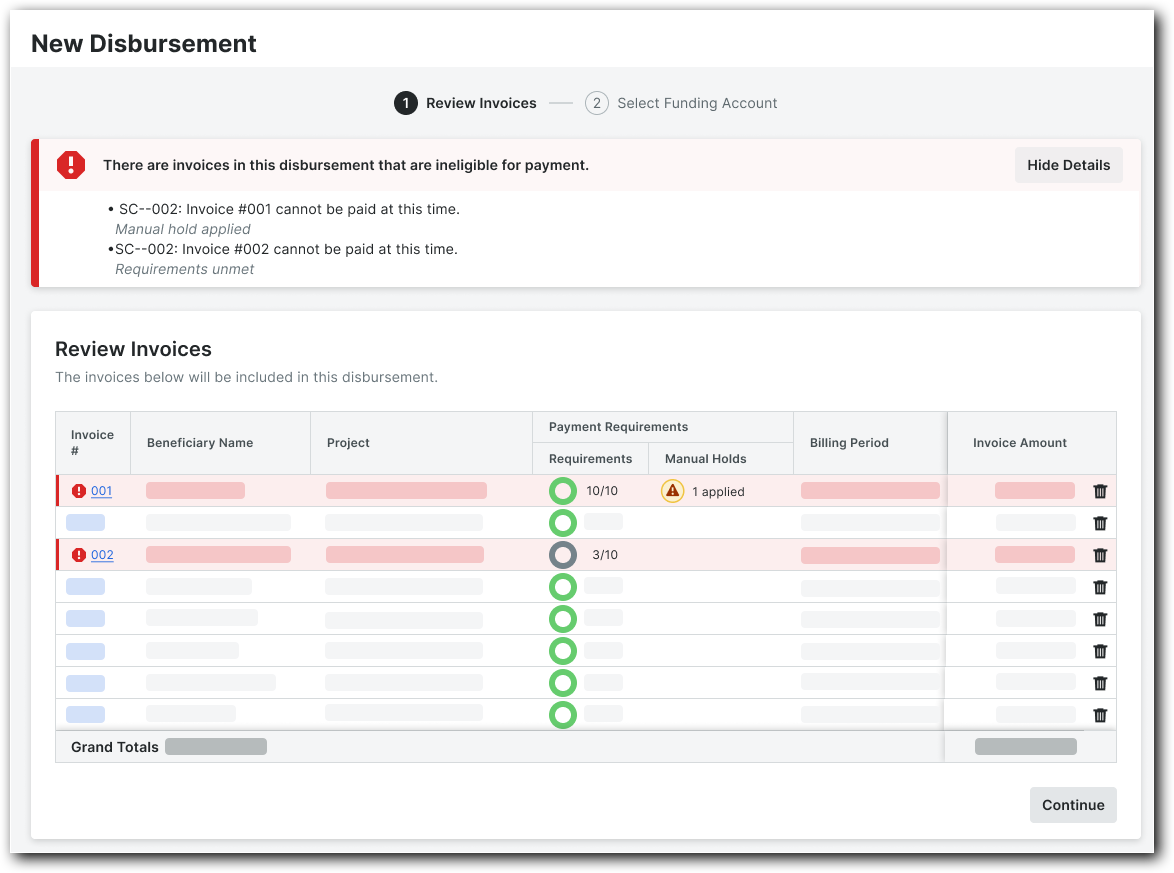
        Review Invoices Page With Workflow

    • If you want to issue a partial payment for a payment application: Show/Hide

        1. In the Review payment applications card, confirm the list of payment applications to be added to the disbursement.

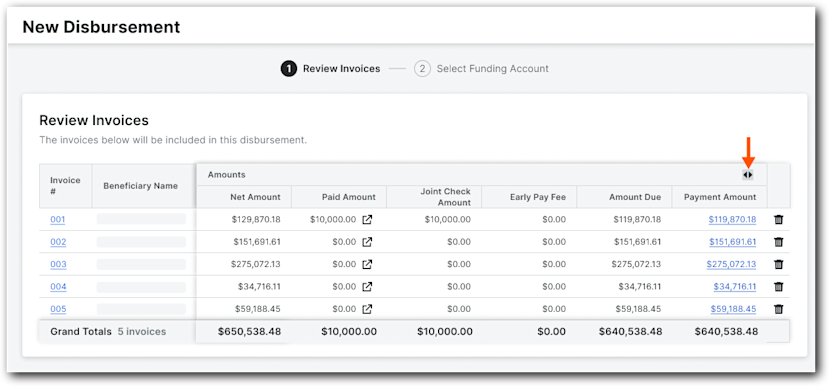
        2. Expand the Amounts column group to review the Net amount, Paid amount, Joint check amount, Early pay fee, Amount due and payment amount for each payment application.

          Expand Amounts

        3. (Optional) To issue a partial payment, click the payment amount link.
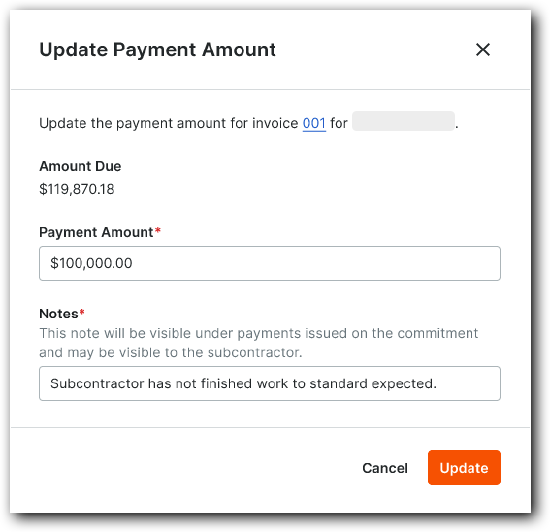
          This opens the update payment amount window.

           Tip

          Want to learn more about partial payment? See About partial payment with Procore Pay

        4. Do the following:

          Ad 4nxfsxagbojnc83nnswe13oh Twjyttifmfwplpd8 Ujcswpfj05klhhjocpxcq8jeppuhdq5w82gmhwygqdr Bwtjfii6r7qpuqcxrayor2tc6eisg5ewyduap9w521dpyz Pnugkeyoemi 0vigirxiacruub6b034

          • Enter an updated amount in the payment amount box. Entries must be less than or equal to the amount due of the payment application.

          • Enter relevant information about the updated payment in the Notes box.

          • Click Update.

        Procore updates the payment amount for the payment application.

  6. Click Continue.
    This opens the Select funding account page. You can continue creating the disbursement as described in Create disbursements.

See Also

Loading related articles...