Remove subcontractor payment applications from Disbursements as a payor

 General availability in select markets (United States)

Flag Us Procore Pay is available in the United States. It is designed for main contractors and owner-builders who act as their own main contractors on a job. Procore Pay extends the payment application management functionality in the Procore web application to handle the payment process between main and specialty contractors.
Background

Only authorised users can remove subcontractor payment applications from a 'draft' disbursement. The , and roles can remove payment applications from the 'Review payment applications' page of a 'draft' disbursement. When using a payment workflow, users can only remove payment applications while the workflow is active and they must provide a reason.

Disbursement Contributors can only add or remove payment applications and save changes to 'draft' disbursements, so they do not require MFA. Payment admins and payment disbursers can also start custom workflows, authorise disbursements and adjust payment application amounts for partial payments (see About partial payments with Procore Pay). Both roles must Set up MFA for Procore Pay on your device.

Things to Consider

  • Required User Permissions

  • Additional Information:

    • Payment applications cannot be removed from a disbursement:* After the disbursement is authorised.* The disbursement has been submitted to the banking system for payment processing.

    • To learn how to cancel a disbursement, see Cancel disbursements.

Prerequisites

Steps

  • Remove subcontractor payment applications from a new disbursement

  • Remove subcontractor payment applications during a payment workflow

Remove subcontractor payment applications from a new disbursement

Authorised users can remove payment applications from new disbursements during creation and when they're in the 'draft' status.

  1. Follow the steps in Create disbursements.

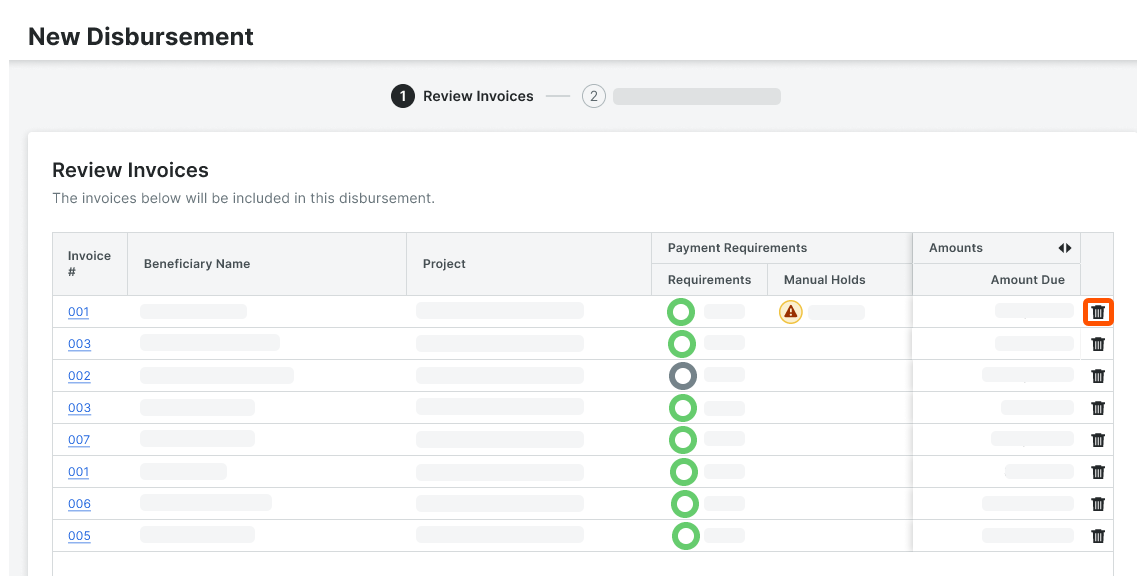
  2. In the Review payment applications page of the New disbursement, locate the payment application to remove.

    Review Invoices Remove

  3. Click the trash can icon.
    Procore Pay removes the subcontractor payment application from the Review payment applications page.

Remove subcontractor payment applications during a payment workflow

Authorised users can remove payment applications from draft disbursements when a payment workflow is in progress.

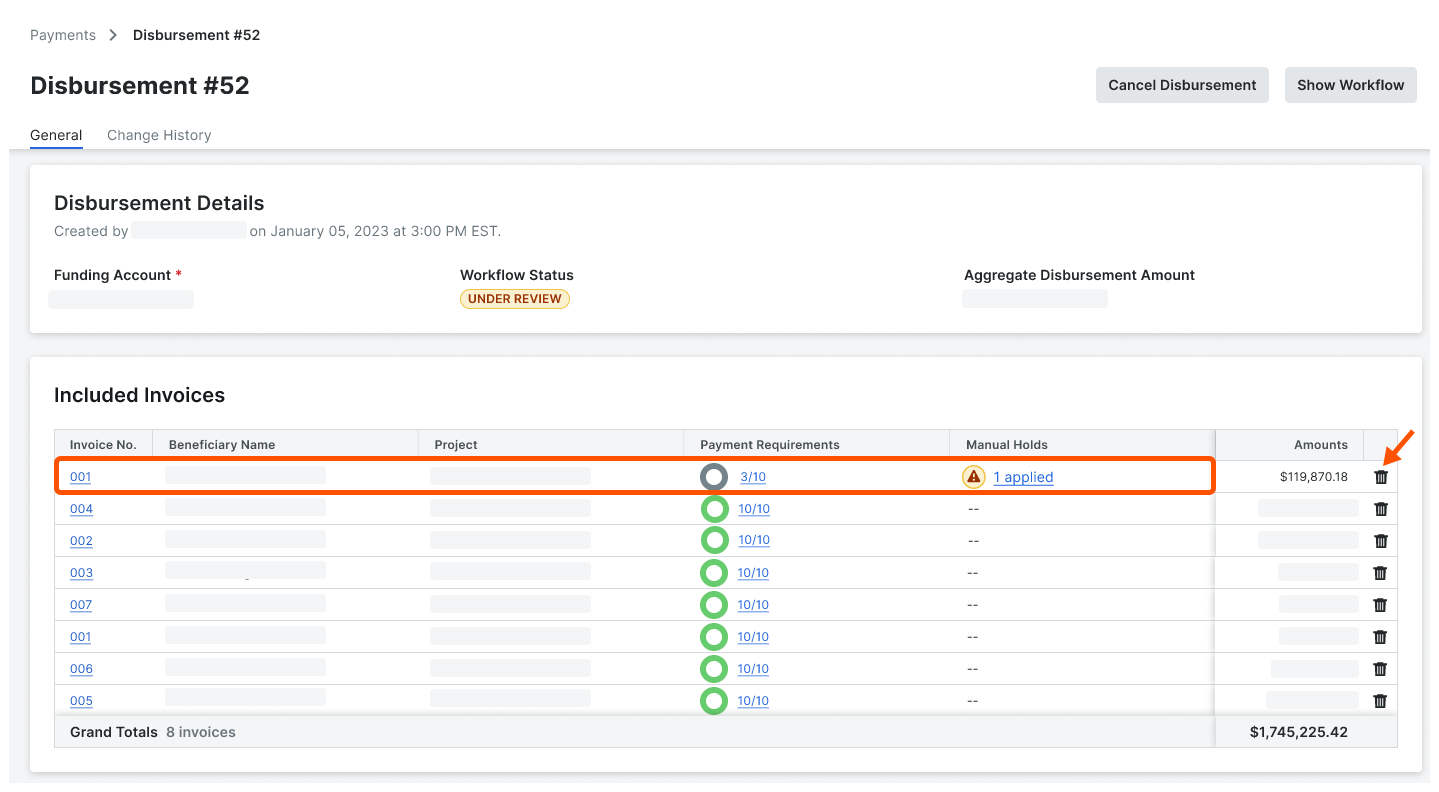
  1. Open a disbursement in the Under review status.

  2. In the General tab, the Included payment applications card lists all of the payment applications included in the disbursement.

    Remove Included Invoice

  3. Locate the payment application to remove and click the trash can icon.
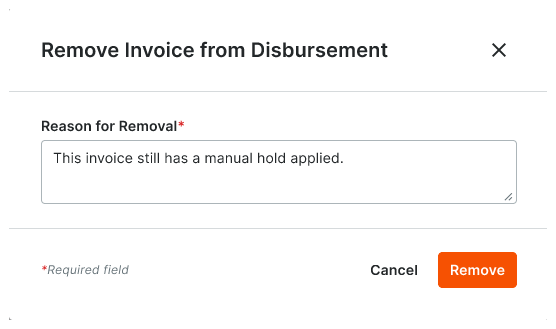
    This opens the Remove payment application from disbursement prompt.

  4. In the Reason for removal box, enter the reason for removing the disbursement. This is a required field.
    Remove Invoice From Disbursement

  5. Click Remove to confirm.
    Procore Pay removes the subcontractor payment application from the disbursement. See View a disbursement. In addition, it appears in the Removed payment applications card on the General tab of the disbursement. It is also logged in the disbursement's Change history tab.
    Removed Invoices

See Also

Loading related articles...