View a disbursement

  1. Navigate to the Company level Payment tool.

  2. Click the Disbursements tab.

     Tip

    Don't see the disbursements tab? To view this tab, your Procore user account must be assigned the payment disburser or payment admin role.

  3. In the Disbursements tab, the table lists all the disbursements.Payments Disbursements Tab
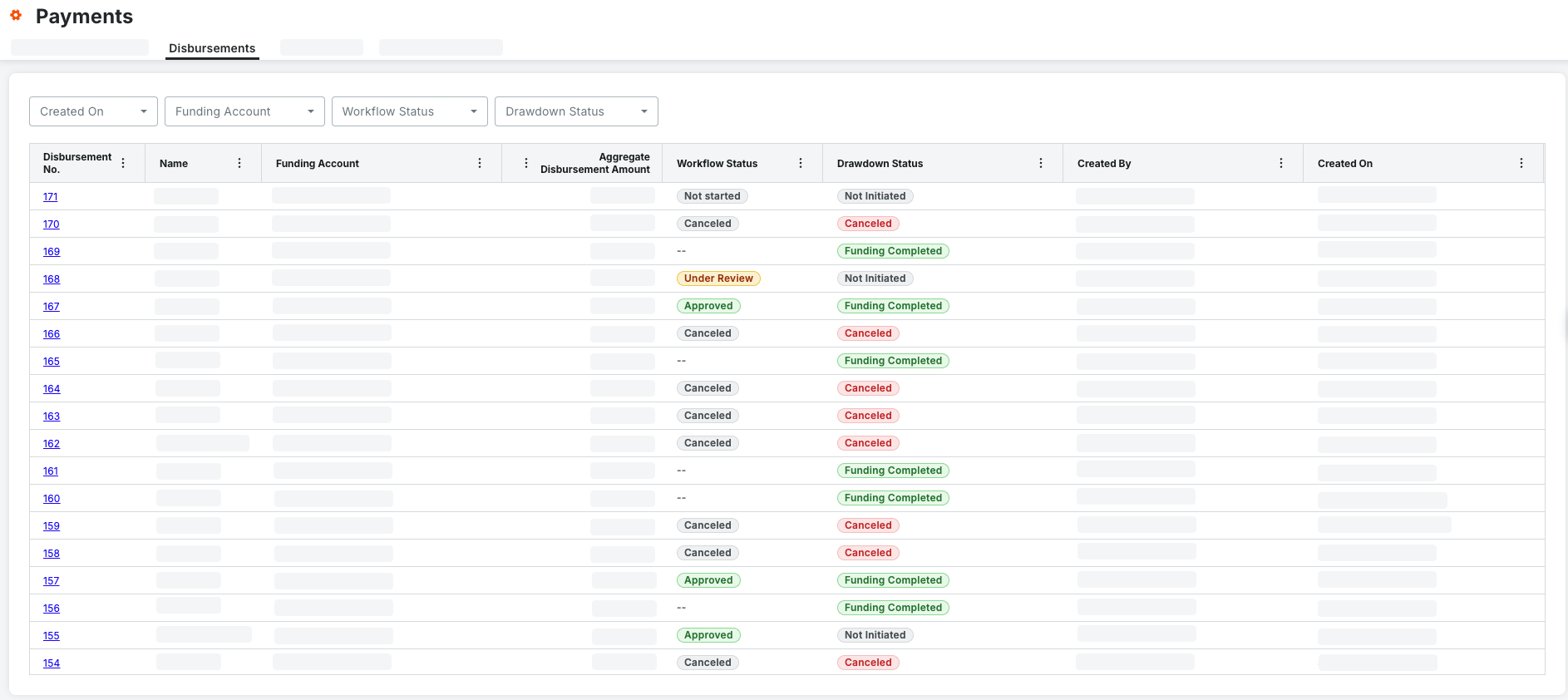
  4. In the Disbursement No. column, click a link to open a disbursement.

     Tip

    Why do our disbursements have different page layouts? When viewing a disbursement, the information that appears depends on whether the disbursement has been authorised:

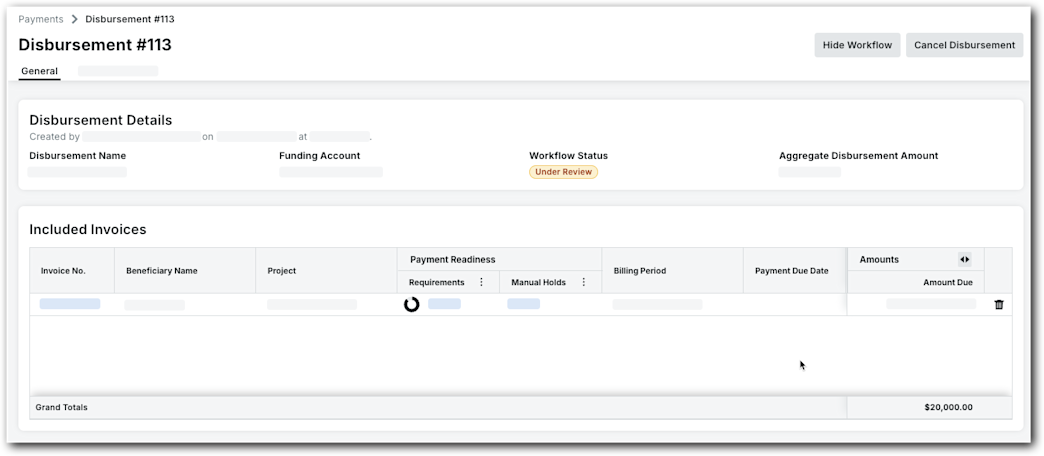
    • Before authorisation, the disbursement page includes the Disbursement details and payment applications cards.

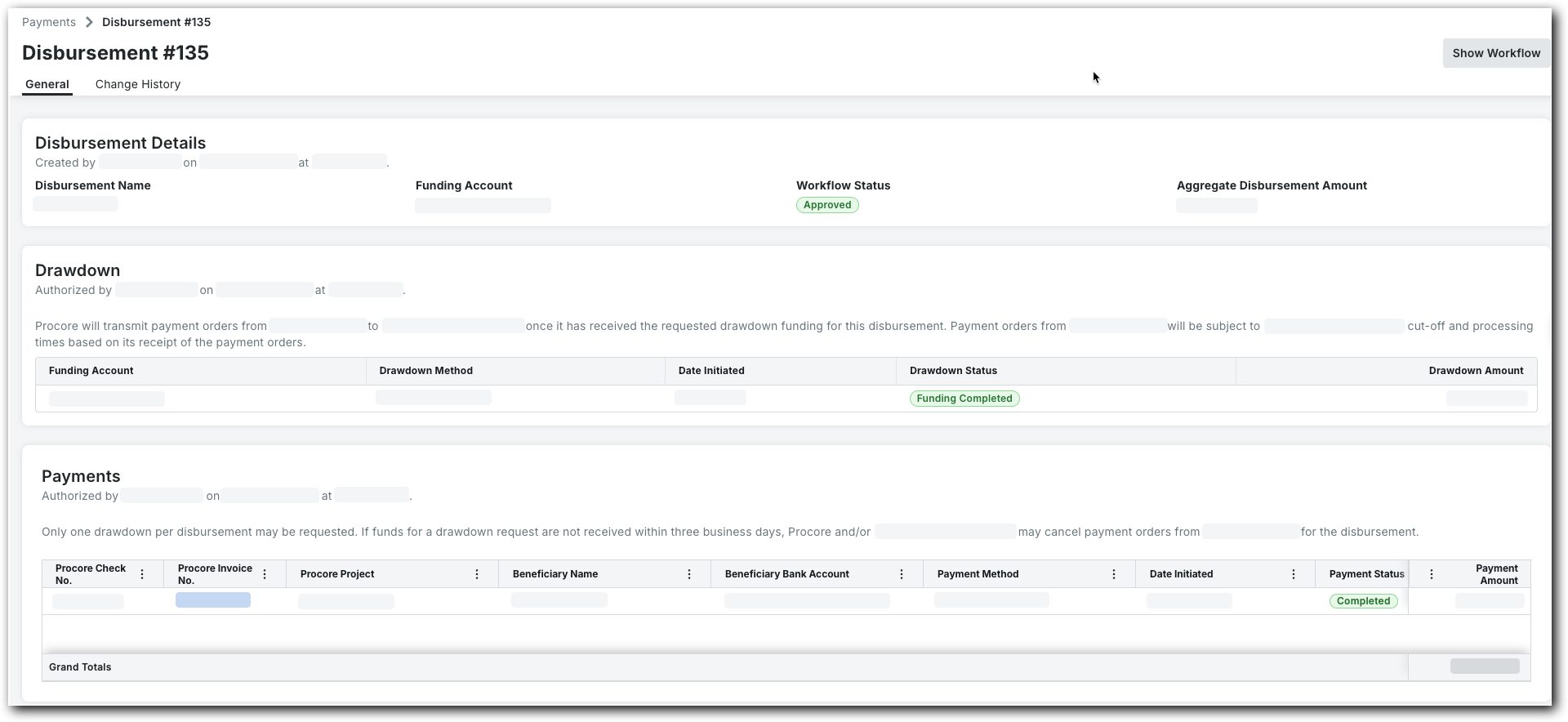
    • After authorisation, the disbursement page includes the Disbursement details, Drawdown and payment cards.

Examples

The examples below show you the differences between authorised and unauthorised disbursements. To learn more, see Authorise disbursements.

Examples

In these examples, the Start workflow and Show/hide workflow buttons only appear if your company implements a payment workflow. See Best practices for creating a payment workflow.

Before a disbursement is authorised, the General tab contains the Disbursement details, Included payment applications and Removed payment applications cards (only when payment applications are removed. See Remove subcontractor payment applications from disbursements as a payor).

Disbursement Before Authorization

The Disbursement Detailscard includes this information:

Field

Description

Disbursement name

Shows the name assigned to the disbursement.

Funding account

Shows the bank account funding the disbursement.

Workflow status (Only appears if your company implements a payment workflow. See Best practices for creating a payment workflow)

Shows the current approval status of the disbursement. To learn about status, see What are the default workflow status for disbursements in Procore Pay's custom payment workflow?

Aggregate disbursement amount

Shows the total sum of all payment application payment for the disbursement.

The included payment applications card includes this information:

Field

Description

Payment application No.

Click the hyperlink to open each payment application in the Project level Payment Applications tool.

Beneficiary name

Shows the beneficiary's name for each payment application.

Project

Shows the project name for each payment application.

Payment readiness (requirements & manual holds)

Shows the payment requirements and manual holds. See Manage payment requirements as a payor.

Valuation period

Shows the valuation period for the included payment applications.

Payment due date

Shows the payment due date for the included payment applications.

Amounts (amount due)

Shows the amount due for each payment application.

If payment applications are removed from a disbursement by a payment admin or payment disburser, they appear in the Removed payment applications card. Once removed, authorised users can add the payment application to a different disbursement. See Remove subcontractor payment applications from disbursements as a payor.

Removed Invoices

The removed payment applications card includes this information:

Field

Description

Payment application No.

Click the hyperlink to open each payment application in the Project level Payment Applications tool.

Beneficiary name

Shows the beneficiary's name for each payment application.

Project

Shows the project name for each payment application.

Reason for removal

Shows the reason entered at the time of removal. See Remove subcontractor payment applications from disbursements as a payor.

Removed by

Shows the name of the payment admin or payment disburser who performed the removal.

Removed on

Shows the date and time of the removal action.

Amount due

Shows the amount due for each payment application.

After a disbursement is authorised, the General tab contains the disbursement details, drawdown and payment cards.

Disbursement After Authorization

The Disbursement Detailscard includes this information:

Field

Description

Disbursement name

Shows the name assigned to the disbursement.

Funding account

Shows the bank account funding the disbursement.

Workflow status (Only appears if your company implements a payment workflow. See Best practices for creating a payment workflow)

Shows the current approval status of the disbursement. To learn about status, see What are the default workflow status for disbursements in Procore Pay's custom payment workflow?

Aggregate disbursement amount

Shows the total sum of all payment application payment for the disbursement.

The Drawdown card includes this information:

Field

Description

Funding account

Shows the funding account for the drawdown.

Drawdown method

Shows the method used to obtain the drawdown.

Date Initiated

Shows the date the drawdown request was started.

Drawdown status

Shows the status of the drawdown request. See What are the default drawdown status in Procore Pay?

Drawdown amount

Shows the total pound amount of the drawdown.

The payment card includes this information:

Field

Description

Procore check no.

Shows the check number for the payment application payment.

Procore payment application No.

Shows the Procore project's payment application number associated with the payment.

Procore project

Shows the name of the Procore project associated with the payment application.

Beneficiary name

Shows the beneficiary of the payment. This is the 'contract company' named in the commitment.

Beneficiary bank account

Shows the beneficiary's bank account information.

Payment method

Shows the payment method.

Date Initiated

Shows the date the payment order was started.

Payment status

Shows the status of the payment order. See What are the default payment status in Procore Pay?

Payment amount

Shows the total pound amount of the payment application payment.

If payment applications are removed from a disbursement by a payment admin or payment disburser, they appear in the Removed payment applications card. Once removed, authorised users can add the payment application to a different disbursement. See Remove subcontractor payment applications from disbursements as a payor.

Removed Invoices

The removed payment applications card includes this information:

Field

Description

Payment application No.

Click the hyperlink to open each payment application in the Project level Payment Applications tool.

Beneficiary name

Shows the beneficiary's name for each payment application.

Project

Shows the project name for each payment application.

Reason for removal

Shows the reason entered at the time of removal. See Remove subcontractor payment applications from disbursements as a payor.

Removed by

Shows the name of the payment admin or payment disburser who performed the removal.

Removed on

Shows the date and time of the removal action.

Amount due

Shows the amount due for each payment application.

View change history

Optional. To view user and system actions related to the disbursement, click the Change history tab. The change history tab keeps track of this information.

Field

Description

Date

Shows the date the action occurred.

Action by

Shows the name of the user who performed the action.

Changed

Describes the action.

From

Shows the From value of the action, if applicable.

To

Shows the To value of the action, if applicable.