About the subcontractor payment applications tab
Subcontractor payment applications table
The key feature in the Subcontractor payment applications tab is the table, which lets you view all of the payment applications in your Procore projects that you have been granted permission to see. To learn about the recommended permission, see What is a payment admin? and What is a payment disburser?
This tab contains the following elements:
Export. Click this button to export a list of subcontractor payment applications.
Search. Enter keyword or phrases to search the list for matching item.
Filters. Click this button to adjust the page filters.
Select a column to group. Choose one or more option(s) from this list to group the table rows by the option(s) selected.
Payment application status. Choose an option from this list to filter the data in the list by payment application status.
Payment status. Choose an option from this list to filter the data by payment status.
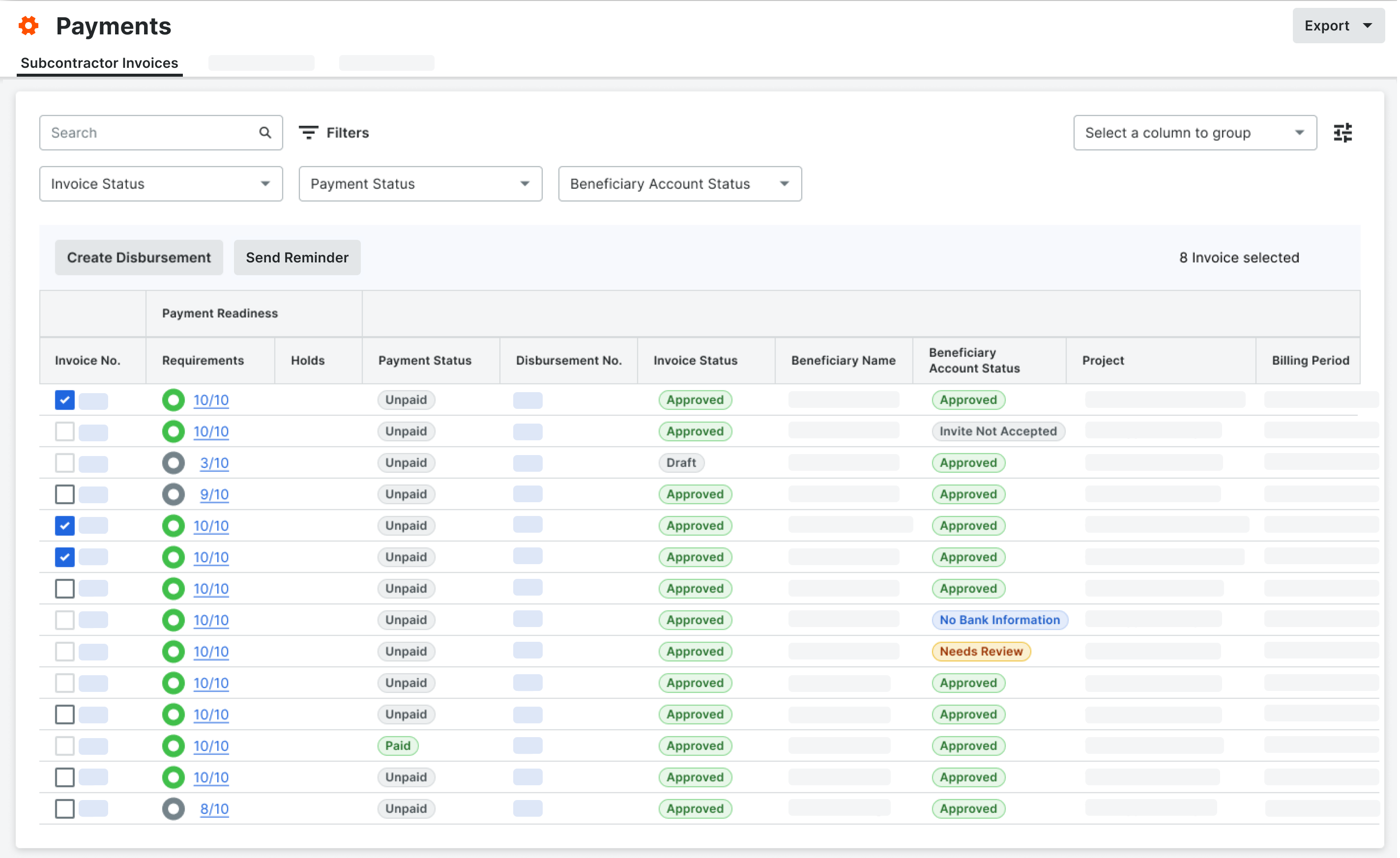
Default columns
This table details the default columns.
Column | Description | Default setting | Learn More |
|---|---|---|---|
Payment application # | Click a hyperlink to open the corresponding payment application number at the Project level. Procore assigns a payment application # at creation. Note: Users can also mark one (1) or more payment application # tickboxes to activate the Add to disbursement button to add payment applications to draft disbursements. See Add subcontractor payment applications to a 'draft' disbursement. | ON | |
Payment readiness: Requirements | Displays a pie chart of the payment application's payment requirements. BLACK indicates all requirements are met, GREY indicates incomplete requirements. A unit fraction shows completed payment requirements for each payment application. Click the link to view the payment application’s payment requirements | ON | |
Payment readiness: Holds | Shows the number of holds applied to a payment application. See What is a manual payment hold on a project payment application? | ON | |
Payment status | Shows the current payment status of each payment application. The status options include: Paid, Partially Paid or Unpaid | ON | What are the default payment status in Procore Pay? |
Disbursement No. | Displays the disbursement number for the subcontractor payment application, if included in a disbursement. | ON | |
Payment application status | Shows the current status of each payment application. Use the Project level Payment Applications tool to change status. See What are the default statuses for Procore payment applications? | ON | Bulk edit the status of subcontractor payment applications with the Payment Applications tool |
Beneficiary name | Shows the name of the payee. This corresponds to the 'contract company' set on the payment application's commitment contract. To change the company name, edit the Name field under the company's account profile in the Company level Directory tool. | OFF | |
Beneficiary account status | Shows the onboarding status of the beneficiary. | ON | What are the default status for Procore Pay onboarding? |
Project | Shows the name of the Procore project associated with each payment application. | ON | |
Valuation period | Shows the payment application valuation period. A payment application administrator creates valuation periods. | ON | |
Amounts group | Groups the 'Amount' columns in the table | ON | - |
Gross amount | Shows the total amount of the payment application before subtracting retention. | ON | |
Net amount | Shows the actual cost of the payment application after subtracting retention. | ON | |
Paid amount | Shows the amount paid against the payment application to date. | ON | |
Payment application dates | Shows the dates entered as the Period Start and Period End on the payment application. These show the valuation period dates by default. You can change the dates. | ON | |
Payment date | Shows the payment date entered on the payment application. | ON | |
Submitted date | Shows the submitted date entered on the payment application. | ON | |
Contract | Click the hyperlink to launch the Project level commitment tool and open the commitment. | ON | |
Total contract amount | Shows the commitment contract's total amount. | ON | |
% complete | Shows the percentage of total completed and stored to date as a % of the total amount of the commitment contract for the payment application. | ON |
Create disbursement
When you select more than one (1) tickbox as pictured above, the Create disbursement button appears. To learn more, see Create disbursements.
Manage rows & columns
To learn how to manage the rows and columns, see Manage rows & columns on the subcontractor payment applications tab.
Apply search & filter options
To learn how to apply the search and filter options, see Search for and apply filters on the subcontractor payment applications tab.
Export a list
To learn how to export a list of subcontractor payment applications, see Export subcontractor payment applications from the Payment tool.