Apply search & filter options

  • Search for subcontractor payment applications

  • Apply filters to the data table

Search for subcontractor payment applications

  1. Navigate to the Company level Payment tool.

  2. Click the Subcontractor payment applications tab.

  3. Enter keyword in the Search Icon Search field. Then press ENTER or press the tab key to move the system's focus away from the Search field.

     Tip

    What is the scope of the search? Procore Search these data columns: Payment application #, Beneficiary name, Project and Contract no.

    Payments Search

 Notes
  • If matches are found, Procore displays the matching item.

  • If no matches are found, Procore displays 'No items match your search' message.
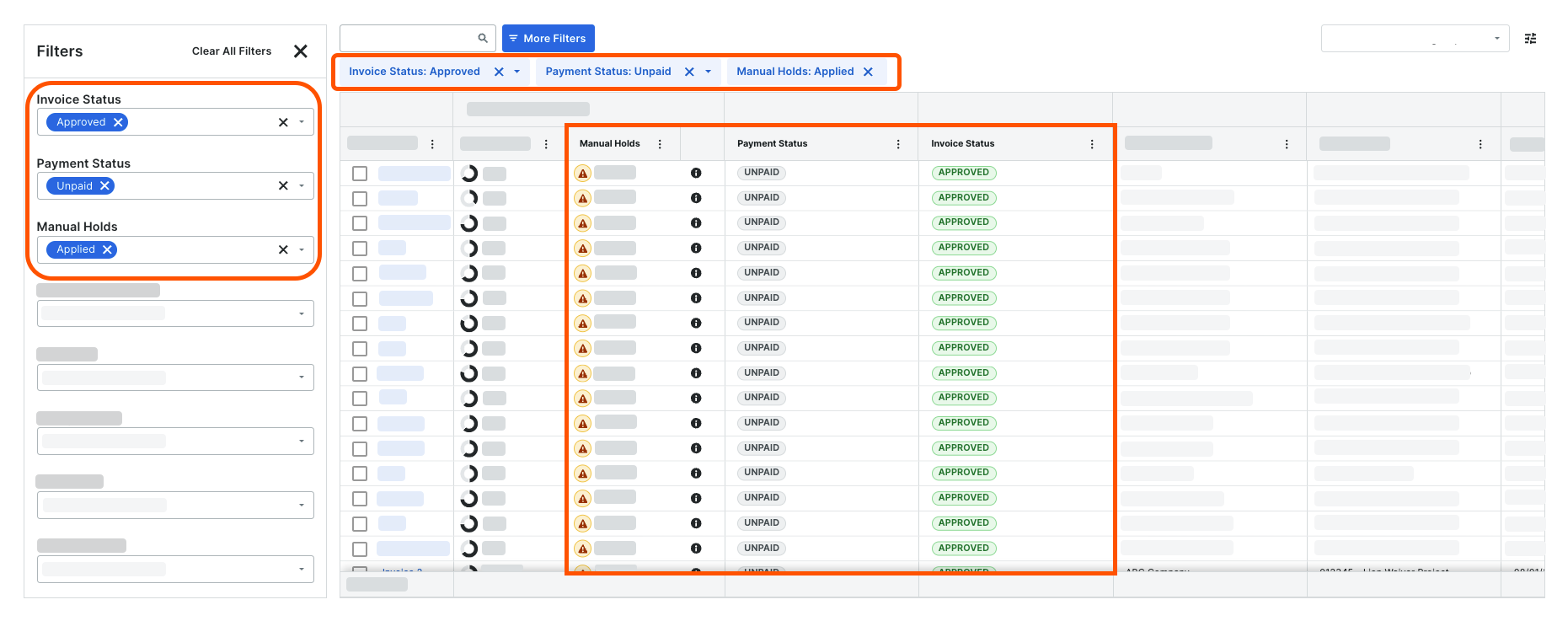
Apply filters to the data table

  1. Navigate to the Company level Payment tool.

  2. Click the Subcontractor payment applications tab.

  3. Click Filters to open the filter panel on the left side of the page.

     Notes
    Subcontractor Invoice Filters1

  4. Choose one or multiple filters:

    • Payment application status. Select one (1) or more statuses from the drop-down list. See What are the default status for Procore payment applications?

    • Payment status. Select one (1) or more statuses from the drop-down list. See What are the default payment status in Procore Pay?

    • Manual holds. Select the Applied or Not applied hold status from the drop-down list.

    • Beneficiary name. Select one (1) or more beneficiaries from the drop-down list. These selections correspond to the 'contract company' selections on the project contracts in your company's Procore account. See and Add a company to the Project Directory.

    • Beneficiary account status. Select one (1) or more statuses from the drop-down list. These selections correspond to the onboarding statuses in Procore Pay. See What are the default statuses for Procore Pay onboarding?

    • Project. Select one (1) or more projects from the drop-down list. These selections correspond to the active projects in your company's Procore account. See Create a new project.

    • Office name. Select one (1) or more office locations from the drop-down list.

    • Valuation period. Select one (1) or more projects from the drop-down list. These selections correspond to the valuation periods that have been created in the Project level Payment Applications tool by your project's payment application administrators. See Create automatic valuation periods or Create manual valuation periods.

    • Payment due date. Select one (1) filter: Overdue, Today, Next 7 days or Custom to choose a custom date range.

    • Requirements. Select one (1) filter: Met (100% of payment requirements met) and Not Met (less than 100% met).

    • Contract. Select one (1) or more contracts from the drop-down list. These selections correspond to the commitments created in the Project level payment application tool on your company's Procore projects. See Create a commitment.

    • Contract type. Select one (1) or more contract types from the drop-down list. These are Procore's default contract types. Select purchase orders or subcontracts.

  5. Press the tab key or click an area outside the Filters panel to move the system focus. Procore refreshes the page and displays any content matching the filters you applied.

     Tip

    Need to clear a filter? To clear the table of all filters, click Clear all filters. To remove a single filter, click the close (x) icon in the BLUE filter bubble.

  6. Click the Close icon (x) icon in the filters panel. The selected filters remain applied when you close the pane.