Disable disbursements
Navigate to the Company level Payment tool.
Click the Configure Settings
 icon.
Click the Payment processing tab.
Click Advanced settings.
On the Advanced settings page, review the informational statement under Disable disbursements.
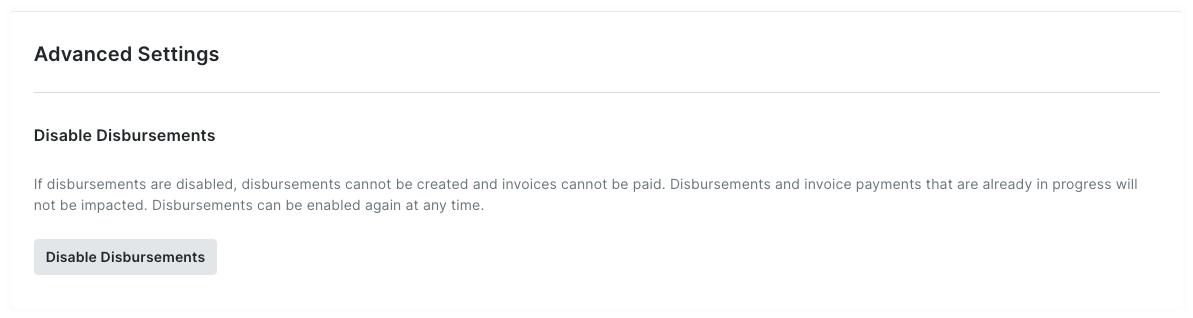
Click Disable disbursements.
The following confirmation prompt appears. When disabled, Procore Pay turns the disbursements features off and invite banners no longer display in the commitments or Payment Applications tool.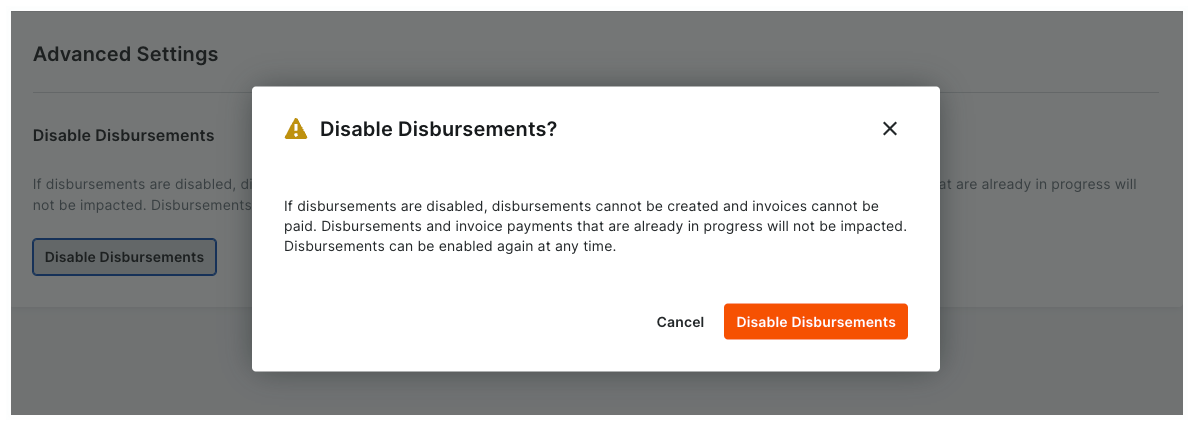
Confirm that you want to disable disbursements by clicking the Disable disbursements button. Once disabled:
A GREEN success banner appears to confirm your action.
A YELLOW banner appears at the top of the page to alert payment admins that the feature is turned OFF.
Your company's payment disbursers can no longer create new disbursements in the Company level payment tool.
Procore Pay continues to process any existing disbursements and payment application payment that are in progress.

