Best Practices

When Procore Pay customers enable the Company level Workflows tool, an authorised team member can create a custom workflow template to approve/reject your disbursements. Your company can create any number of payment workflow templates. However, only one (1) of those template(s) can be assigned as the default template for Procore Pay.

1. Create and configure your templates

Who will be your company's workflow manager and who must complete the workflow steps?

How do you manage end-user permissions for Procore Pay + Workflows?

How do you create a payment workflow template?

How do you configure the payment workflow template?

A payment workflow always requires a workflow manager. Workflows also require assignees to submit responses to the steps. It helps to sketch out your desired workflow and participants before you get started. Ready to learn more? See Plan a custom workflow template. You can also review our example payment workflow.

Each participant must be a payment admin or payment disburser. Next, Create a company permission template for payment and Assign the company permission template to each participant. Ready to learn more? Learn about the available granular permission by reading What granular permission are available for payment workflows?

Use the Company level Workflows tool to Create a custom workflow template for payment. You can create multiple templates, but can only assign one (1) to be the default workflow for Procore Pay. Ready to learn more? Review the Example payment workflow for recommended steps. You can also review the Self-serve workflow user guide.

Next, Configure the settings for a payment workflow template. This is where you add your company's workflow manager and assignees to the steps in the payment workflow. Ready to learn more? You can only assign one (1) default template for Procore Pay. See Assign a default workflow template for Procore Pay.

2. Start using your default payment workflow

How do you start the payment workflow?

Need to submit an approve/reject response to a workflow?

Need to start, restart or return to a previous step in a workflow?

A payment admin or a payment disburser follows the steps in Create disbursements. After selecting the funding account, Procore Pay automatically starts the payment workflow for the disbursement when the Workflow tool is enabled.

If you are assigned to review a disbursement, submit a response before the due date. To learn more, see Approve or reject a disbursement. After submitting an 'Approve' response, an Action required banner prompts the final reviewer to Authorise the disbursement. Funds are only withdrawn after authorisation. See Create disbursements.

If you are the designated workflow manager for your company's payment workflow, learn how to Start a custom workflow, Restart a custom workflow or Return a workflow to a previous step. You can also Add additional assignees when the existing assignees are unavailable.

 Important
  • Payment application approval and disbursement authorisation must be completed by two (2) different Procore users.

  • If you are the payment admin or payment disburser who placed any of the payment applications on the disbursement into the 'Approved' or 'Approved as Noted' status, Procore Pay will not permit you to approve the disbursement.

Example payment workflow

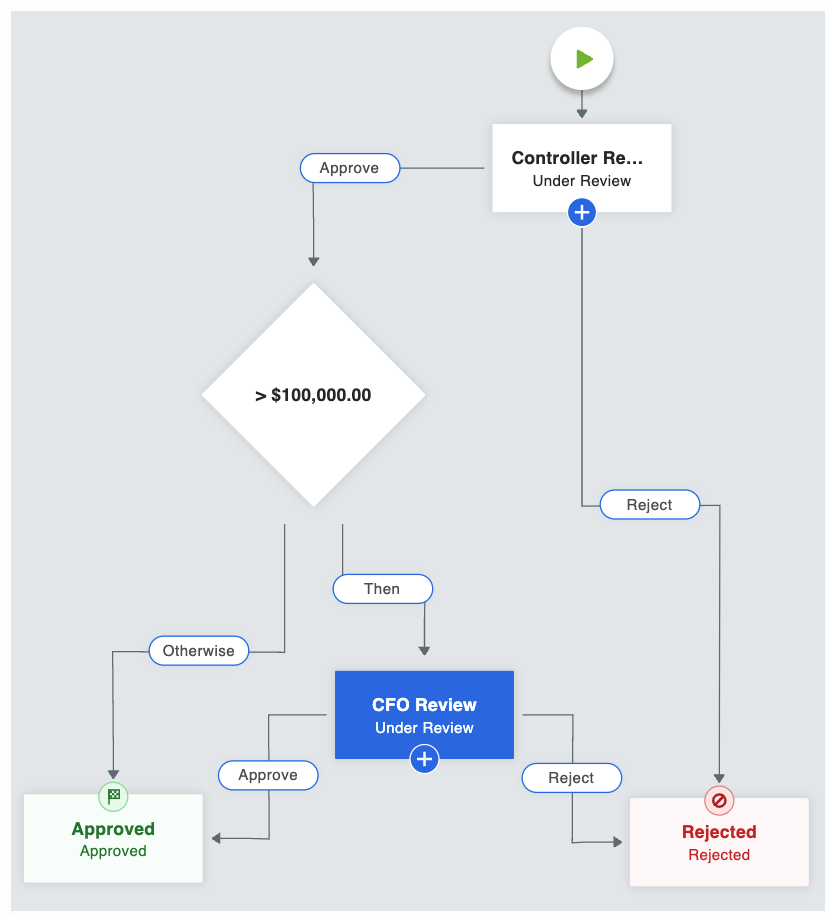
This is an example of a payment workflow that starts automatically when a disbursement is created. You can use this example to create your company's payment workflow or you can create your own custom workflow to suit your specific business needs. For step-by-step instructions, see Create a custom workflow template.
Example

Payments Workflow Steps

This table shows you the workflow steps and step details for the example workflow. You can customise the steps and details as needed. To learn more, see What are the different types of steps in a custom workflow?

Step name

Step details

What does it do?

Controller review

  • Step name: Controller review

  • Step type: response step

  • Item status: under review

  • Assignee role: controller

  • Send emails to assignees and: workflow manager & item creator

  • Days to complete: 5 calendar days

  • Responses:

    • If the response is Approve, go to the >£100,000.00 condition step.

    • If the response is Reject, go to the Rejected end step.

When a disbursement is created, the workflow is placed into the under review status and automatically assigned to the controller. Emails are sent to the controller, workflow manager & item creator. The controller has five (5) days to provide an approve or reject response.

> £100,000.00

  • Step name: >£100,000.00

  • Type: Condition step

    • When: Amount is greater than £100,000

  • Then: CFO review

  • Otherwise: Approved

When a controller approves a disbursement and the aggregate disbursement amount is £100,000.00 or greater, the system requires secondary approval by the CFO. If the disbursement amount is less than £100,000, the system automatically moves the disbursement to the Approved step. To learn more about condition steps, see Optional condition steps for the payment tool.

CFO review

  • Step name: CFO review

  • Type: Response step

  • Item status: under review

  • Assignee role: CFO

  • Send emails to assignees and: workflow manager & item creator

  • Days to complete: 5 calendar days

  • Responses:

    • If the response is Reject, go to the Rejected step.

    • If the response is Approve, go to the Approved step.

When the aggregate disbursement amount is greater than £100,00.00, the workflow remains in the under review status and is automatically assigned to the CFO. Email are sent to the CFO, workflow manager and item creator. The CFO has five (5) days to provide a response.

Approved

  • Step name: Approved

  • Step type: End step (successful)

  • Item status: Approved

  • Send emails to assignees and: workflow manager & item creator

When the controller or CFO (only if secondary approval was a required condition), an 'Approve' response update the disbursement's status to Approved. Emails are sent to the assignees (controller and CFO), workflow manager and item creator.

Rejected

  • Step name: rejected

  • Step type: end step (unsuccessful)

  • Item status: rejected

  • Send emails to assignees and: workflow manager & item creator

When the Controller and/or CFO submit a Reject response, the system update the disbursement's status to 'Rejected.' Emails are sent to the assignees (controller and CFO), workflow manager and item creator.

Optional condition steps for the Payment tool

When creating conditional statements for the payment tool, workflow managers have these options:

Payments... Show/Hide

Condition

Definition

Example

Disbursement amount

The total amount of the disbursement is greater than the amount set in the workflow.

If the total amount of a disbursement is greater than or equal to £10,000,000.00, route the disbursement to the CFO for approval.

Highest payment application amount

The total amount of any project payment application is greater than the amount set in the workflow.

If the amount on any project payment application is greater than £5,000,000.00, route the disbursement to the CFO for approval.

Highest retention release

The total amount of retention release is greater than the amount set in the workflow.

If the amount of retention released on a payment application payment is greater than £0.00, route the disbursement to the CFO for approval.