View payment requirements
Open the payment readiness panel
About the overview tab
About the holds tab
Open the payment readiness panel
Navigate to the Company level Payments tool. The Subcontractor payment applications tab is active by default.
In the Subcontractor payment applications table, locate the payment application.
Under the Payment readiness group, click the unit fraction link under Requirements.
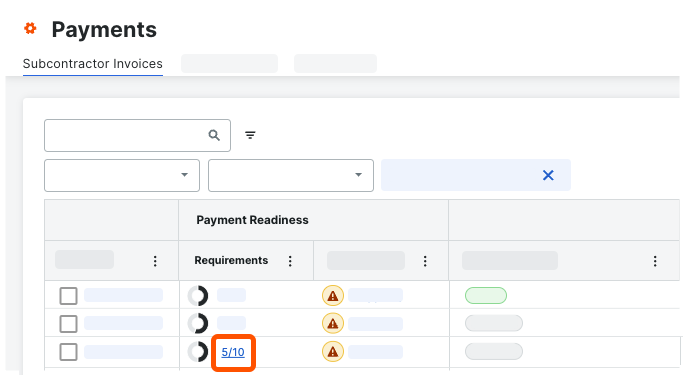 This opens the payment readiness panel on the right side of the page.
About the overview tab
The overview tab of the payment readiness panel shows the following information.
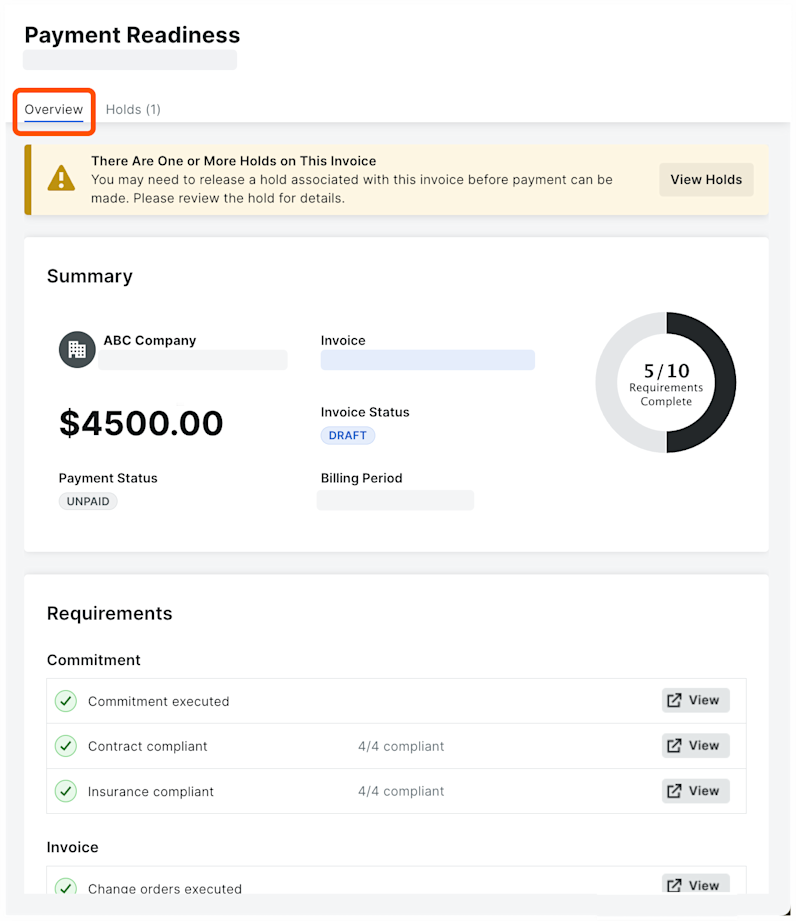
The table below describes the elements pictured above. To learn more, see Configure payment requirements as a payor.
Item | Description | Example (see above) |
|---|---|---|
Information banner | If any holds are applied to the payment application, a YELLOW banner appears at the top of the overview tab above the Summary. Click View holds to jump to the Holds tab. | There are one or more holds on this payment application |
Company name | Shows the name of the 'contract company' on the commitment. | Earthwork Jim |
Project Number | Shows the name of the Procore project associated with the payment application. | Demo project |
Payment application link | Click the hyperlink to open the subcontractor payment application with the Payment Applications tool in a separate browser window. | SC-018: Payment application #001 |
Requirements complete | Displays a pie chart and unit fraction to show the number of completed payment requirements. See Manage payment requirements as a payor. | 5/10 requirements complete Note: The numerator (5) indicates that five requirements are complete. The denominator (10) corresponds to the total number of requirements. To learn more, see View the payment application details below. |
Total | The total amount, including retention (if any), for the payment application. | £4,5000.00 |
Payment application status | Shows the payment application's current status. See What are the default statuses for Procore payment applications? | Revise and resubmit |
Payment status | Shows the payment status of the payment application: Paid or Unpaid. | Unpaid |
Valuation period | Shows the valuation period for the payment application. See Create automatic valuation periods or Create manual valuation periods. | 01/12/21 - 31/12/21 |
Requirements | Displays the tracking requirements and status of your company's subcontractor payment applications. This helps your team determine payment readiness on payment applications. To configure the tracking requirements, see Configure payment requirements as a payor. | |
View | Click this button to perform requirement-specific actions: Commitments
Payment application
| |
Visible to payors: View, request or manage | Click the available button to perform requirement-specific actions: Lien waivers
| |
Visible to Payees: View, Unlock or Manage | Click the available button to perform requirement-specific actions: Lien waivers
| Unlock a signed unconditional lien waiver as a payment application contact |
About the holds tab
The Holds tab shows the following information.
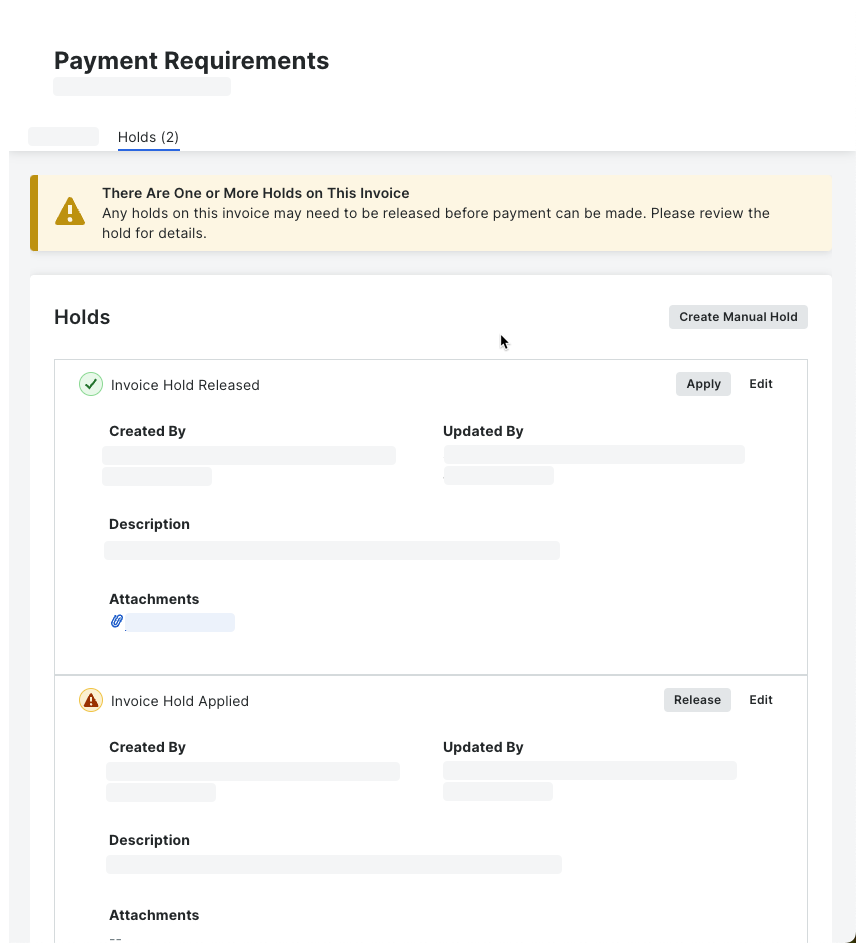
The table below describes the features in the Holds tab. To learn more, see Manage payment holds as a payor.
Label | Element | Description |
|---|---|---|
Status | Icon |
|
Create hold | Button | Click this button to create a new hold. |
Release | Button | Click this button to release an existing hold. |
Edit | Button | Click this button to modify an existing hold. |
Created By | Field | Shows the name of the user who created the hold. |
Last modified by | Field | Shows the name of the user who last updated the hold. |
Description | Text | Shows any information entered by the person who created or edited the hold. |
Attachments | File | Shows any attachments added to the hold. Click the file link to download a copy of the file(s). |