General availability in select markets (United States)
Procore Pay is available in the United States. It is designed for main contractors and owner-builders who act as their own main contractors on a job. Procore Pay extends the payment application management functionality in the Procore web application to handle the payment process between main and specialty contractors.
Requires multi-factor authentication
To help safeguard your financial operations, the user performing this sensitive transaction is required to authenticate their identity using multi-factor authentication (MFA). See Why is MFA mandatory for Procore Pay and how does it work?
Background
With Procore Pay, only a
In Procore Pay, a payment admin is a designated Procore user who administers the Company level payment tool for that company's Procore account. Typically, one (1) or a small number of trusted users are designated to perform the tasks associated with this role.
or
In Procore Pay, a payment disburser is a Procore user granted permission to create and view disbursements in the Company level payment tool. Because of the sensitive nature of payment, only a payment admin can add/remove disbursers.
can create disbursements using the 'Subcontractor payment application' tab in the Company level payment tool. A disbursement can handle up to 100 subcontractor payment application payments and saved as a 'draft' for flexibility. Users can add or remove payment applications in 'draft' status before authorisation.
With the Company level Workflows tool, payors can track payment application payment requirements and start a custom payment workflow for review and approval. Without the Workflows tool, payment admins or disbursers verify and authorise payment directly. A Procore Pay disbursement initiates the drawdown request from the funding account and transfers funds to the deposit account to process and execute payment orders.
This table details the difference between a funding account and a deposit account:
Account type
Definition
Purpose
Learn More
Funding account
A bank account used as the source to withdraw funds for disbursements.
Holds the payer's funds and releases them to the deposit account.
Procore Pay initiates a reverse wire from the deposit account to transfer the funds for a disbursement from the funding account to the deposit account.
Receives the withdrawn funds to process and execute the payment orders for a disbursement's subcontractor payment applications.
* Procore is a financial technology company, not a bank. Banking services are provided by our partner financial institutions. Payment processing and money transmission services are provided by Procore Payment Services, Inc. (NMLS ID: 2560496). Accounts and services are subject to the respective terms, conditions and fees of the providing institution.
Tip
Need multiple deposit accounts? Need multiple deposit accounts? To avoid commingling funds and streamline reconciliation, you can open additional deposit accounts during or after Procore Pay implementation. Submit your request to Procore's payment operations team.
To receive payment, payees must have a free or paid Procore account and a user with administrator permission must securely add a verified bank account. For more information, see the Payee setup guide.
A single disbursement can handle up to 100 subcontractor payment application payment.
Procore Pay requires a positive payment balance for all transactions. Offsetting positive payment application totals with negative payment application balances is not supported.
Disbursement contributors can only save their disbursements as draft.
Payment admins and disbursers cannot authorise a disbursement if they were the final approver on any of its included payment applications.
Payment applications must meet all payment requirements as configured by a payment admin in the payment requirement setting. Only authorised users can manage and view payment requirements and holds. See Manage payment requirements as a payor and Manage payment holds as a payor.
Under payment requirements:
A unit fraction in the Requirements column shows if a payment application meets payment requirements
An icon appears in the Manual holds column if a hold has been applied.
Create at least one (1) commitment on a Pay-enabled Procore project. See Create a commitment.
Create at least one (1) subcontractor payment application for a commitment and place the payment application into the 'Approved' status. See Create a subcontractor payment application.
Select one (1) or more 'Unpaid' payment application(s) by marking the tickbox(es) and click Add to Disbursement.
If one or more ‘draft’ disbursements are available to add the selected payment application(s) to, choose Add to disbursement or Create new from the dropdown menu.
If there are no available ‘draft’ disbursements to add the selected payment application(s) to, click Create new.
Important
When using a custom payment workflow, the New disbursement page contains two sub-pages: #1 Review payment applications and #2 Select funding account.
When not using a custom workflow, the New Disbursement page also contains a #3 Authorise sub-page.
In the #1Review payment applications page, confirm the list of payment applications being added to the Disbursement. Use the icon to remove any payment applications as needed.
Tip
Use the carats in the Amounts column header to expand the column group to display the Net amount, Paid amount, Joint check amount, Early pay fee, Amount due and Payment amount for each payment application.
Select Next or Continue.
Select business entity & funding account
Your next step depends on whether your company configured a custom payment workflow. See Best practices for creating a payment workflow. For companies operating with multiple business entities, a business entity drop-down list appears.
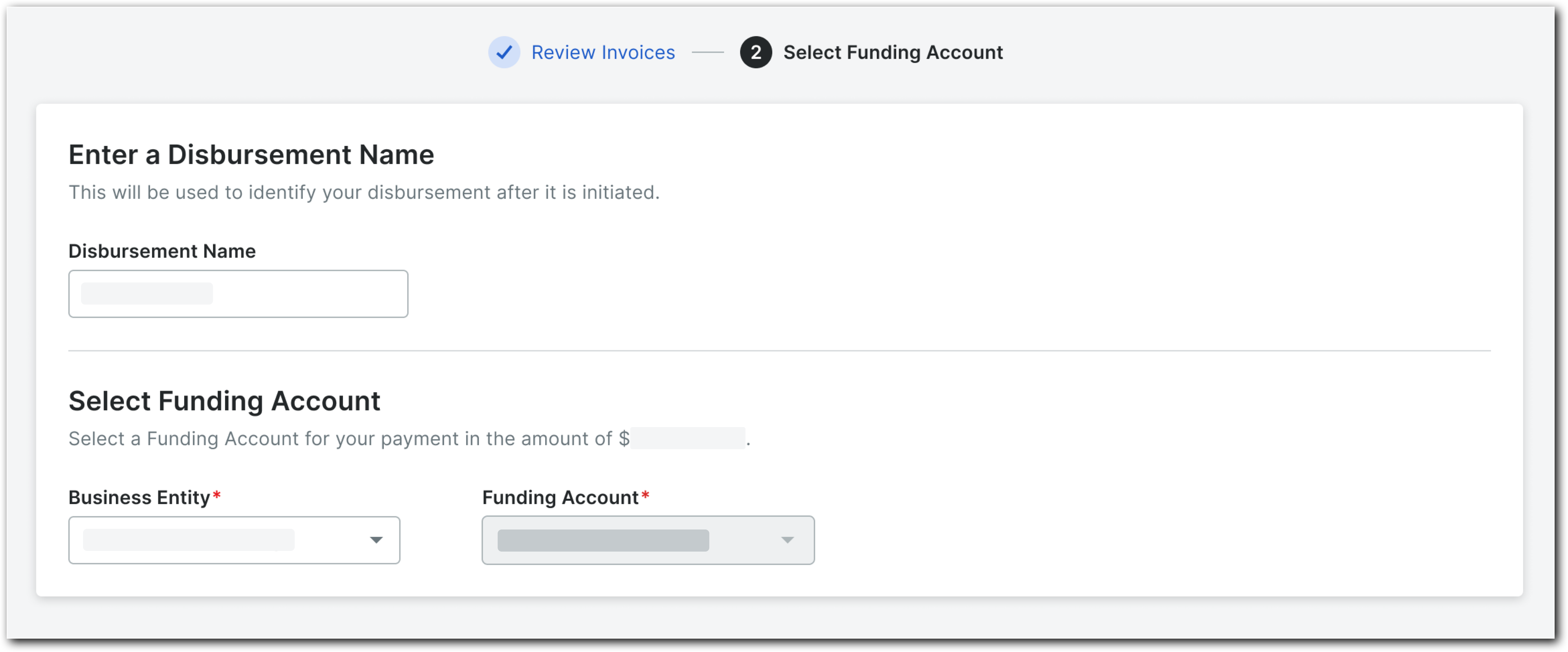
In the #2 Select funding account page, enter the disbursement details:
Business entity. If applicable, select the appropriate
In Procore Pay, a business entity is an organisation recognised as separate from its owner(s). Some construction companies operate as a single business entity, while others operate as multiple business entities, with each entity, subsidiary or division focusing on overseeing a different market or sector.
from the drop-down list. This list only appears for companies operating with more than one (1) business entity. See Add business entities as a payor.
Funding account. Select your company's
In Procore Pay, a funding account is a bank account where money is held by a financial institution and controlled by the payor. This is the 'Pay from' account.
from the drop-down list. If only one funding account is set up for the selected business entity, it’ll be preselected.
Disbursement name. Enter a unique name to help others identify the disbursement. There is a maximum character limit of 50.
Select an option to complete the entry:
Save as draft. To save the disbursement as a 'draft'. Procore adds a 'draft' status to the disbursement for easy identification. To add more payment applications to the disbursement, see Add subcontractor payment applications to a 'draft' disbursement.
Start workflow. To continue with the steps in Workflows enabled: start the payment workflow & authorise the disbursement.
Continue. To proceed to authorise disbursements. Note: The Continue button only appears if you do not have a custom payment workflow. If you do have a custom payment workflow, the Start workflow button will appear instead.
After clicking Save as draft,Continue or Start workflow, the system checks to determine if the selected payment applications are eligible for payment. If any payment applications are ineligible for payment, an error message appears.
Info
Click Show details to expand the message and review the details.
Click Hide details to hide the error message.
Click Deselect All & Start Over to remove impacted payment applications and:
If all selected payment applications are ineligible for payment, you are returned to the subcontractor payment applications tab in the Payment tool to start again.
If at least one selected payment application is eligible for payment, you are returned to the Review payment applications step in the New disbursement panel.