Authorise disbursements

 General availability in select markets (United States)

Flag Us Procore Pay is available in the United States. It is designed for main contractors and owner-builders who act as their own main contractors on a job. Procore Pay extends the payment application management functionality in the Procore web application to handle the payment process between main and specialty contractors.

 Requires multi-factor authentication

To help safeguard your financial operations, the user performing this sensitive transaction is required to authenticate their identity using multi-factor authentication (MFA). See Why is MFA mandatory for Procore Pay and how does it work?
Background

Procore Pay provides a flexible and efficient disbursement authorisation process that ensures two (2) separate users handle every payment order. This reduces the risk of employee misconduct by preventing a single user from approving a payment application and its payment.

When a user clicks ‘Authorise’ on a disbursement, the system checks to see if that user was the last approver on any of the payment applications in the disbursement. If they did, Procore alerts the user that they cannot authorise the disbursement—another or must authorise it.

The steps for authorising a disbursement depend on whether the Workflows tool is enabled or disabled in the payor environment.

Things to Consider

  • Required User Permissions

    • A single disbursement can handle up to 100 subcontractor payment application payment.

    • Payment application payment must be a positive amount. Procore Pay does not support negative payment application payment.

    • Payment admins and disbursers cannot authorise a disbursement if they are the last approver on any payment application within the disbursement.

    • Once a disbursement is authorised, its drawdown instructions and payment orders cannot be cancelled.

Prerequisites

Steps

The steps to follow depend on whether the Workflows tool is enabled or disabled in your environment. For instructions, see:

  • Workflow enabled: Start the payment workflow & authorise the disbursement

  • Workflows disabled: Authorise the disbursement

 Important

Once authorised, a disbursement's drawdown instructions and payment orders cannot be cancelled. To cancel a disbursement before authorising it, see Cancel disbursements before authorisation as a payor.


Workflows enabled: Start the payment workflow & authorise the disbursement

If the Workflows tool is enabled, a custom payment workflow guides your team through your company's approval process. The system sends an email notification to the assignee for the first step, who then reviews the disbursement and its payment application payment. Your team may have one (1) or multiple workflow steps.

Click here to view the steps.

Start the payment workflow

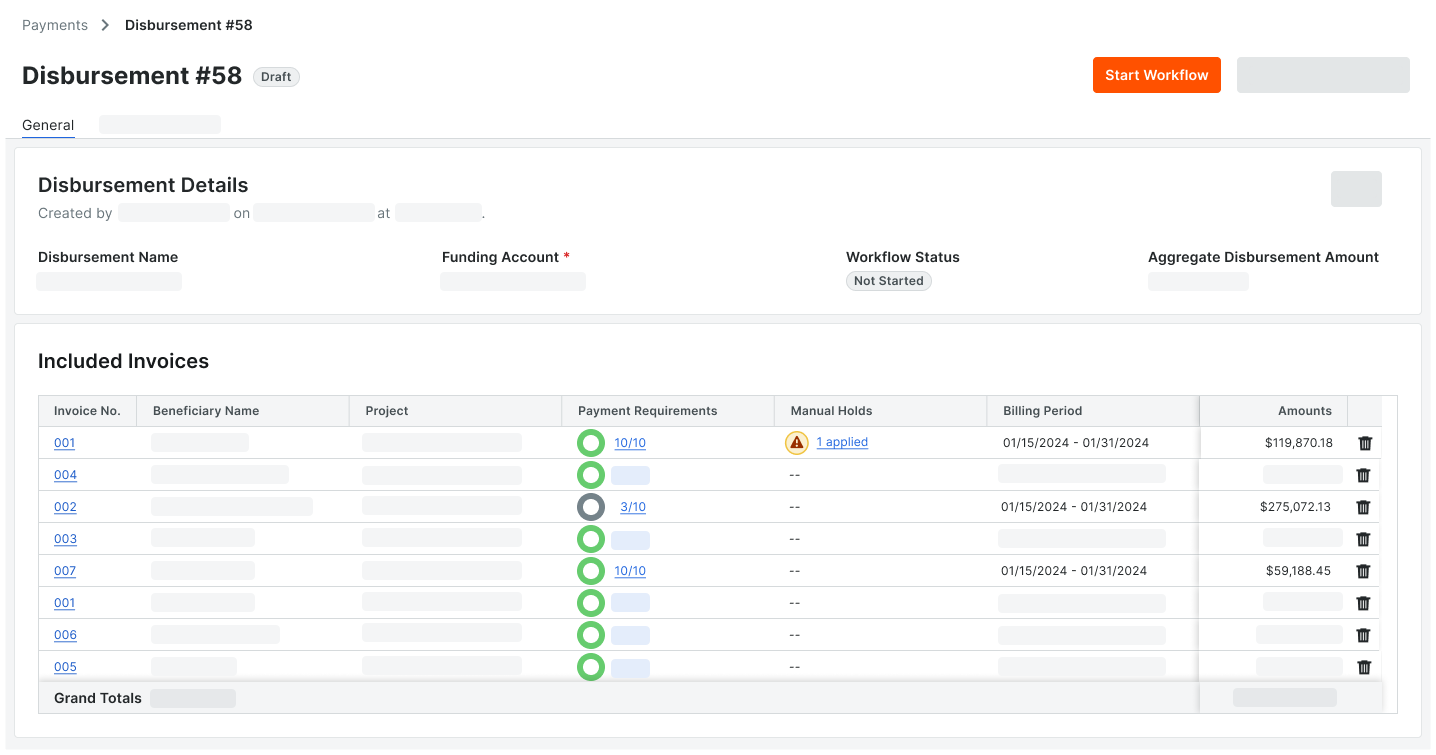
  1. In the Disbursement # page, click Start workflow.

    Disbursement Start Workflow
    The system starts the custom payment workflow configured for the payment tool. The Workflow status changes from Not started to Under review. A Workflows panel also opens on the right side of the page.

  2. Each assignee(s) on the custom payment workflow must complete their assigned step. For instructions, see Approve or reject a disbursement with a custom payment workflow.
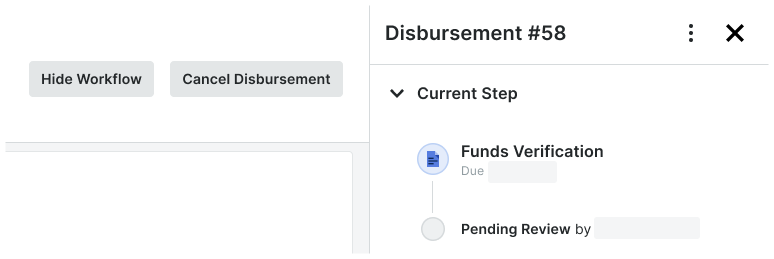
    On the Workflows panel, the system shows the name of the current workflow step, the due date, the status of the step and the name of the assignee.

    Disbursement Workflow In Progress

     Tips
    • Want to hide the disbursement's workflows panel? Click Hide workflow.

    • Want to cancel the disbursement? Click Cancel disbursement. This action permanently removes the disbursement. It cannot be recovered, but you can create a new one to replace it.

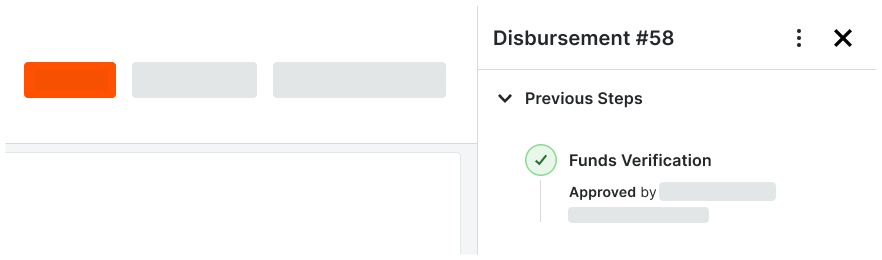
    Once all workflow steps are complete and the disbursement is approved, the Workflows panel shows a record of each step which includes the name of each approver, as well as a date and timestamp for the completed step.

    Approval In Workflow Panel

  3. Continue with the next step.

Authorise the disbursement

Once the disbursement is approved, a payment admin or payment disburser completes the authorisation step. To safeguard your company from the potential for misconduct, Procore requires two (2) different users to handle payment application approval and payment authorisation. This helps to prevent a single Procore user from unilaterally approving a payment application and authorising its corresponding payment.

 Important

Payment admins and disbursers cannot authorise a disbursement if they are also the last user to approve a subcontractor payment application in that disbursement.

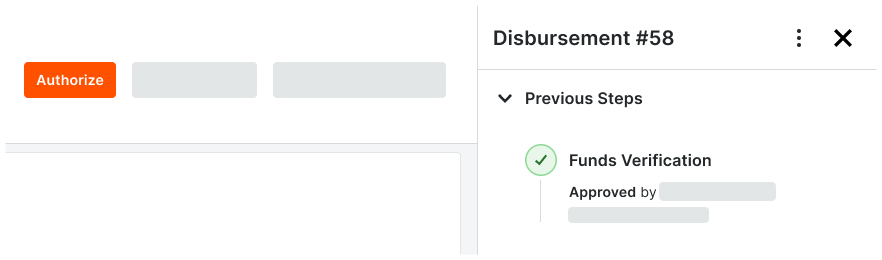
  1. In the General tab of the disbursement, click Authorise.

     Tip

    Don't see the Authorise button? If your company has enabled the Workflows tool, but has not configured a custom payment workflow for Procore Pay, an alert banner appears. See Best practices for creating a payment workflow and Configure the settings for a payment workflow template.

    Authorize Post Workflow

  2. Click Authorise.
    The system performs a check to determine if there are any issues to resolve.

  3. If an alert appears at the top of the page, resolve the issue(s) listed in the alert.

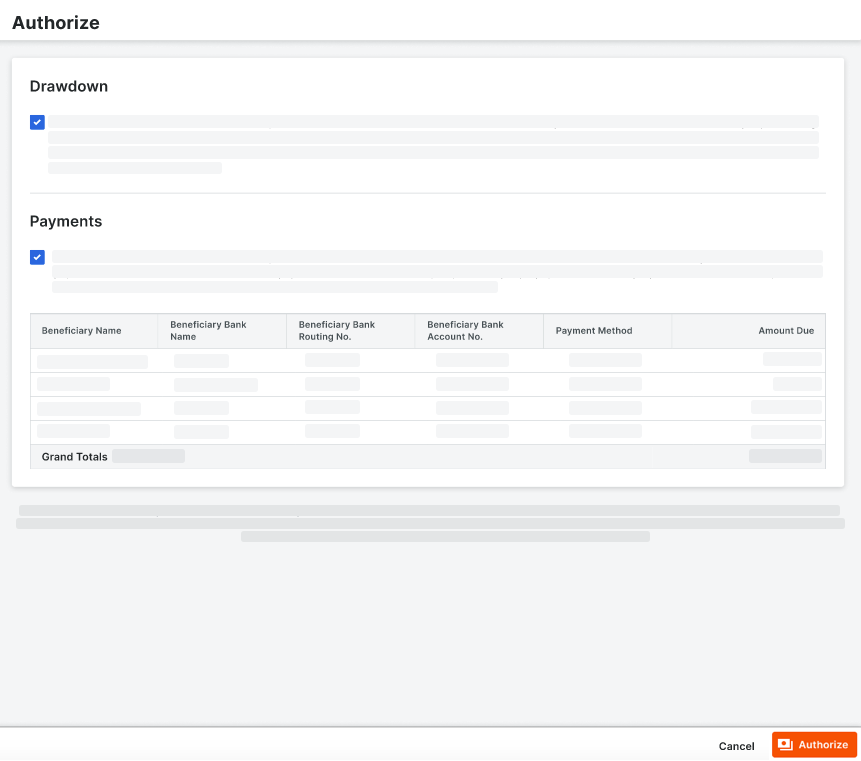
  4. In the Authorise panel:

    • Under Drawdown, mark the tickbox to authorise the instructions.

    • Under payment, mark the tickbox to authorise the .

      Authorize Panel With Workflows

  5. Click Authorise.

     Tips

    What happens next? See these tip to learn more:

Workflows disabled: Authorise the disbursement

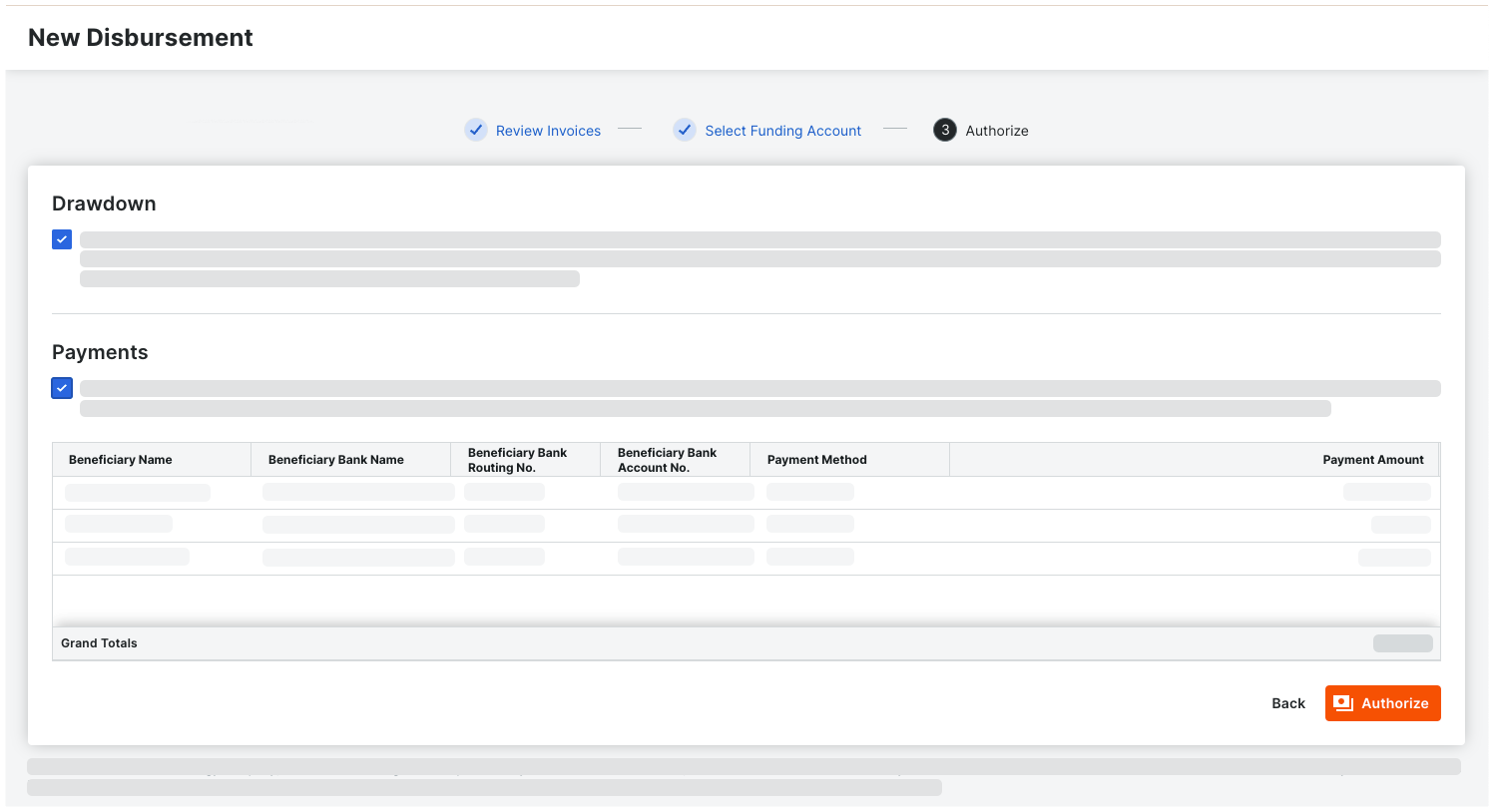
If the Workflows tool is disabled, a third 'Authorise' step appears on the New disbursement page. A payment admin or payment disburser must acknowledge the drawdown and payment for the disbursement before clicking Authorise.

Click here to view the steps.

Authorise the disbursement
 Important

Payment admins and disbursers cannot authorise a disbursement if they are also the last user to approve a subcontractor payment application in that disbursement.

  1. In the Authorise panel:

    • Under Drawdown, mark the tickbox to authorise the drawdown instructions.

    • Under payment, mark the tickbox to authorise the payment orders.

      Authorize New Disbursement

  2. Click Authorise.

     Tips

    What happens next? See these tip to learn more:

See Also

Loading related articles...