Create a Project level snag list item template
Background
If you're a Snag List tool admin, you may find it useful to add custom snag list item templates. While Procore provides a default library of common snag list items for all companies, you can add your own custom templates for snag list items specific to your project. These templates can be organised by type and configured to include a default trade, snag manager, assignee and final approver for the item. These templates are only available for use on a mobile device; when a team member creates a new snag list item from a mobile device, they can select one of these templates, which will auto-fill fields with default information. You can then add or edit any information as needed.
Things to Consider
Required User Permissions:
'Admin' level permissions on the project's Snag List tool.
Additional Information:
Snag list templates are only available for use on a mobile device.
To manage snag list templates at the Company level so that the template will appear on all projects, see Create a Company level snag list item template.
Steps
Navigate to the project's Snag List tool.
Click the Configure Settings
 icon.
Click Snag list templates.
Scroll to the category under which you would like to create a template.
Note: If no categories are present, follow the steps in Create a quick snag category on a project.Enter the following information in the empty fields.
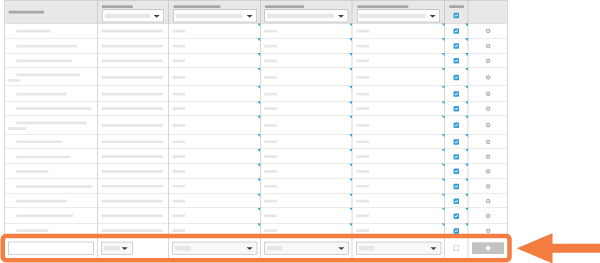
Template name: Enter the name of the template. This will populate in the subject of the snag list item.
Default trade: Select the trade that is associated with the snag list item.
Default snag list item manager: Select a default snag list item manager who will oversee the item throughout its entire lifecycle.
Note: If no snag list item manager is selected, Procore will default to the snag list item manager defined in the Snag List tool's settings. If no snag list item manager is defined in the Snag List tool's settings, Procore will list the item's creator as the snag list item manager.Default assignee: Select a default assignee who will be responsible for resolving these items.
Default final approver: Select a default final approver who will have the authority to close the item.
Note: If no final approver is selected, Procore will automatically list the item's creator as the final approver.Active: Mark the tickbox to make this template available to team members.
Click Add.
Next Steps
See Also
Loading related articles...