Create and view an RFI report
Things to Consider
Prerequisites:
The report tool must be an active tab on the project. See Add and remove tools on a project.
Limitations:
Any report made before 8/1/2015 will appear as a company-wide report unless a user with 'admin' level permission to the RFI tool and 'admin' level permission to the report tool modifies it to 'Personal' or 'Project specific.'
To create a custom report using the Reports tool, see Create a custom company report or Create a custom project report.
Additional Information:
There is no limit to the number of custom report that you can create with the RFI tool on a project.
When you create a custom RFI report for a project, the same report will be created for all other projects if it is a global report.
Steps
Create a new report
View a canned report
Create a new report
Navigate to the project's RFI tool..
Click Report > Create new report.
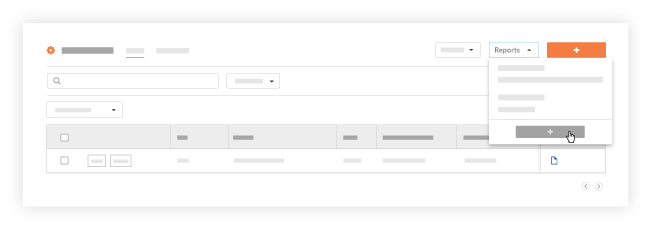
Continue by completing the steps in Create a custom project report.
A link for your new report will appear under custom reports on the RFIs page. It will also be available for viewing in the report tool. See View a report.
View a canned report
Navigate to the project's RFI tool..
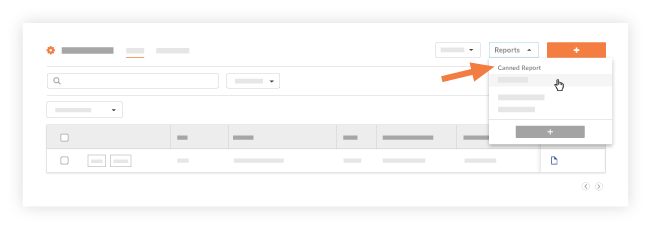
Click Report and then choose one of the report under the Canned reports heading in the menu.
See Also
Loading related articles...