View lookahead programmes
Things to Consider
Required User Permissions:
Read Only and above permissions on the project's Programme tool.
Additional Information:
Programme tasks are defined in an integrated Project Programme (e.g. MS Project, Primavera P6, estimated cost to complete.).
Steps
Navigate to the project's Programme tool.
Click the Lookaheads tab.
You will see a lookahead showing the date range you selected. A lookahead can be created to range from one to six weeks. See View lookahead programmes.
The following colours and symbols can be seen on a lookahead:

Blue: non-critical
Red: Critical
Grey hatch pattern: Baselines compare to master programme
Hazard Symbol: Date differs from the master programme
Configure columns: allows you to filter what columns are shown on the Lookahead.
Filter options: Allows you to filter what you want to see on the Lookahead. If you only want to see critical path from a certain date range use the filter options to adjust the Lookahead.
Compare to latest master: Compares lookaheads to items on the last master programme updated in Procore.
Delete lookahead
 : Click the trash icon to delete lookaheads you've created.
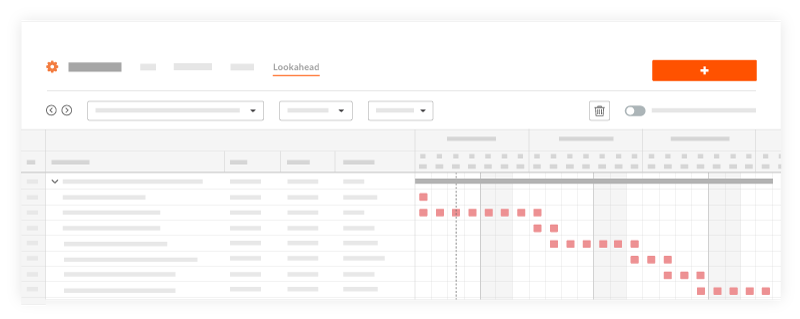
The following options are available when viewing a lookahead:
Configure columns
View lookaheads
Filter options
Compare to latest master
View activity feed
Configure columns
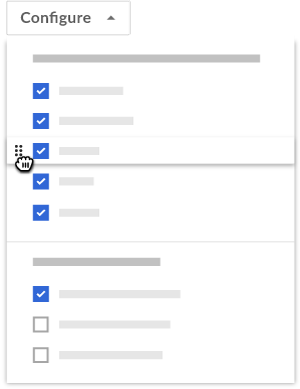
Click the Configure drop-down menu.
Choose which columns you want included on the Lookahead:
Mark the tickbox next to each option you want to see as a column.
Clear the tickboxes next to any options you want to hide.
Selected columns can be sorted on the Lookahead from low to high and high to low.
Reorder columns on the lookahead chart:
Hover to the left of the column name you want to move.
Click and drag the grip
 icon to drop the column name into a new order.
View other lookahead programmes
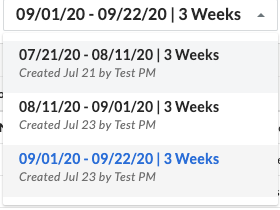
Click the date range drop-down to see all the lookaheads created.
Filter options
Click Add Filter.
Choose from the following options to filter by:
Resources: people resources needed to complete or perform the task.
Critical tasks: Shows tasks marked as critical on the native programme file.
Company: companies involved in execution of the task.
Assignees: individuals or groups the task is assigned to.
Compare to latest master
Click the toggle ON
 next to 'Compare lookahead to the master' if you want to compare.
Note: A lookahead will always compare to the latest master programme uploaded. When turning on the compare to latest master you will see a grey hatch pattern directly under the item comparing the lookahead dates with the latest master dates. If there is a delta, a hazard icon will appear next to the programme task in the lookahead.
See Also
Loading related articles...